
AI Employee / Conversation AI
Conversations AI Bots can now Respond to Images
Modified on: Mon, 1 Jun, 2026 at 11:12 AM
Conversation AI Image Response allows supported Conversation AI bots to analyze customer-shared images and reply with context-aware messages. When enabled, the bot can use visual context from supported image files across supported channels such as Live Chat, Facebook Messenger, Instagram DMs, WhatsApp, and SMS/MMS.
TABLE OF CONTENTS
- What is Conversations AI Image Response?
- Key Benefits of Conversations AI Image Response
- Supported Image Types
- Channel Compatibility
- Multi-Image Support
- How To Setup Conversations AI Image Response
- Frequently Asked Questions
- Related Articles
What is Conversations AI Image Response?
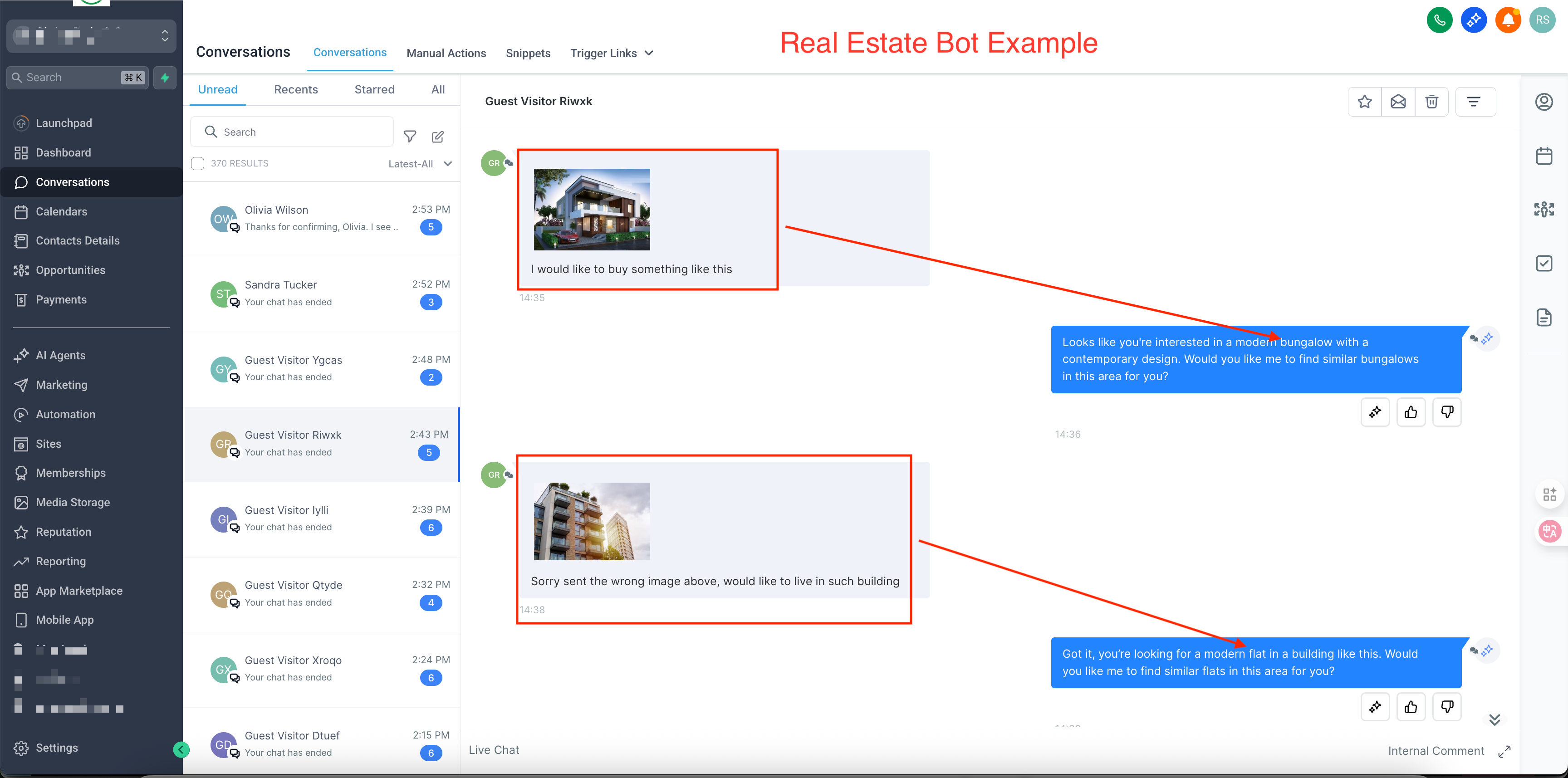
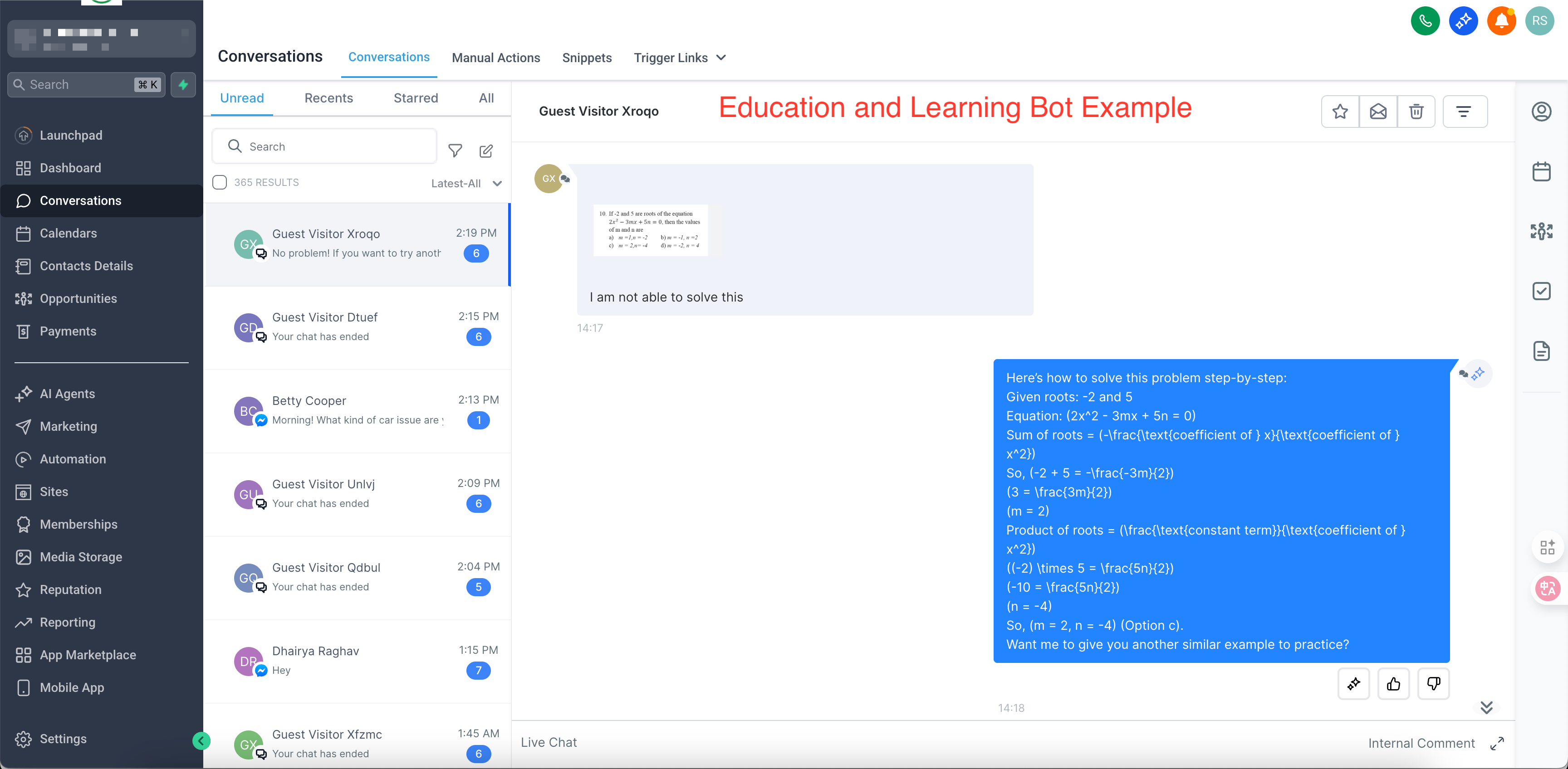
Conversation AI Image Response enables supported OmniReach bots to interpret customer-shared images, such as product photos, screenshots, receipts, menus, or issue photos, and respond with context-aware messages. When a contact sends a supported image, the bot analyzes the visual content and uses that context to craft a helpful reply within the ongoing conversation.
This feature is supported when the bot is operating in Autopilot Mode. If the bot is configured in Suggestive Mode, enabling image response will not activate image processing.
Key Benefits of Conversations AI Image Response
The benefits below focus on tangible outcomes you can expect after enabling image responses—quicker resolutions, clearer conversations, and consistent experiences across channels.
Visual problem-solving: Analyze screenshots, receipts, menus, and product photos to provide precise, relevant guidance.
Stronger outcomes across visual use cases: Provide more helpful assistance for support tickets, appointment intake/prep, product questions, and document sharing/verification.
Faster resolution: Reduce follow-up questions about “what’s on screen,” shortening handle time and improving customer satisfaction.
Omni-channel consistency: Maintain the same helpful experience on Live Chat, Facebook Messenger, Instagram DMs, WhatsApp, and SMS/MMS (U.S. & Canada).
Multi-image context: Process multiple images sent together and respond coherently in a single message.
Operational efficiency: Deflect routine inquiries and empower teams to focus on escalations and high-value tasks.
Supported Image Types
File format support determines whether images can be analyzed reliably. For the smoothest experience, use commonly supported image formats.
Supported for Conversation AI image response:
- JPG (.jpg)
- JPEG (.jpeg)
- PNG (.png)
Channel Compatibility
Channel support depends on the channels connected to the bot and whether those channels support receiving image messages.
Conversation AI Image Response can be used with supported images received through:
- Live Chat
- Facebook Messenger
- Instagram Direct Messages
- WhatsApp
- SMS/MMS, where MMS is supported
Multi-Image Support
Customers often share multiple pictures to explain a situation. Handling several images at once keeps conversations concise and avoids fragmented replies.
When multiple images are sent together, the bot analyzes them as a group and provides a single, coherent response that references relevant visual details, reducing message clutter and improving clarity.
How To Setup Conversations AI Image Response
Proper setup ensures your bot can analyze supported images and respond in the same conversation thread.
- From your sub-account, go to AI Agents → Conversation AI → Agent List.
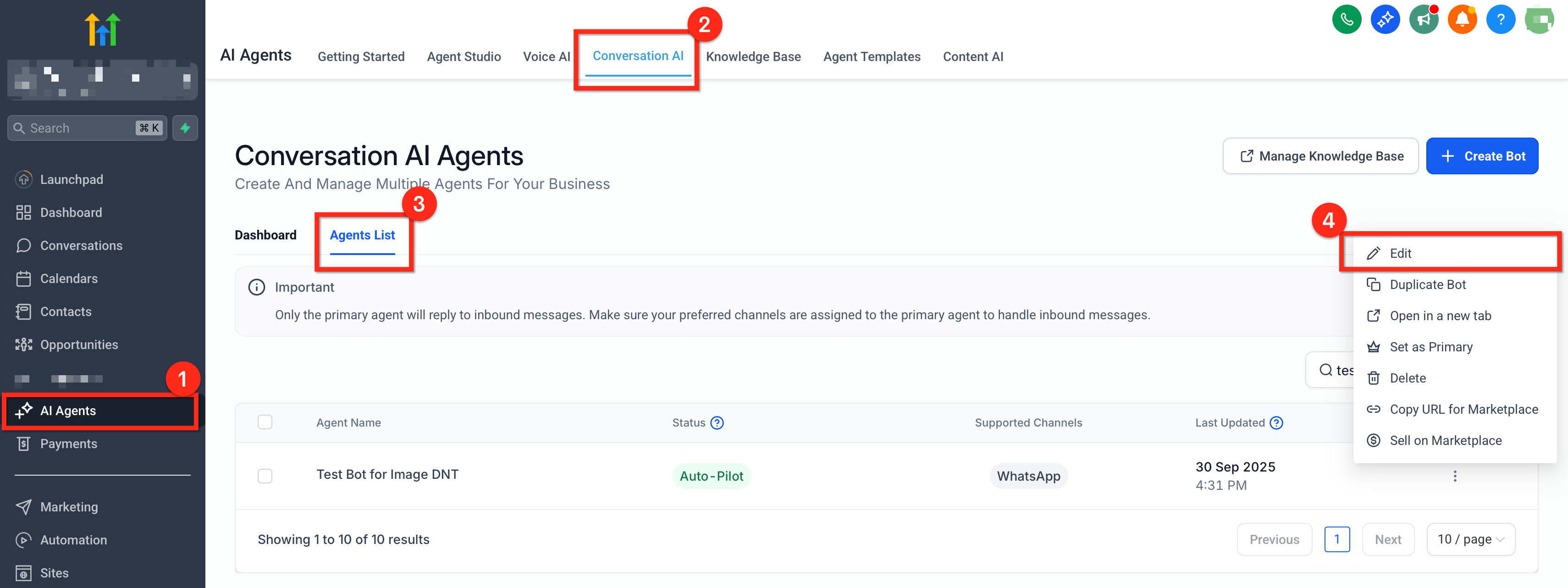
- Click the three-dot menu next to the bot you want to configure, then select Edit.
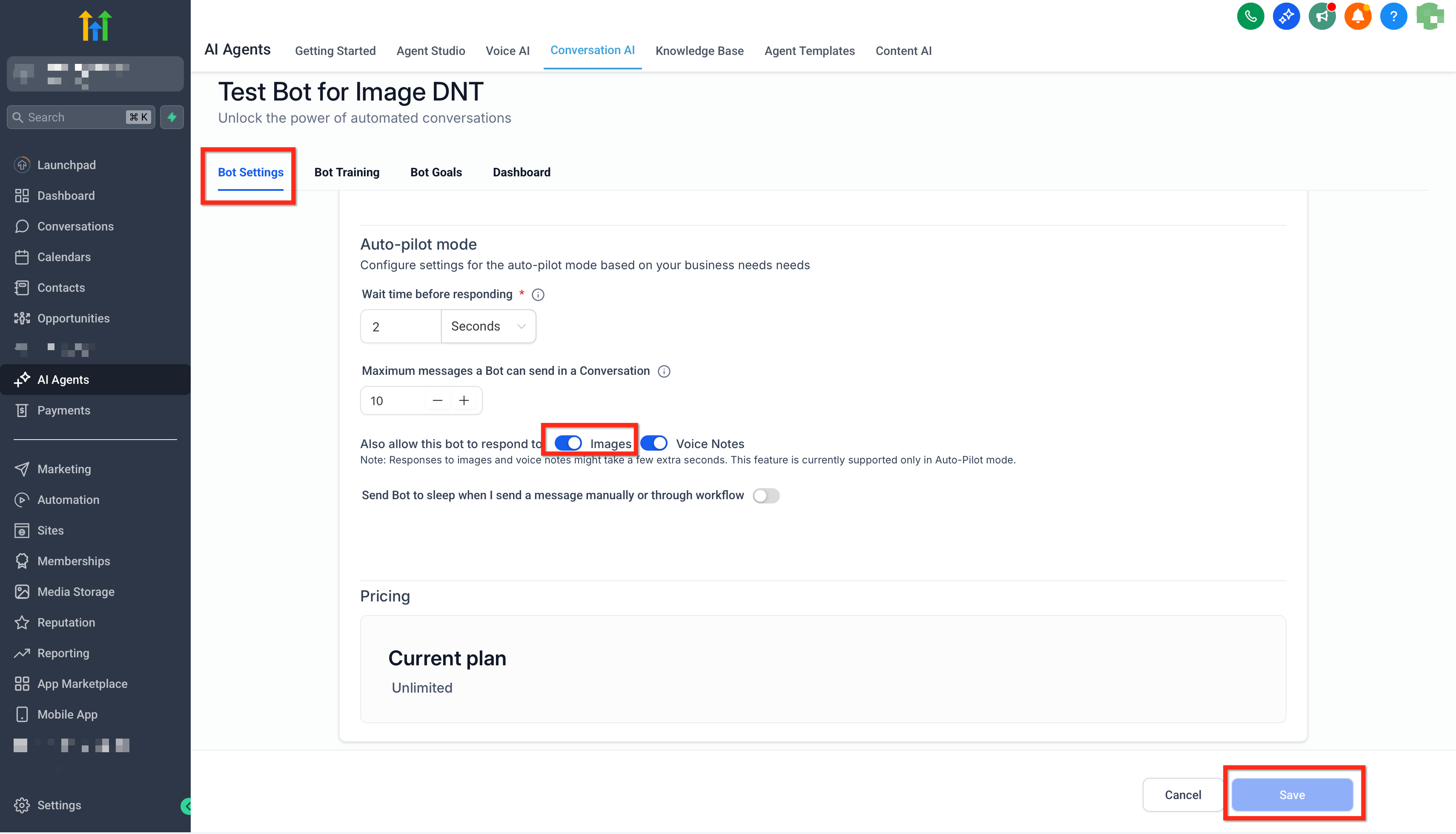
Make sure the bot is configured to operate in Autopilot Mode. Image response is not supported in Suggestive Mode
Go to Bot Settings → Also allow this bot to respond to.
- Enable Images.
- Save your changes.
- Test the bot from a connected channel by sending a supported image file, such as JPG, JPEG, or PNG. Confirm the bot’s reply references the image context.
Frequently Asked Questions
Q: Is there an extra fee to use Image Response?
No Labs add-on is required. Standard messaging rates and any applicable AI usage/pricing in your account apply. For details, see OmniReach Pricing and Conversations AI plan documentation.
Q: What image size is supported?
Limits vary by channel and carrier. For best results, use JPG/PNG within the channel’s recommended maximum. See Media Library Specs & Formats and your channel’s media guidelines.
Q: Will images sent during workflow-initiated conversations be analyzed?
If the workflow routes the conversation to a bot with Images enabled, incoming supported images will be analyzed and responded to in the same thread.
Q: Can I enable Image Response on some channels but not others?
The Images setting is configured per bot and applies to the channels that bot handles. To vary behavior by channel, route conversations to different bots or use separate bots per channel.
Q: Does this handle HEIC from iPhone?
HEIC support is coming soon. Until then, ask users to resend as JPG/PNG or enable device settings that capture photos in a compatible format.
Q: Why did the bot’s response feel generic for a photo?
Low image quality, heavy compression, or missing context can reduce accuracy. Ask for a clearer image and a short note (e.g., “problem area on the hinge”).