
Documents & Contracts / Documents and Contracts
Public Document Links for E-Signing
Modified on: Wed, 27 Aug, 2025 at 10:08 AM
Public Document Links allow you to quickly share and collect signatures on standard agreements without needing to create or add a contact. With a simple link, anyone can access, review, and sign your document—making this feature ideal for on-the-go agreements and one-time signers.
What’s New?
• Public Document Creation – Build public documents for signing directly in Documents & Contracts > Templates.
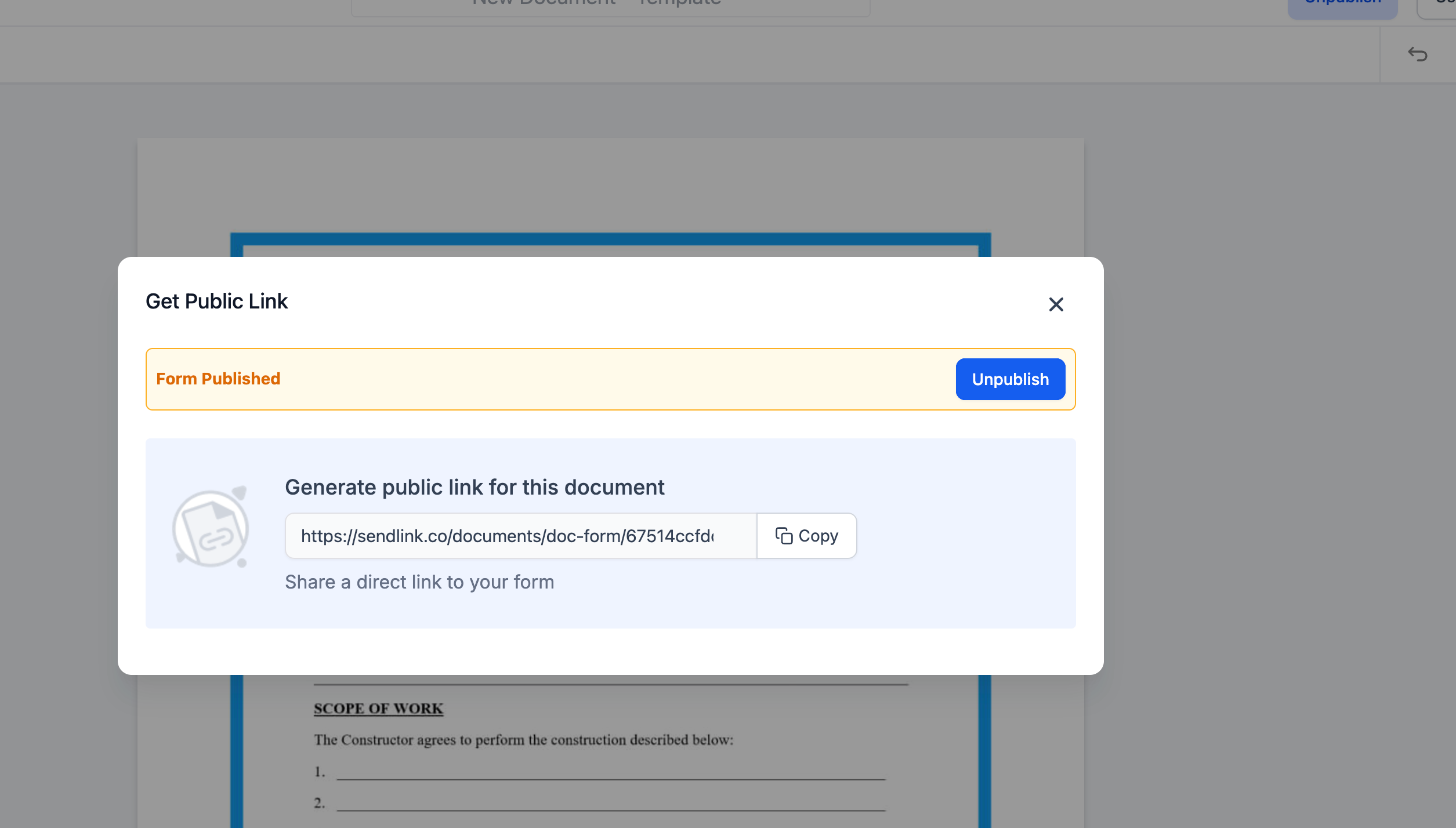
• Shareable Links – Each published document generates a unique link for easy sharing.
• Response Management – View and download all signatures and responses in one place.
• Workflow Compatibility – Continue using templates in workflows; Public Document Links work independently.
How to Use
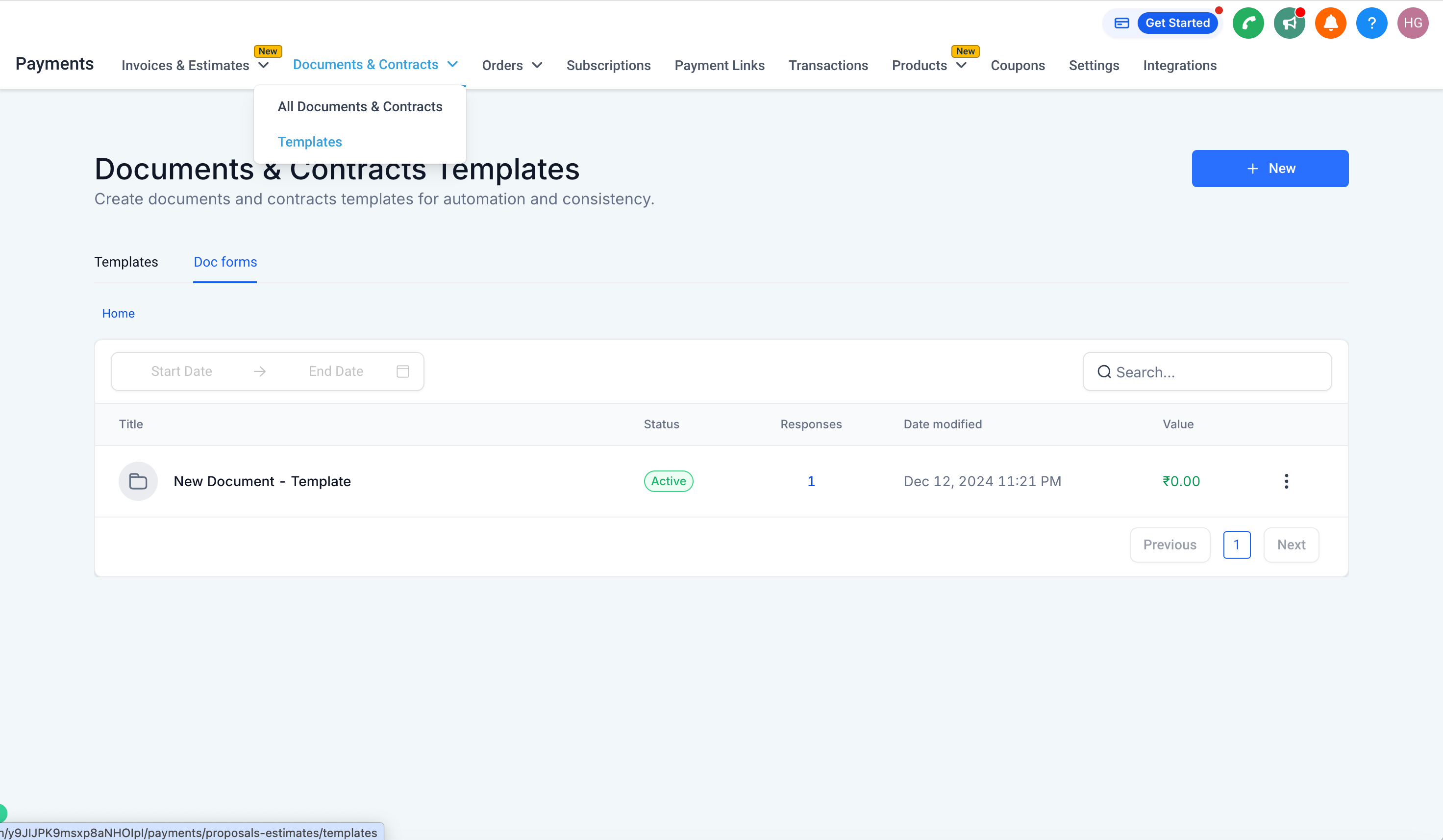
1. Create a Public Document
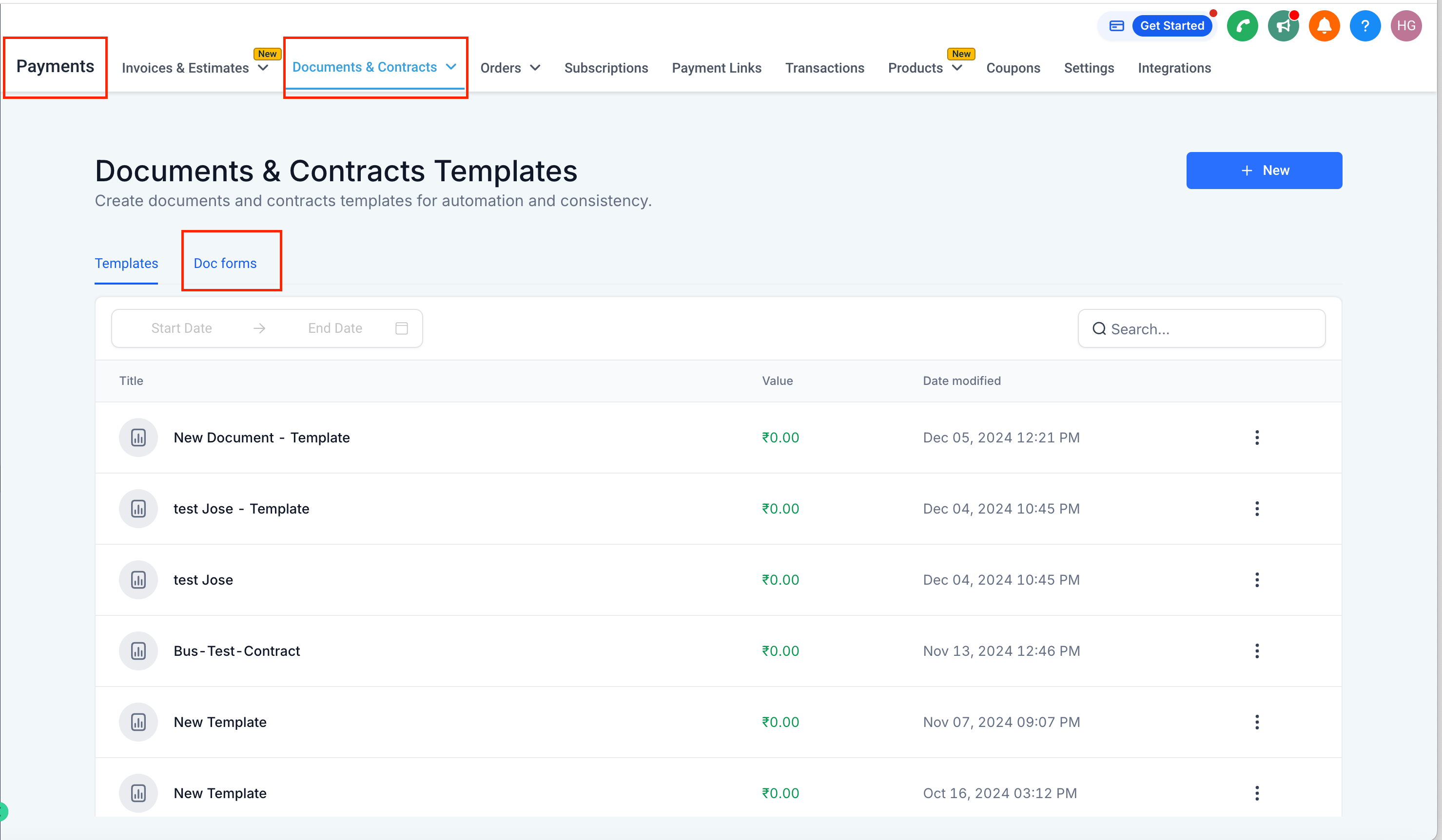
• Navigate to Documents & Contracts > Templates.
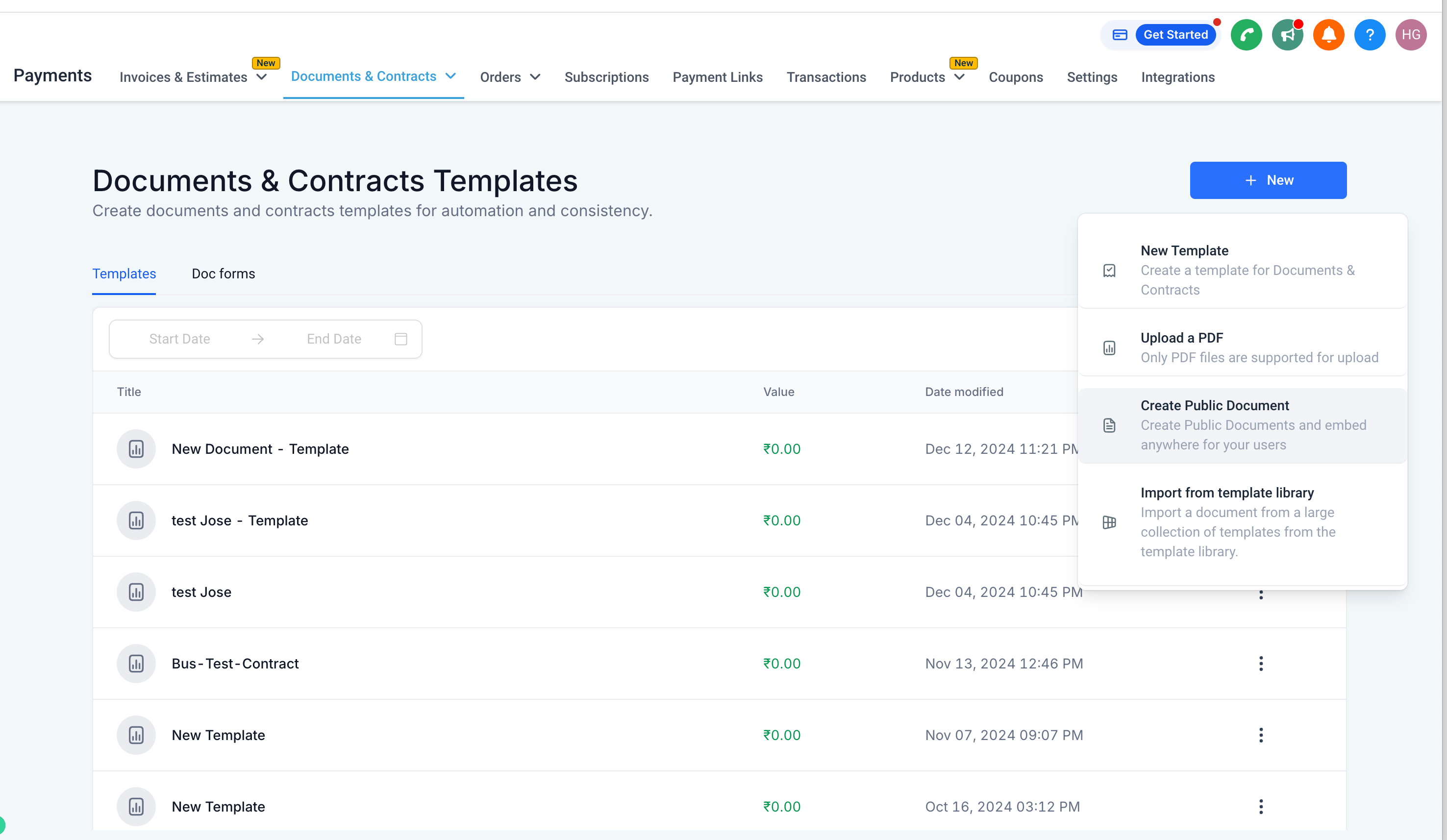
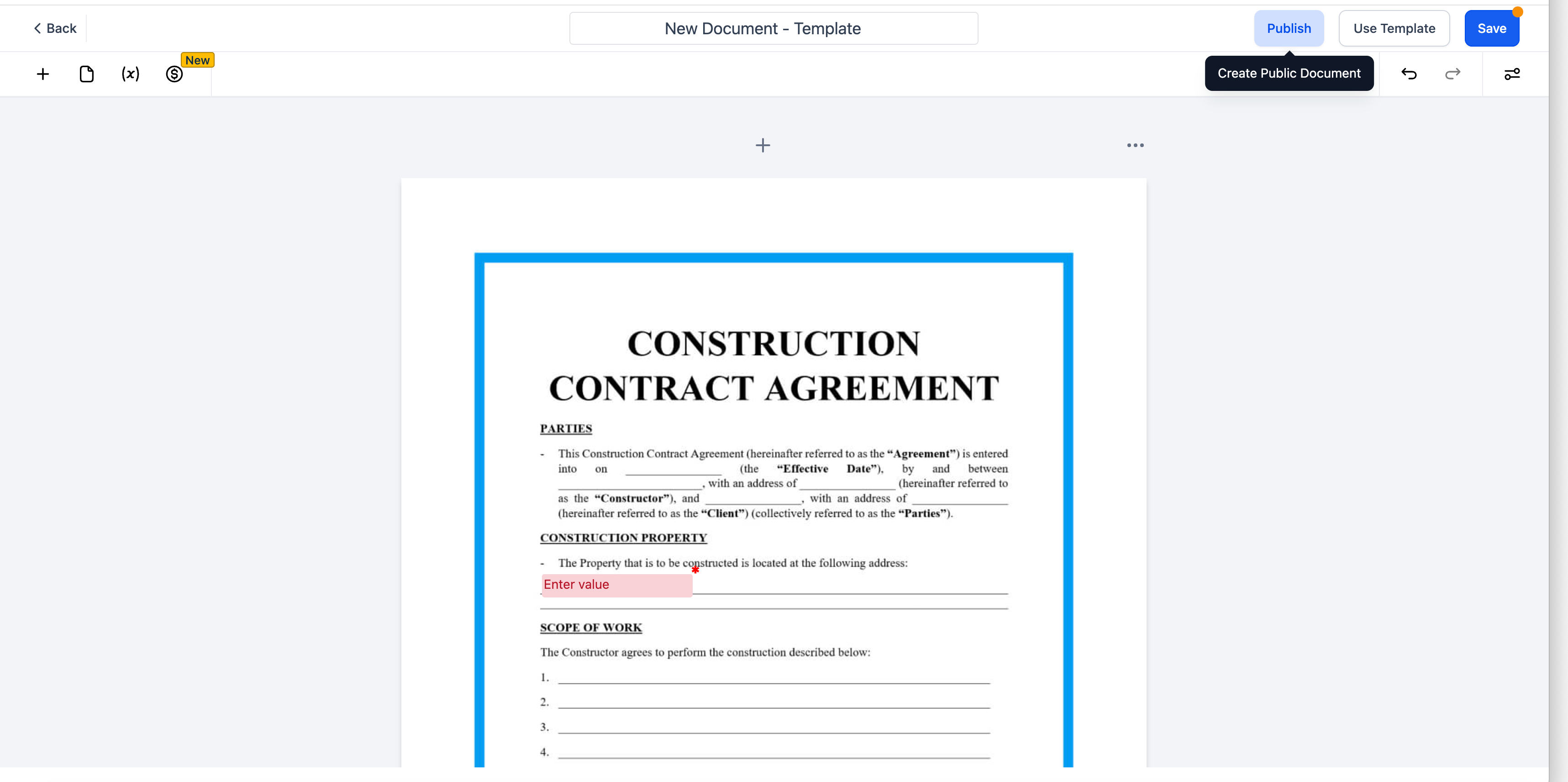
• Click New Template > Publish, or select New > Create Public Document.
2. Share the Document
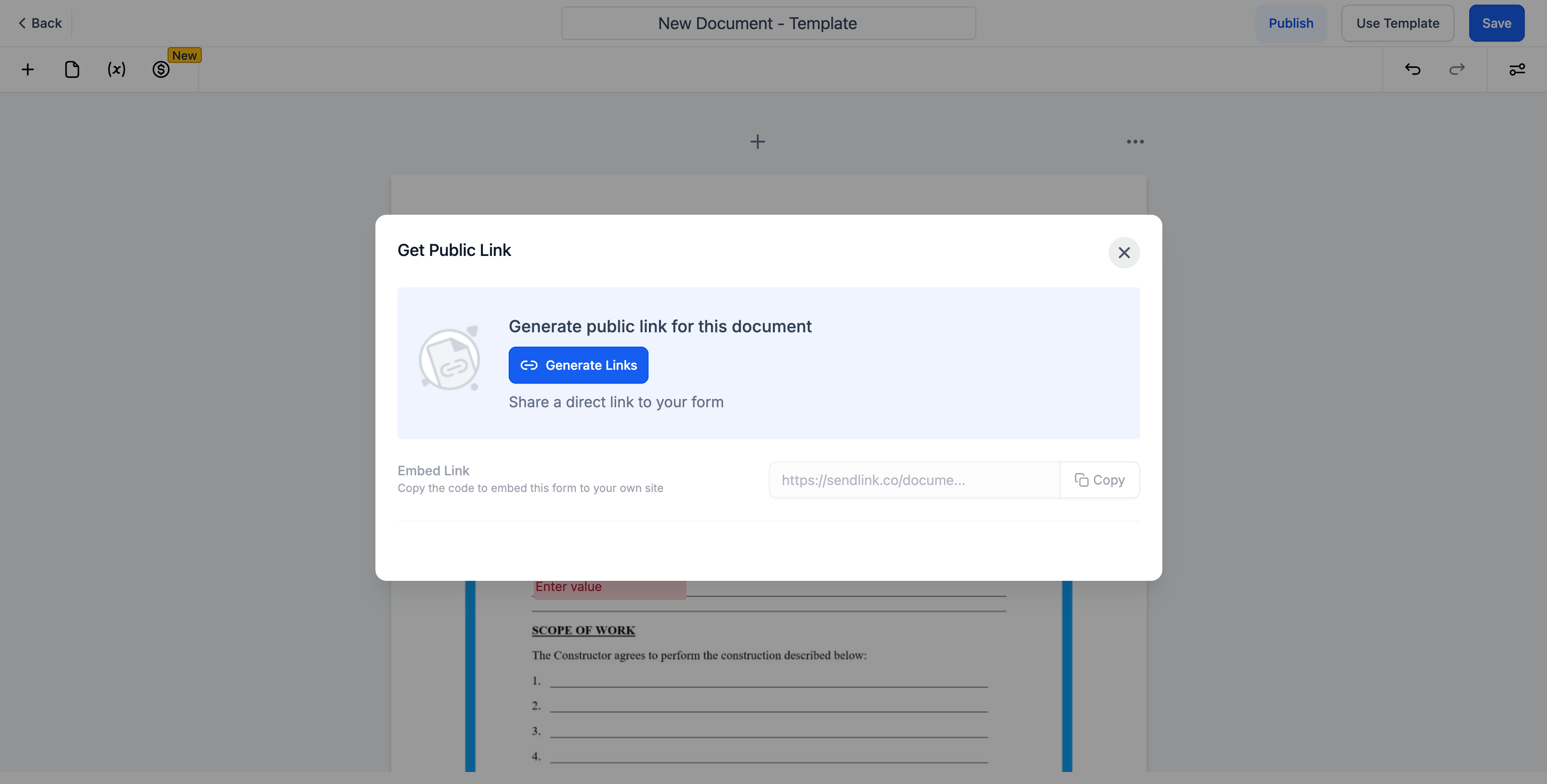
• Once published, copy the generated public link.
• Share it with recipients through email, chat, or any communication channel.
3. Signing Process for Recipients
• Recipients open the link, enter their first name, last name, and email, then sign.
• A signed copy is automatically emailed to the recipient.
4. Manage Responses
• Go to the Responses section to view or download signed documents.
5. Unpublish a Document
• To stop accepting new signatures, unpublish the document at any time.
Why This Matters
Public Document Links provide a fast and flexible signing option when:
• You don’t need to store a new contact.
• You want an agreement signed quickly outside of a workflow.
• You need a repeatable template that anyone can access via link.
Frequently Asked Questions (FAQs)
Q: Can I still use my existing document templates in workflows?
Yes. Public Document Links are optional. All existing templates remain fully functional in workflows.
Q: Do recipients need an account to sign?
No. They only need to provide their name and email.
Q: Where do I find signed documents?
Signed copies and responses are stored in the Responses section.
Q: Do recipients get a copy of what they signed?
Yes. A signed copy is automatically emailed to them.
Q: Can I turn off a link after sharing it?
Yes. Unpublishing the document disables the link immediately.
Q: How many people can sign through one Public Document link?
There’s no limit—multiple people can sign until you unpublish the link.