
E-commerce store / E-Commerce Store
How to Sort and Filter Products in OmniReach Ecommerce Site Builder
Modified on: Thu, 19 Mar, 2026 at 9:05 AM
Arrangement of products within the Product list page was an issue. Buyers always faced issue with the discoverability of products and as a store owner this was a bottleneck. To tackle this problem, store owners can now add the sort and filter option in the product list page.
TABLE OF CONTENTS
- Mobile Product List Page (PLP)
- Mobile Sort (Bottom Sheet)
- Mobile Filters (Full-Screen Modal)
- Product Count & Result Updates
- Builder Preview & Styling
- How to Use:
- Frequently Asked Questions
- Recent/Related Articles
Mobile Product List Page (PLP)
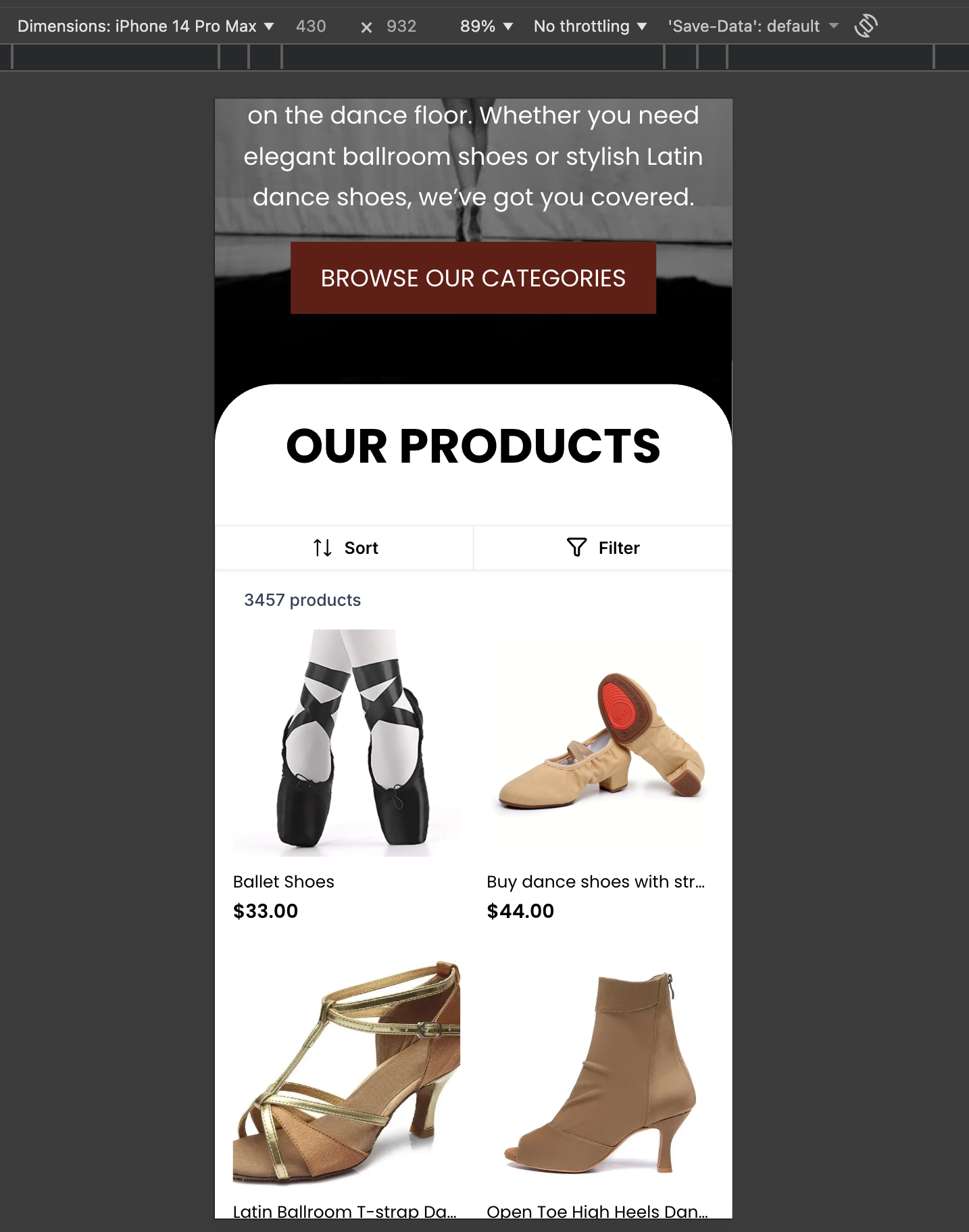
Mobile shoppers need quick ways to narrow large catalogs on small screens. The PLP now includes touch-optimized Sort and Filter controls, a dynamic product count, and builder-side styling so you can match your brand.
Mobile Sort (Bottom Sheet)
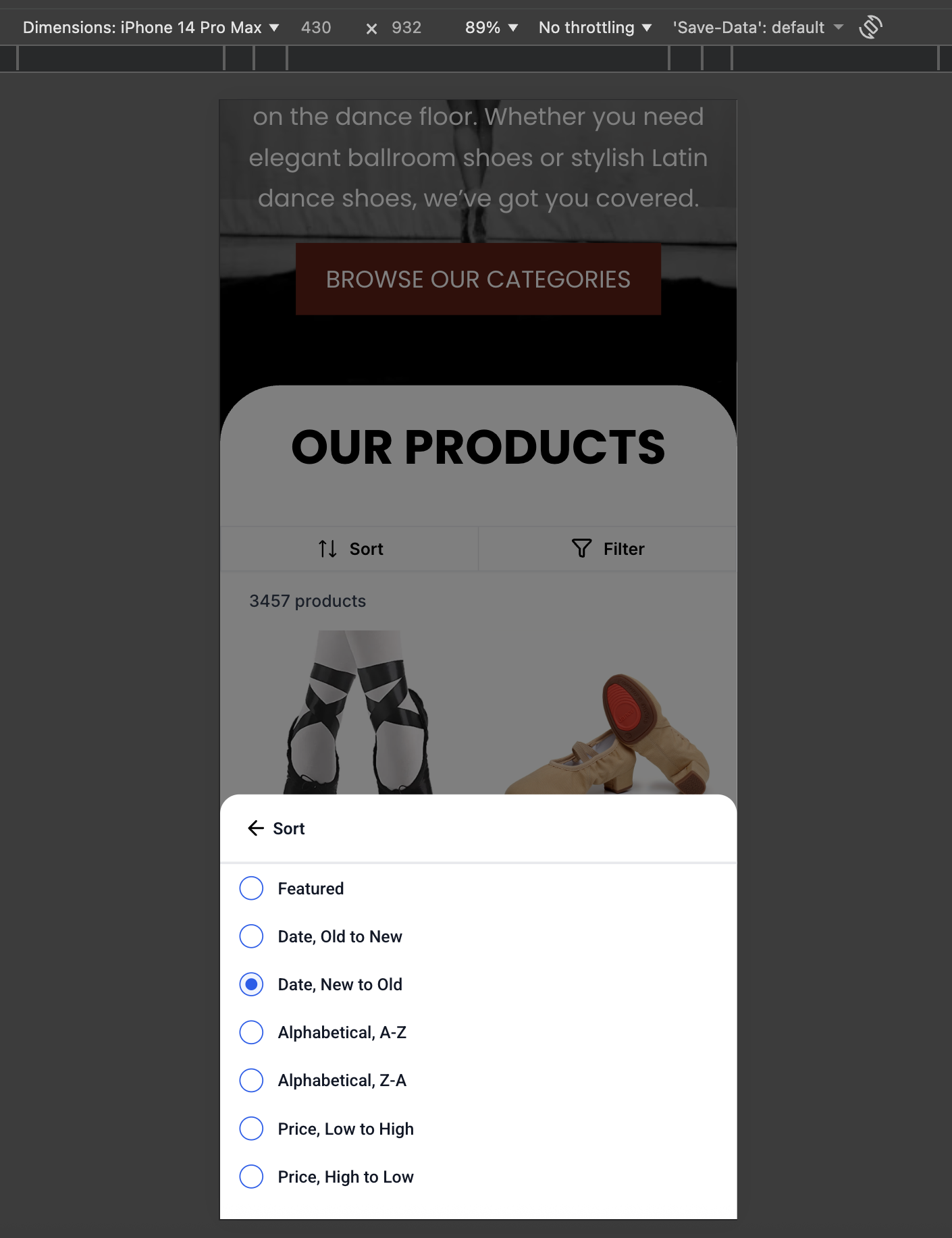
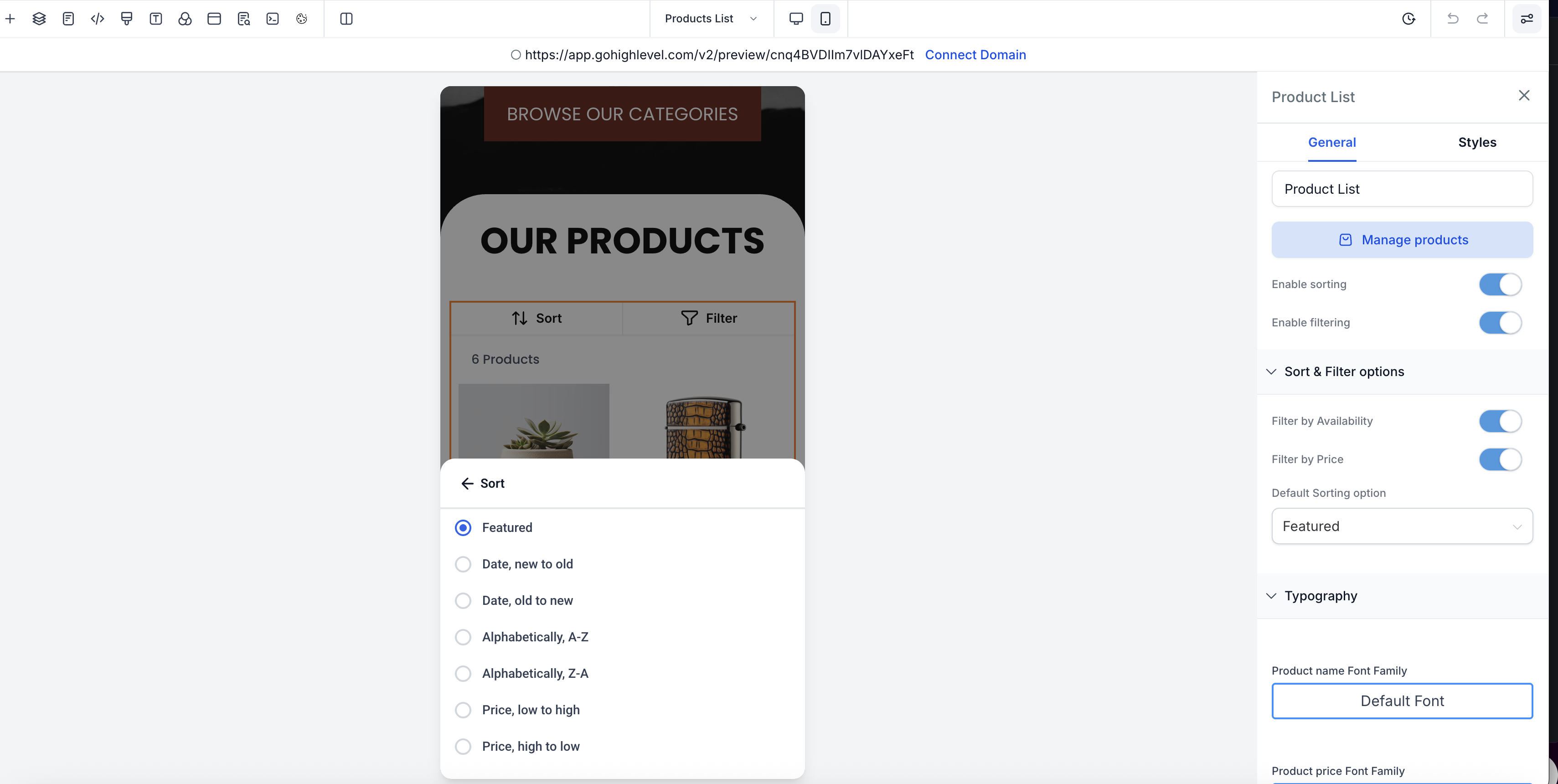
A dedicated Sort button appears in the PLP top bar on mobile. Tapping opens a bottom-sheet modal with common sort choices.
Available Options
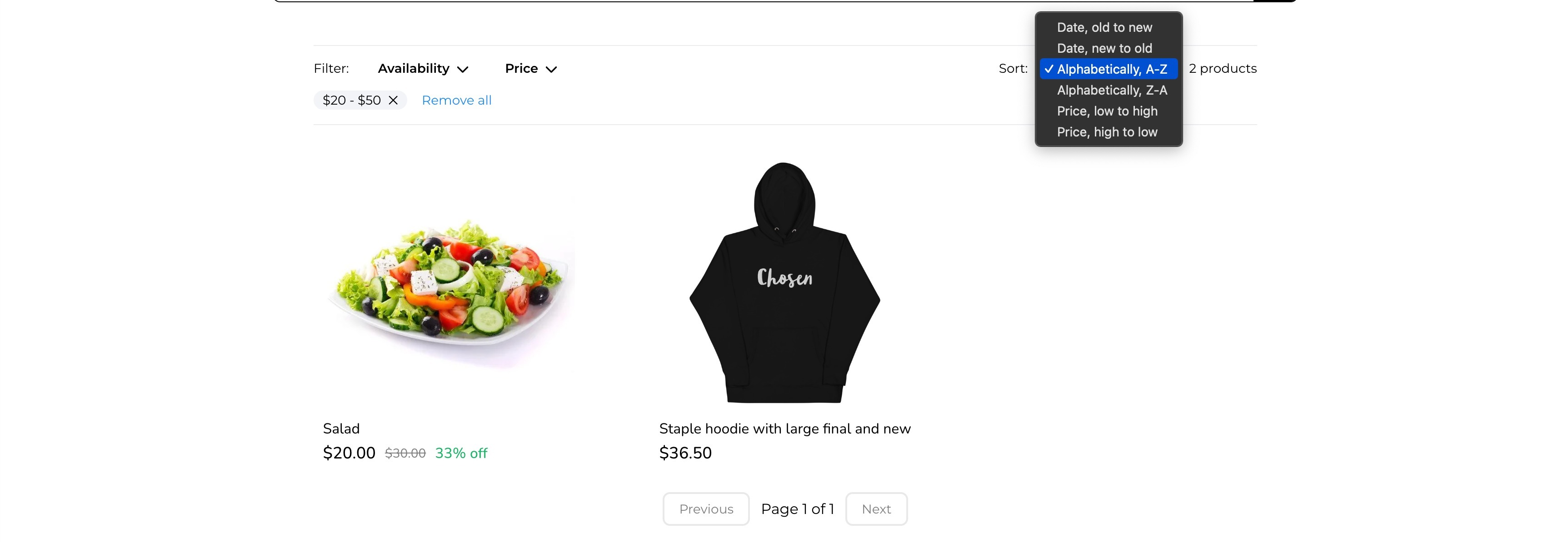
- Date (Old → New, New → Old)
- Alphabetical (A–Z, Z–A)
- Price (Low → High, High → Low)
Tips
- Dismiss the sort sheet by tapping outside or swiping down.
- Set a Default Sorting option in the widget to guide first-load ordering.
Mobile Filters (Full-Screen Modal)
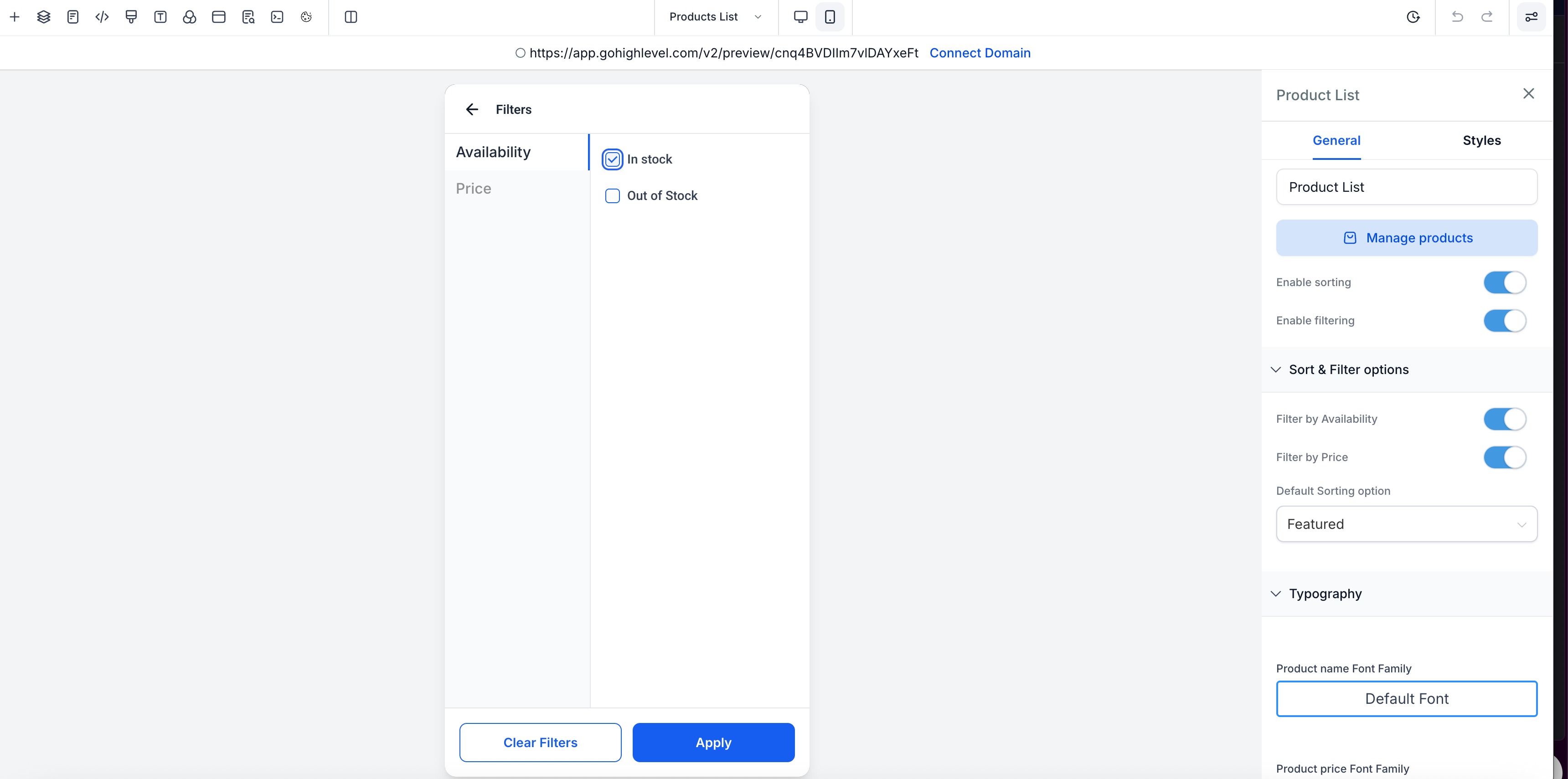
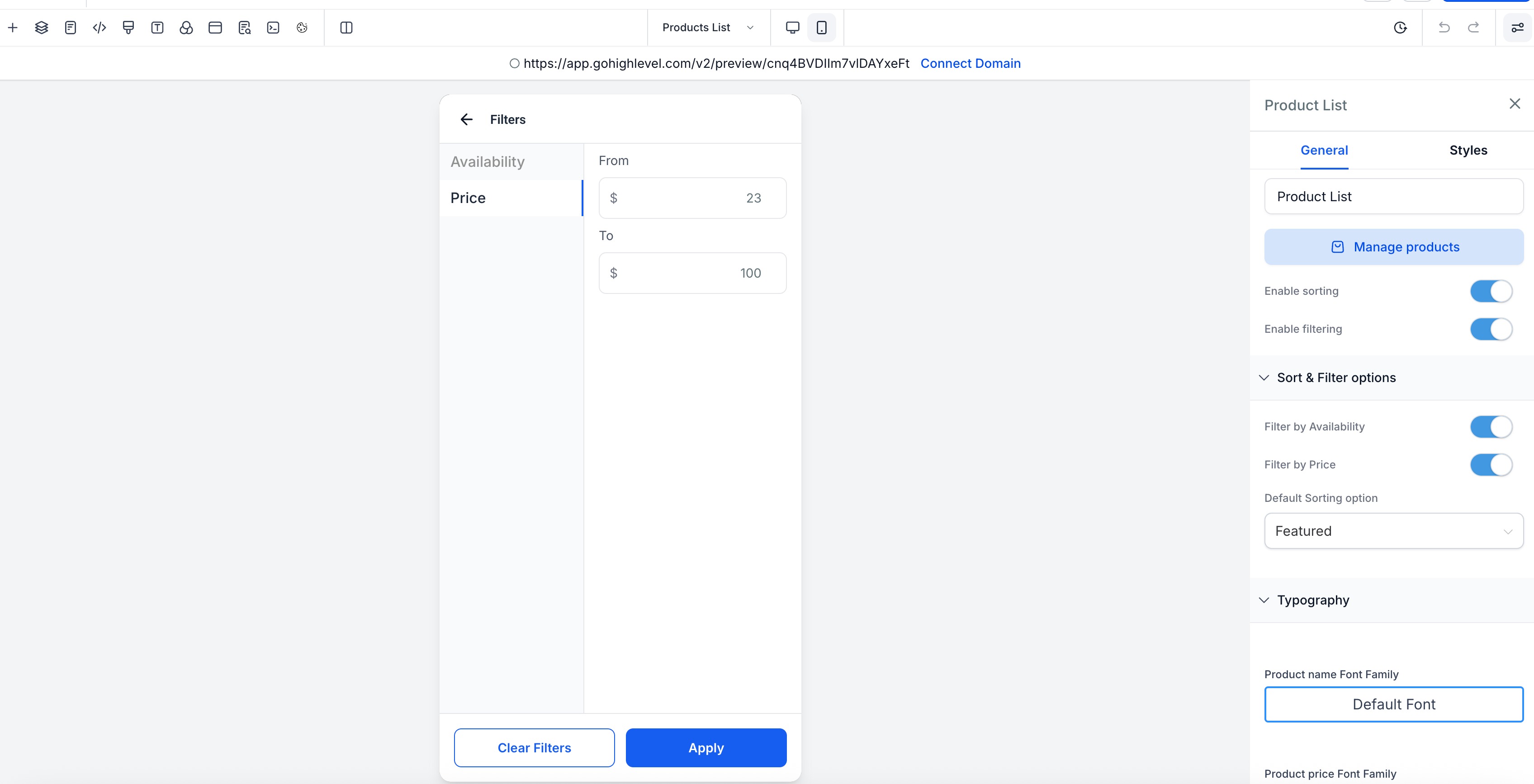
Filtering helps shoppers see only relevant items. On mobile, Filters open in a **full-screen** modal with a sticky footer for easy actions.
Filter Types
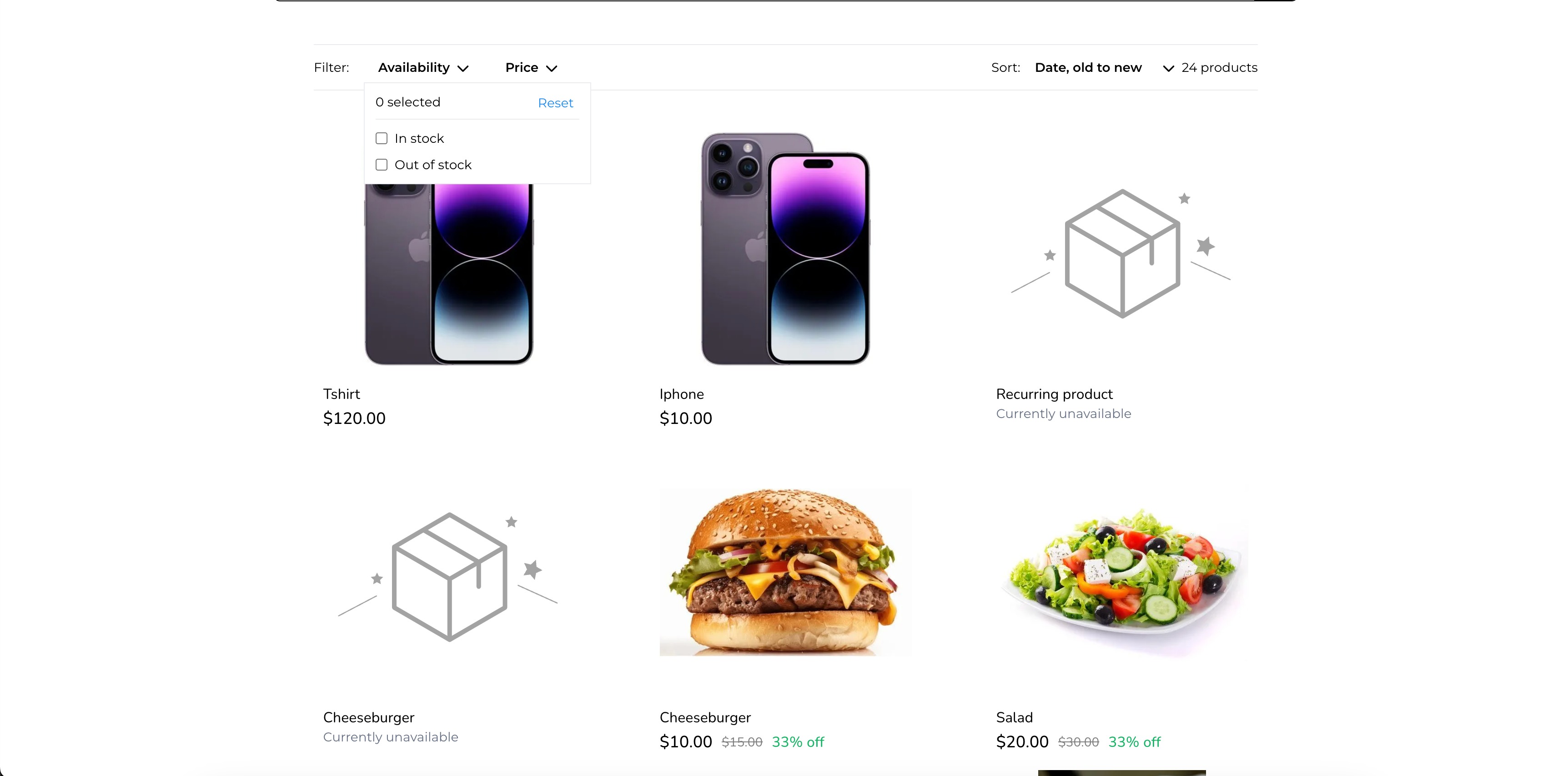
- Availability: In stock / Out of Stock
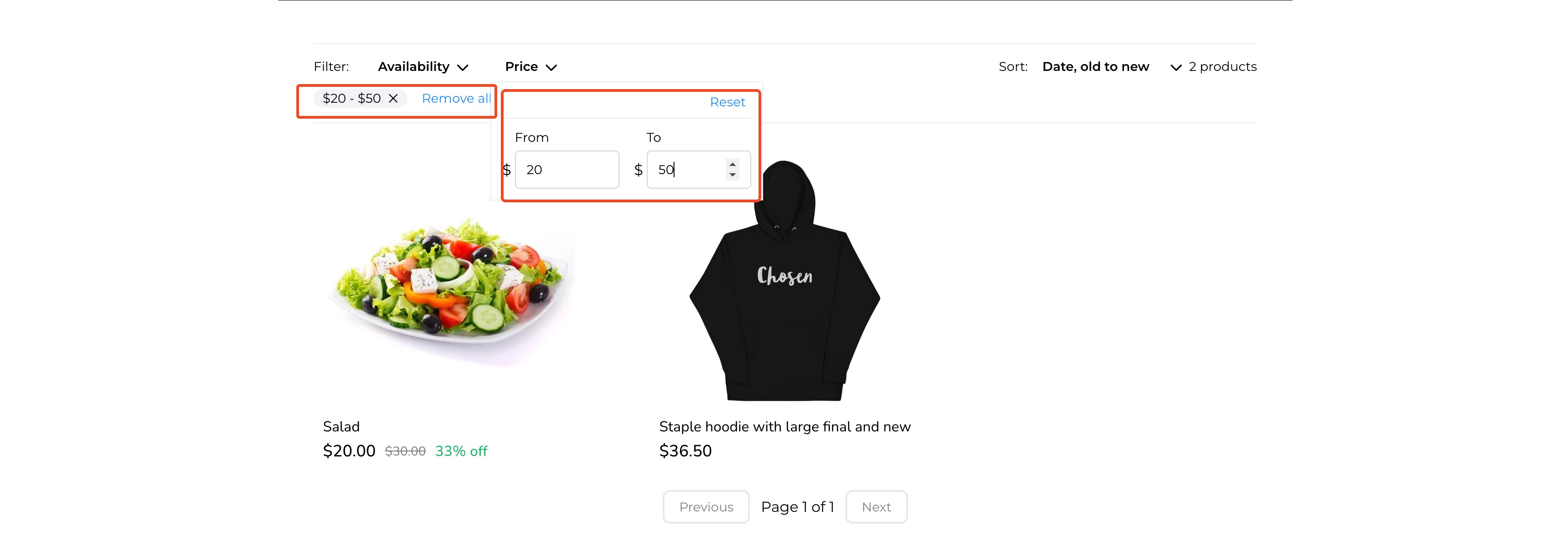
- Price Range: From and To numeric inputs
Behavior
- Apply instantly updates results; Clear Filters resets selections.
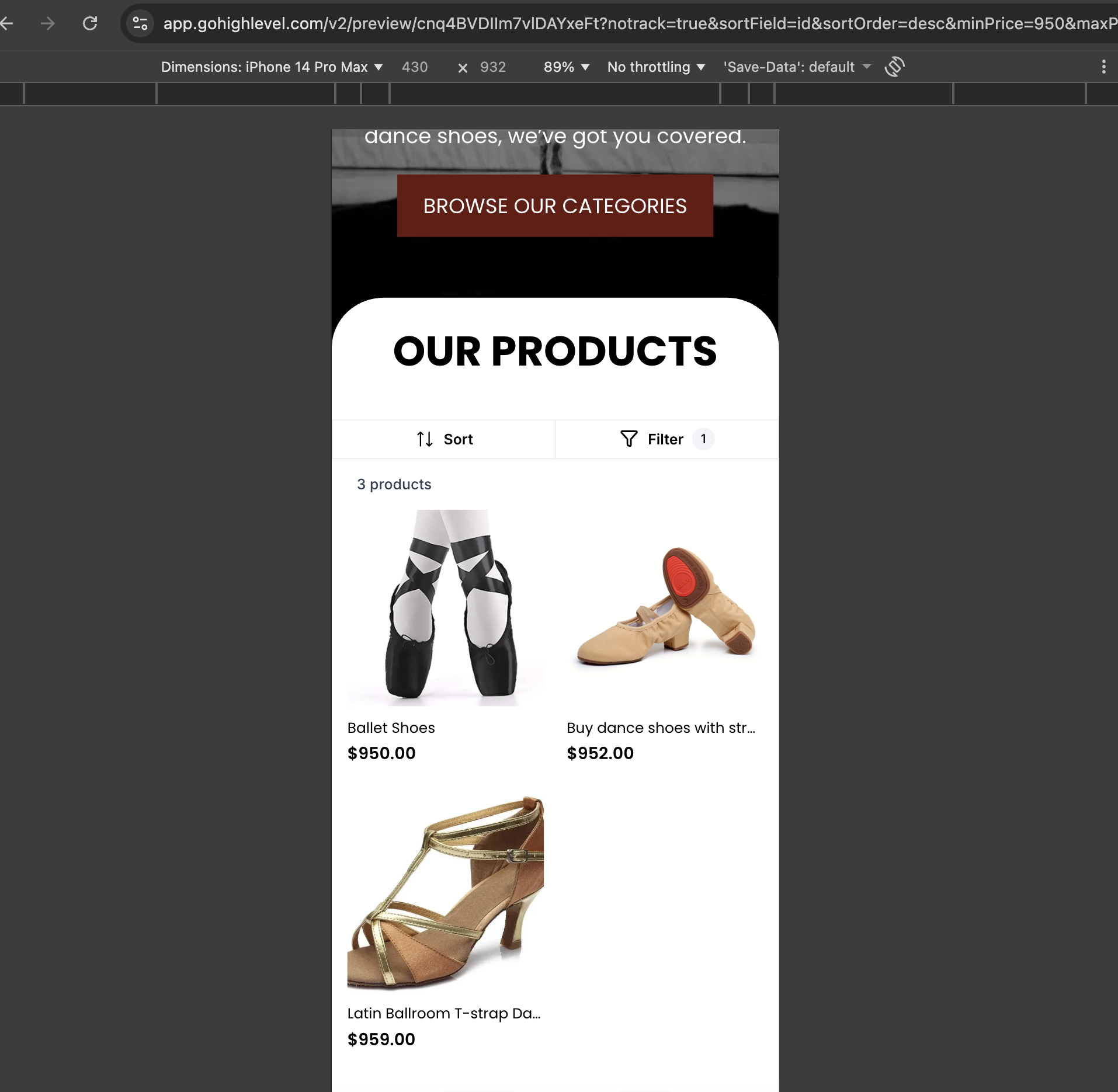
- The Filters button shows a badge count for active filters.
Availability defaults (both selected) and price validation behavior follow store settings. If you’ve customized availability rules, only eligible products will surface.
Product Count & Result Updates
A running product count appears at the top of the PLP and updates dynamically as filters are applied or cleared, giving shoppers context while browsing.
Builder Preview & Styling
Preview the exact mobile interactions in the mobile device frame of the builder and style the controls from the widget panel.
You can customize
- Sort/Filter bar background color
- Text color for Sort and Filter buttons
- Apply and Clear Filters button styles
How to Use:
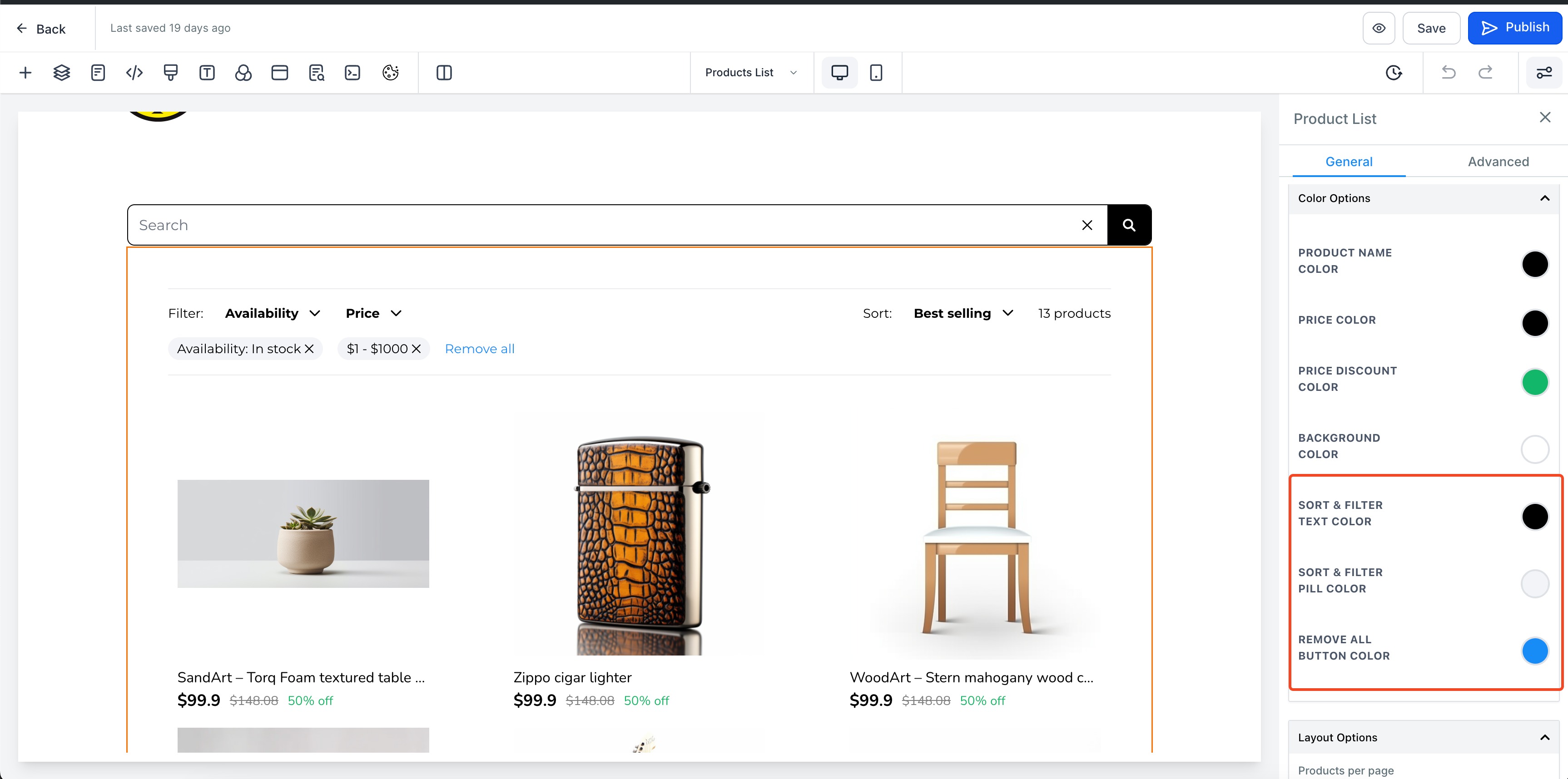
- Navigate to the product list page, and select the product list element. There would now be 2 toggles to enable Sorting and Filtering. Enable them to add Sort & Filter elements to your Product List page. If your store has a large catalog, you can reduce pagination on the Product Listing Page by increasing how many products display per page.
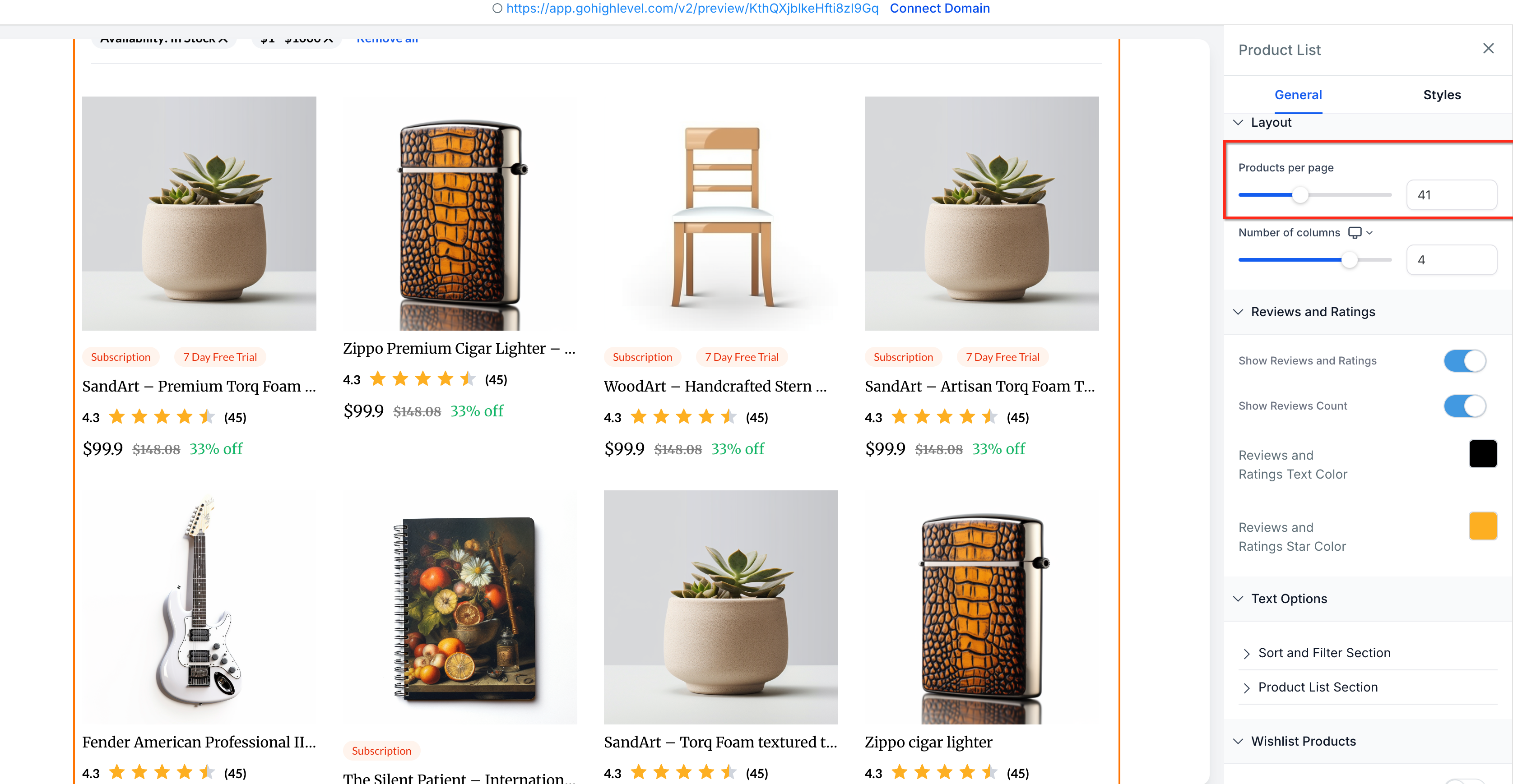
- Configure properties for the sort and Filter. Some of the properties that can be configured are:
- Sort and filter text color
- Sort and filter pill color
- Reset button color|
3. Click on save/Publish to view your changes in your site!
Some Key Aspects:
- Sort and filter options are only available in the product list page
- Default sort order is Date - Old to new
- By default all products will be shown without any filters
Images:
Adding Sort & Filter to your store
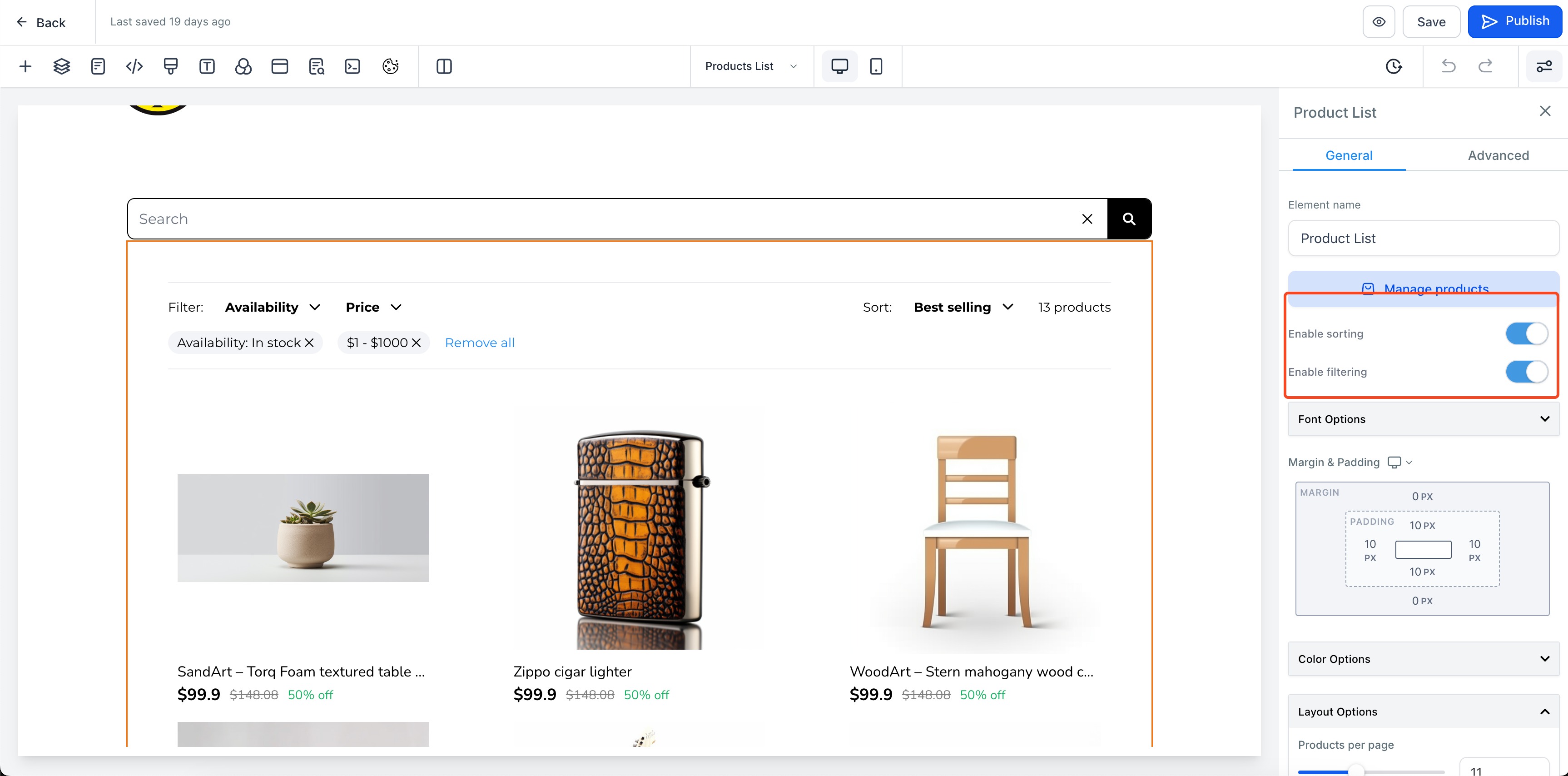
Configure properties of Sort & Filter
Filter option preview in product list page
Applying Filter to products
Sort option preview in product list page
Frequently Asked Questions
Q1: Where do I enable mobile sorting and filtering?
Enable both in the Product List widget → General tab → toggle Enable sorting and Enable filtering.
Q2: Can shoppers change the sort order on mobile?
Yes. Tapping Sort opens a bottom-sheet with Date, Alphabetical, and Price options (each with two directions).
Q3: What filters are available on mobile?
Availability (In stock / Out of Stock) and Price Range (From/To). The Filters modal is full-screen with a sticky Apply/Clear footer.
Q4: Are Availability options selected by default?
By default both are selected so shoppers see all products until they refine. (If your store theme overrides defaults, behavior follows store settings.)
Q5: Does the PLP show how many products match?
Yes. A product count appears at the top and updates dynamically when filters change.
Q6: What does the badge on the Filters button mean?
It shows how many filter criteria are currently active.
Recent/Related Articles
- Manual Product Sorting on Product List Page in Ecommerce Stores
- Search Bar Element in Ecommerce Stores
- Products — Manual & Smart Collections