Marketing / Email Builder Capabilities
Video Element in Email Builder
Modified on: Fri, 31 Oct, 2025 at 4:22 AM
Embedding videos in emails can be tricky due to limitations in email client support. OmniReach's Video element solves this by letting you insert clickable video thumbnails that link to your video content. This article explains how to use the Video element in the Email Builder, including how to choose video types, customize thumbnails, and adjust layout settings for the best presentation.
TABLE OF CONTENTS
- What Is the Video Element in Email Builder?
- How to Find the Video Element
- Video editor Configurations
- Related Articles
What Is the Video Element in Email Builder?
The Video element in OmniReach’s Email Builder allows you to add a video preview inside your emails. While true video playback isn't supported in email clients, this element creates a clickable thumbnail with a play button that links directly to your video.
How to Find the Video Element
To locate and use the Video Element:
Login to your sub-account.
Navigate to Marketing > Emails.
Click on + Create Campaign and choose Blank and then Design Editor.
or open an existing Email Template.
On the left-hand side, locate the Video element under the Elements section.
Drag and drop the Video element into your email layout.

Video editor Configurations
The Video editor provides following video configurations
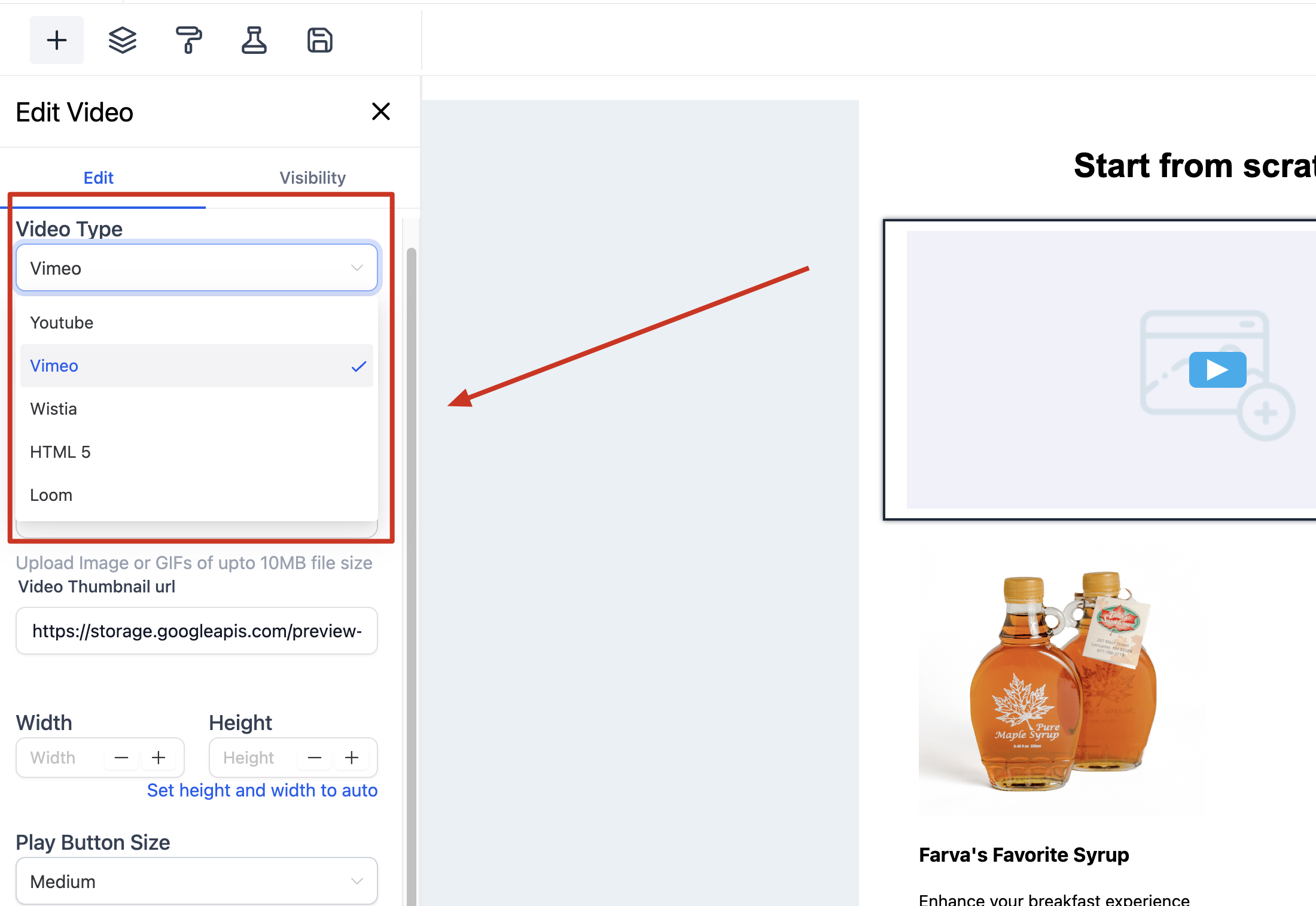
Video Type: There are currently 4 options to choose from: YouTube, Vimeo, Wistia, and HTML5. Based on the selected video type, the system will try to fetch the video thumbnail from the video URL and also change the play button styling based on the provider themes (e.g. in case of YouTube, the button will appear with a red background and white play icon).
The link to the thumbnail image will automatically appear in the "Video Thumbnail URL" field.
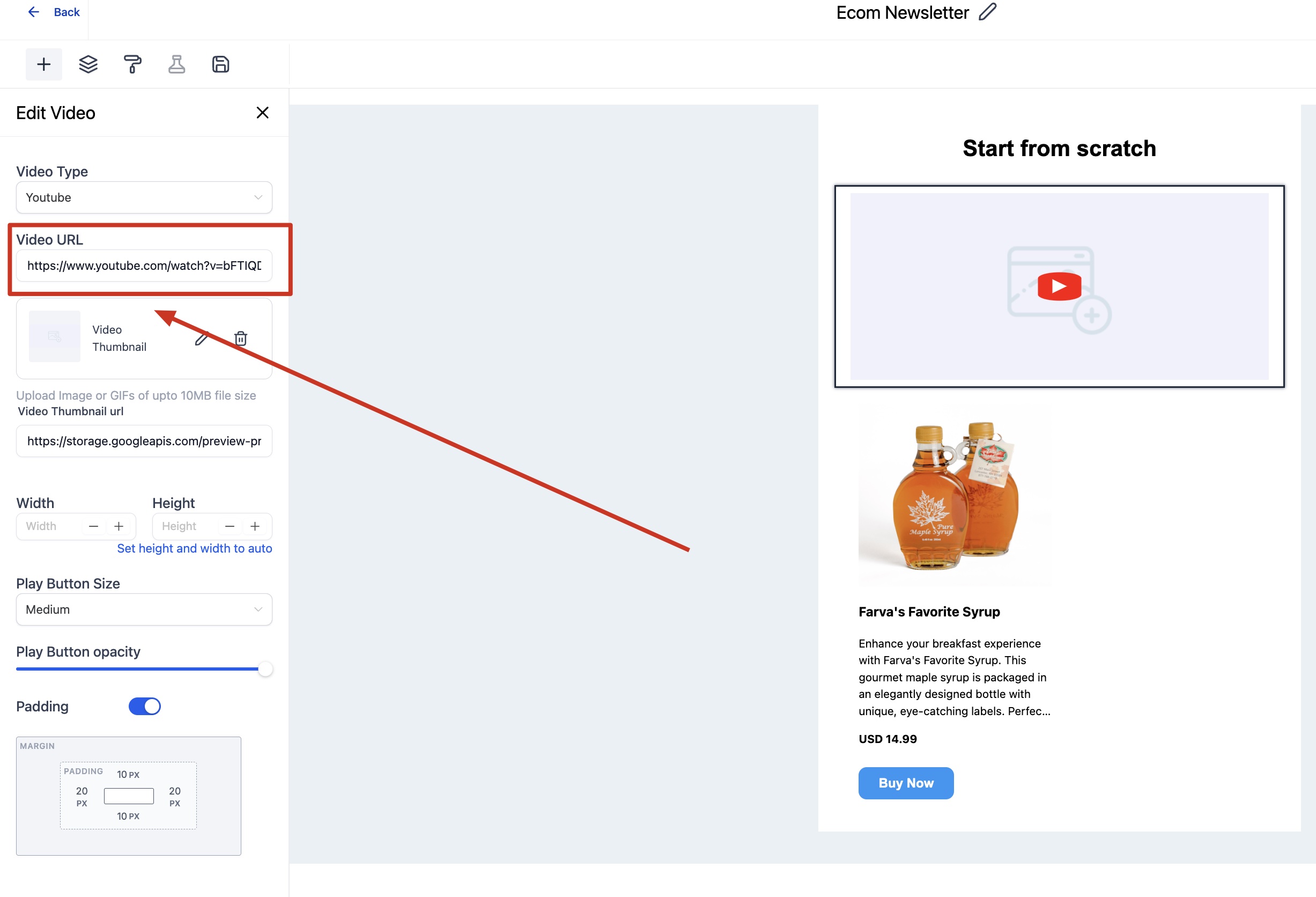
Video URL: Here is where you need to enter the URL of your video
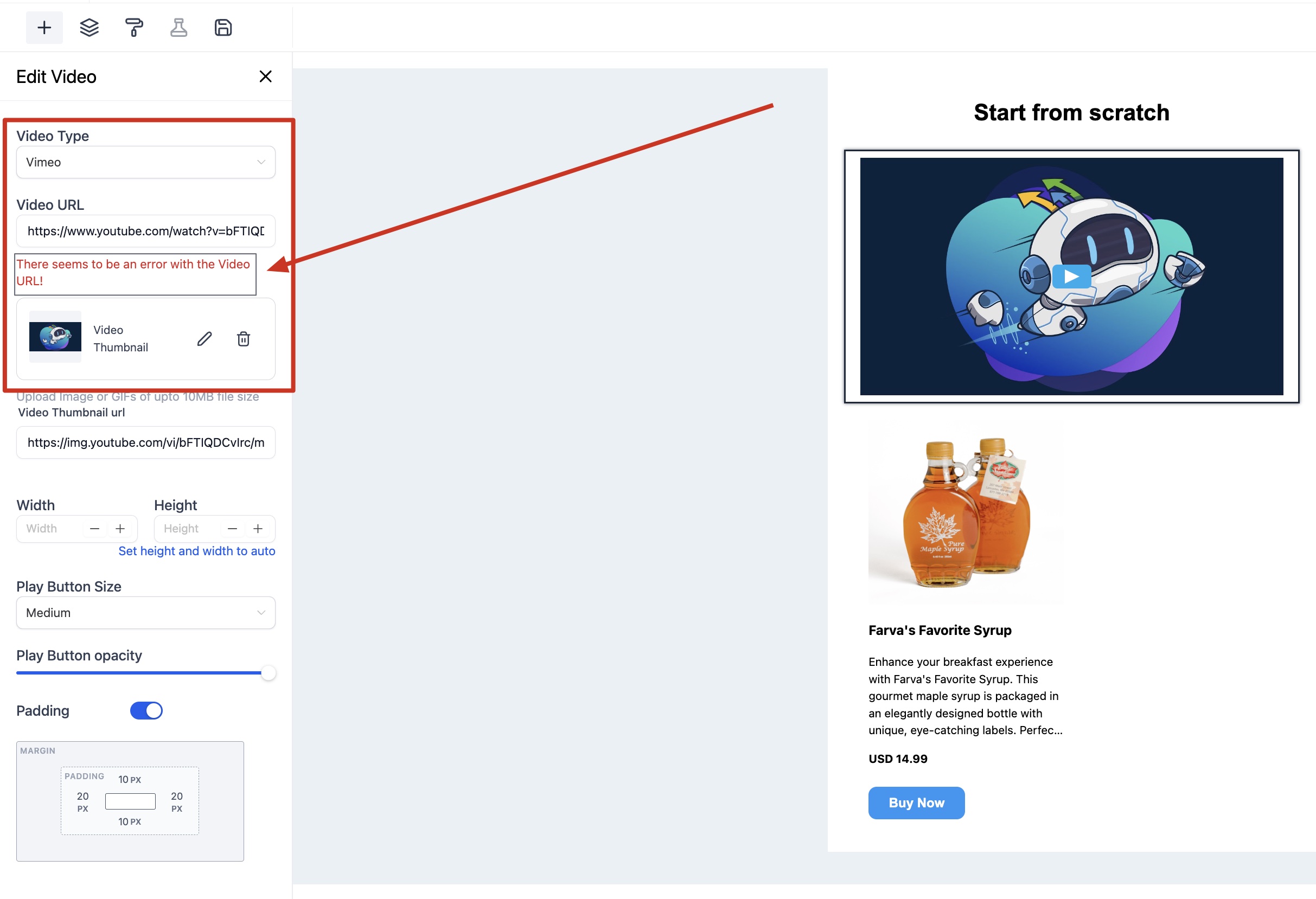
If the preview fails to fetch the thumbnail image from video, it will display a warning (e.g. If you change the video type to Vimeo for a YouTube video url, the editor will try to fetch the thumbnail based on the Vimeo logic, which will not work so it will show you a warning).
Video Thumbnail URL: As mentioned above, the editor will try to fetch the default thumbnail image from Video URL based on selected video type and fill this field automatically but you can also provide your own thumbnail image by adding its url.
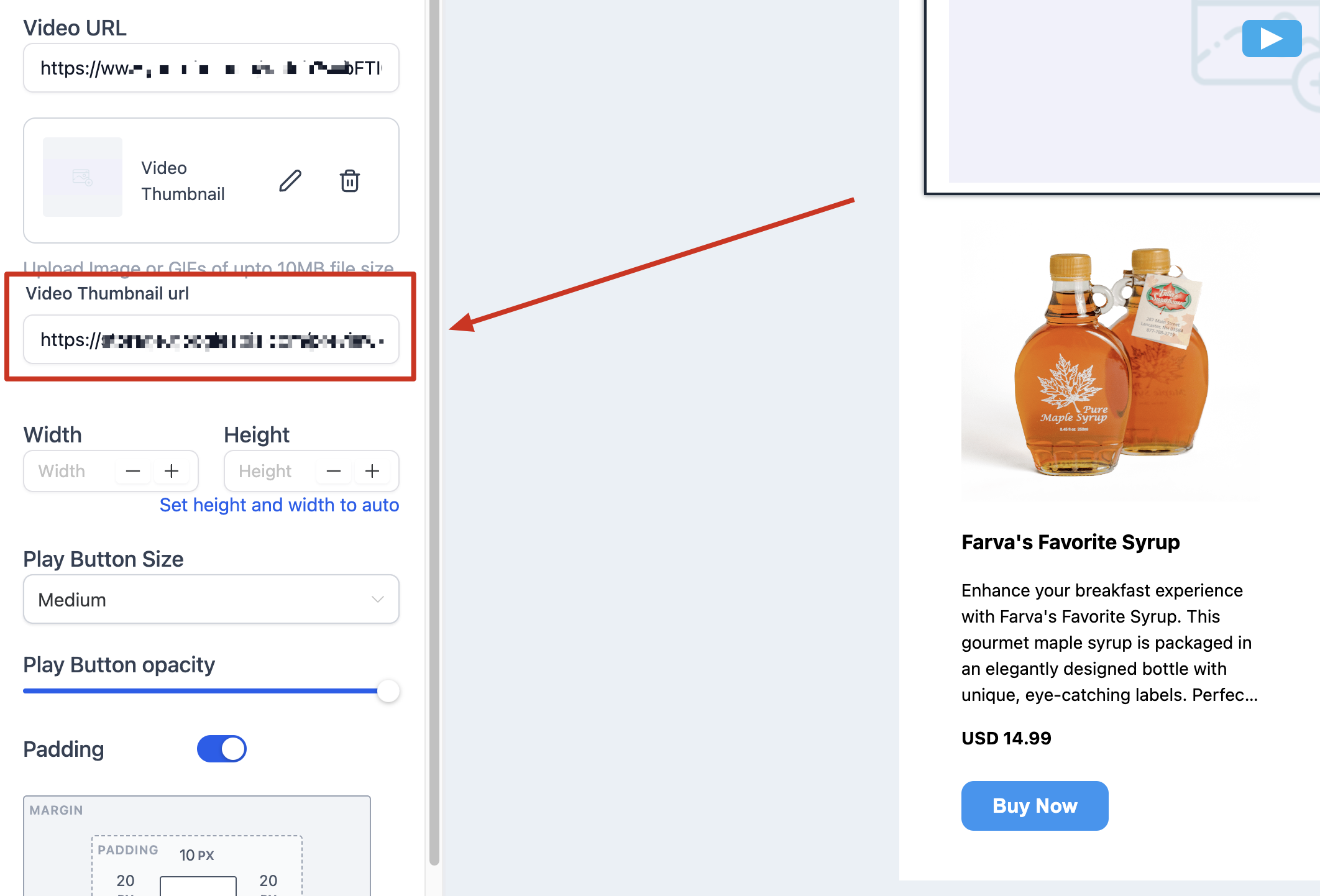
Use the Replace button to upload and provide custom Video thumbnail
Use the Remove button to remove the default thumbnail
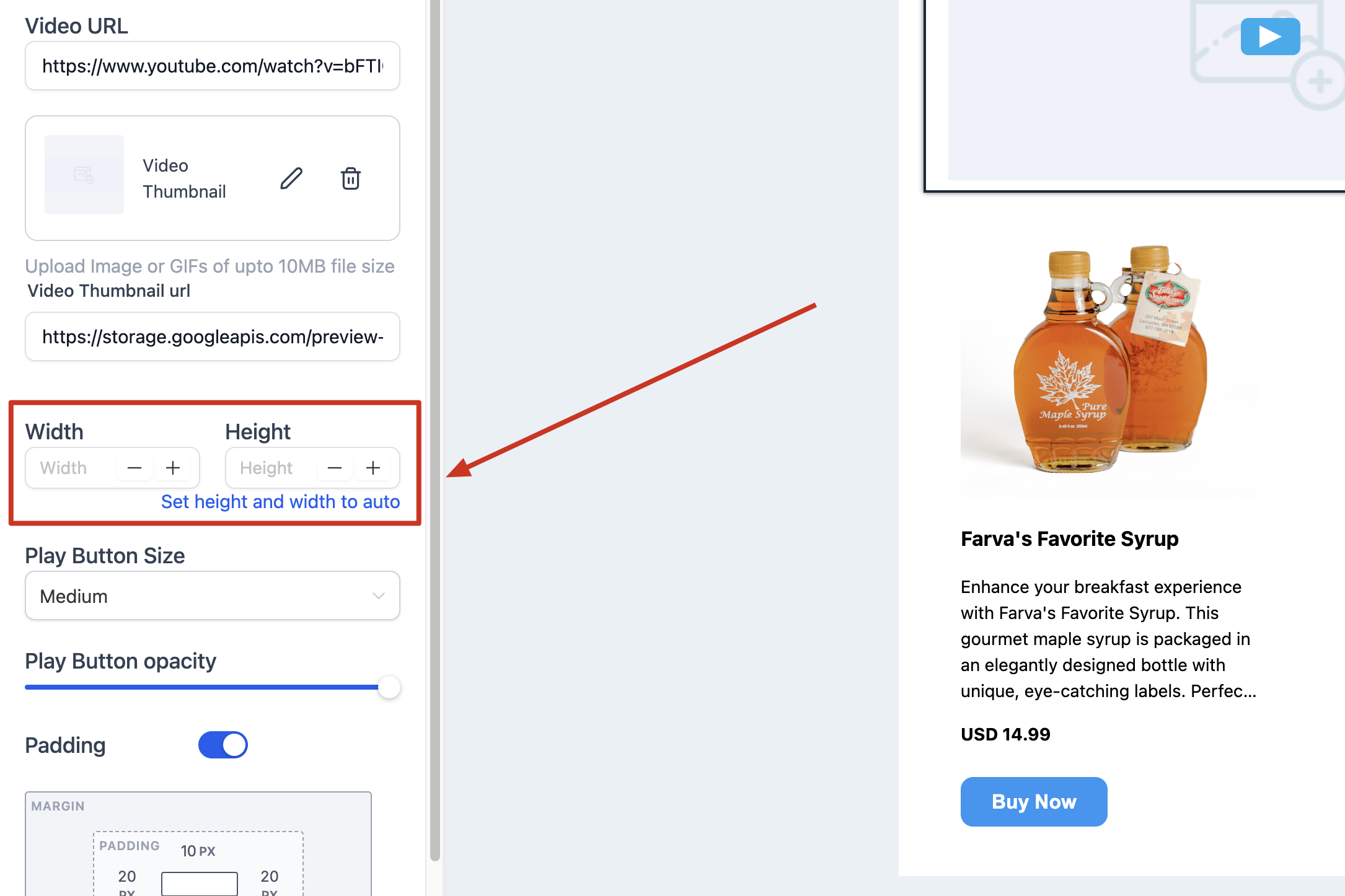
Width & Height: Through these input fields you can control the dimension of your video. If no dimensions are added, then video will take full width and auto height based on image resolution
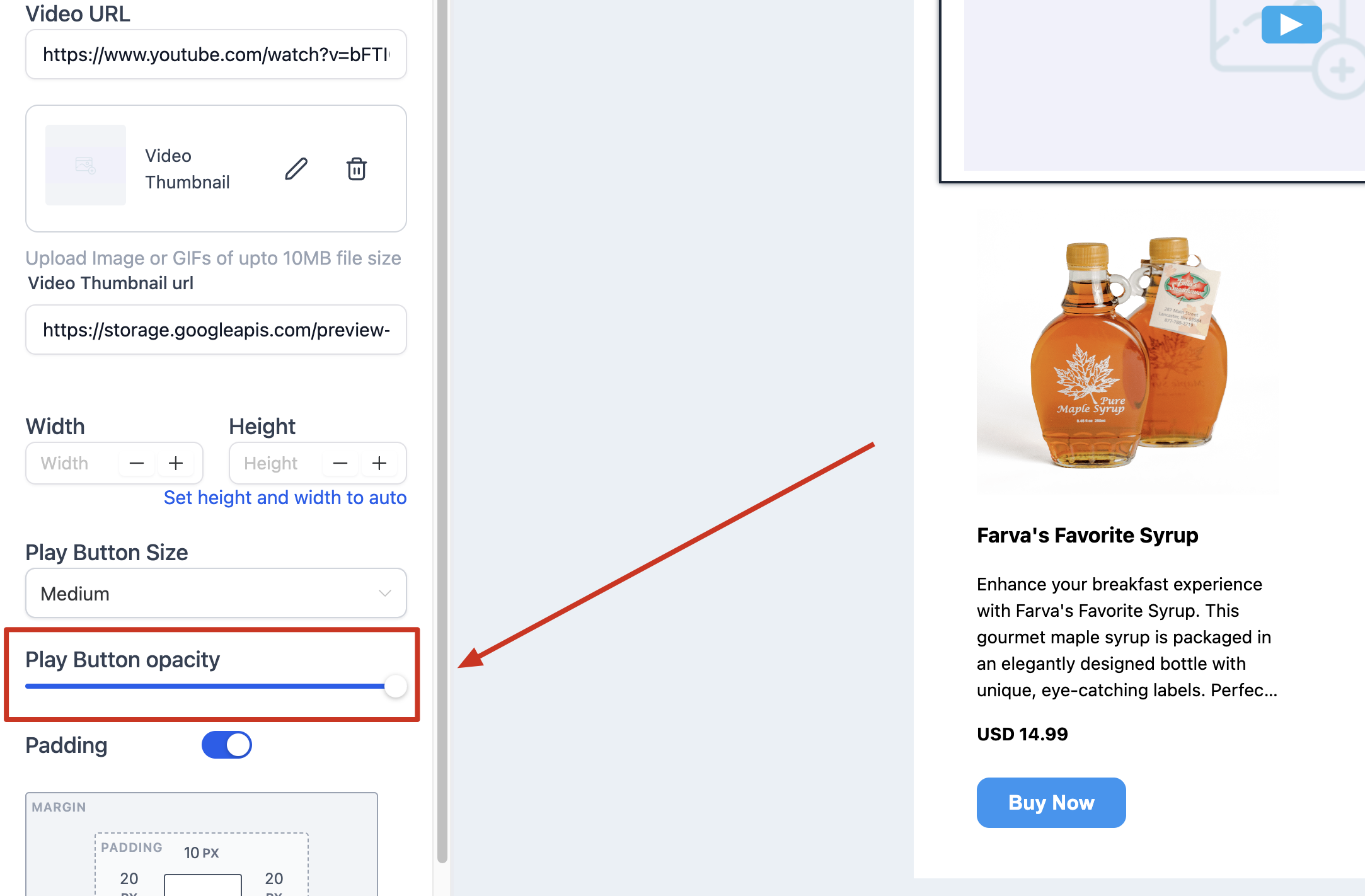
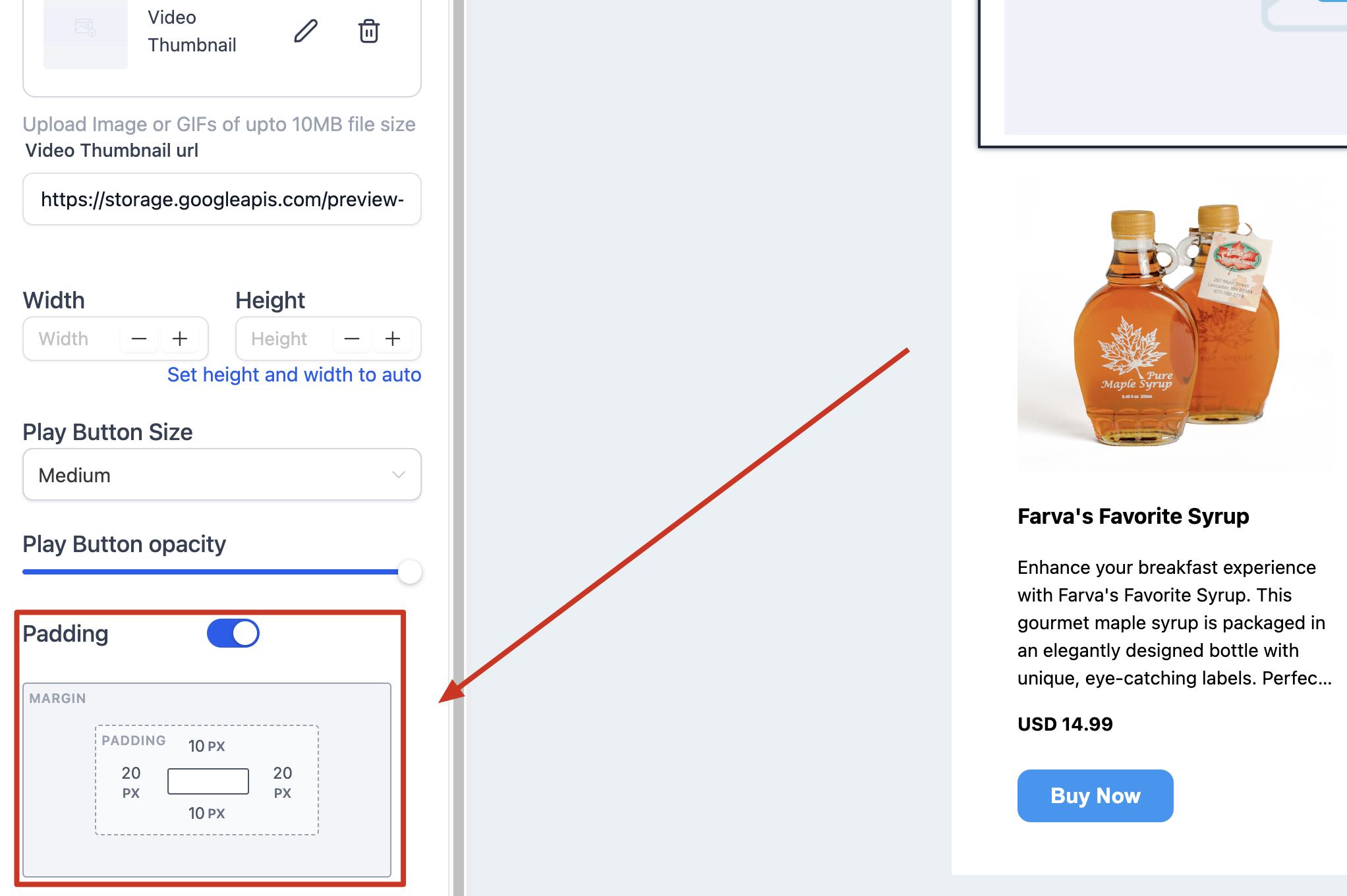
Padding: You can provide the padding to video element through this field see below image to see it in action.