
Phone System / Phone numbers
Moving Numbers across Sub-Accounts (Same Agency)
Modified on: Fri, 26 Sep, 2025 at 8:36 AM
This guide shows how to move phone numbers between sub‑accounts inside a single Agency using the built‑in Move Numbers tool in Settings → Phone Integration. It covers LC Phone → LC Phone and Twilio → Twilio (same master account) moves, plus common errors and what to do if the in‑app move isn’t available (see Moving Phone Numbers: Migration Guide).
TABLE OF CONTENTS
- What is Move Numbers?
- Before You Begin
- Move Numbers Between Sub‑Accounts
- Troubleshooting & Known Limitations
- Frequently Asked Questions
What is Move Numbers?
Move Numbers is an in‑app workflow in Settings → Phone Integration that reassigns existing phone numbers from a source sub‑account to a destination sub‑account within the same Agency. Eligibility at a glance:
LC Phone ↔ LC Phone (same Agency): Supported in-app.
Twilio ↔ Twilio (same Master Twilio account): Supported in-app.
Different Master Twilio accounts: Not supported in-app—contact Twilio Support.
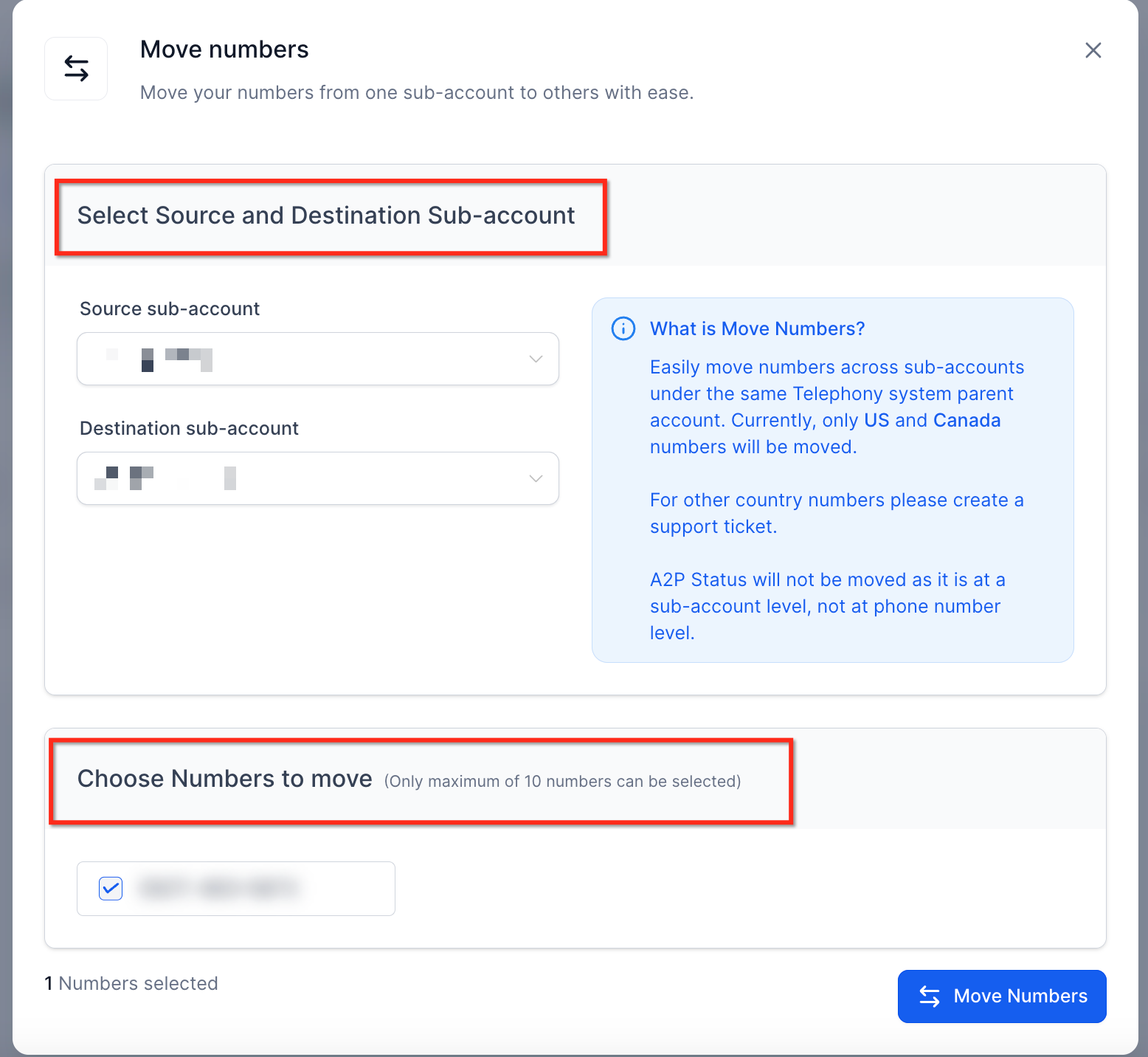
Geography: The in-app tool currently supports US & Canada numbers. For other countries, please open a OmniReach Support ticket.
A2P: A2P status is at the sub‑account level and does not move with the phone number; reattach the correct brand/campaign after moving.
Before You Begin
Make sure you have admin access to the source and destination sub‑accounts.
Identify the destination Location ID (a.k.a. Sub‑account ID): Settings → Business Profile.
Confirm which phone system the number uses today:
LC Phone (LeadConnector)
Twilio connected at the Agency level
Move Numbers Between Sub‑Accounts
Step 1: Move Numbers
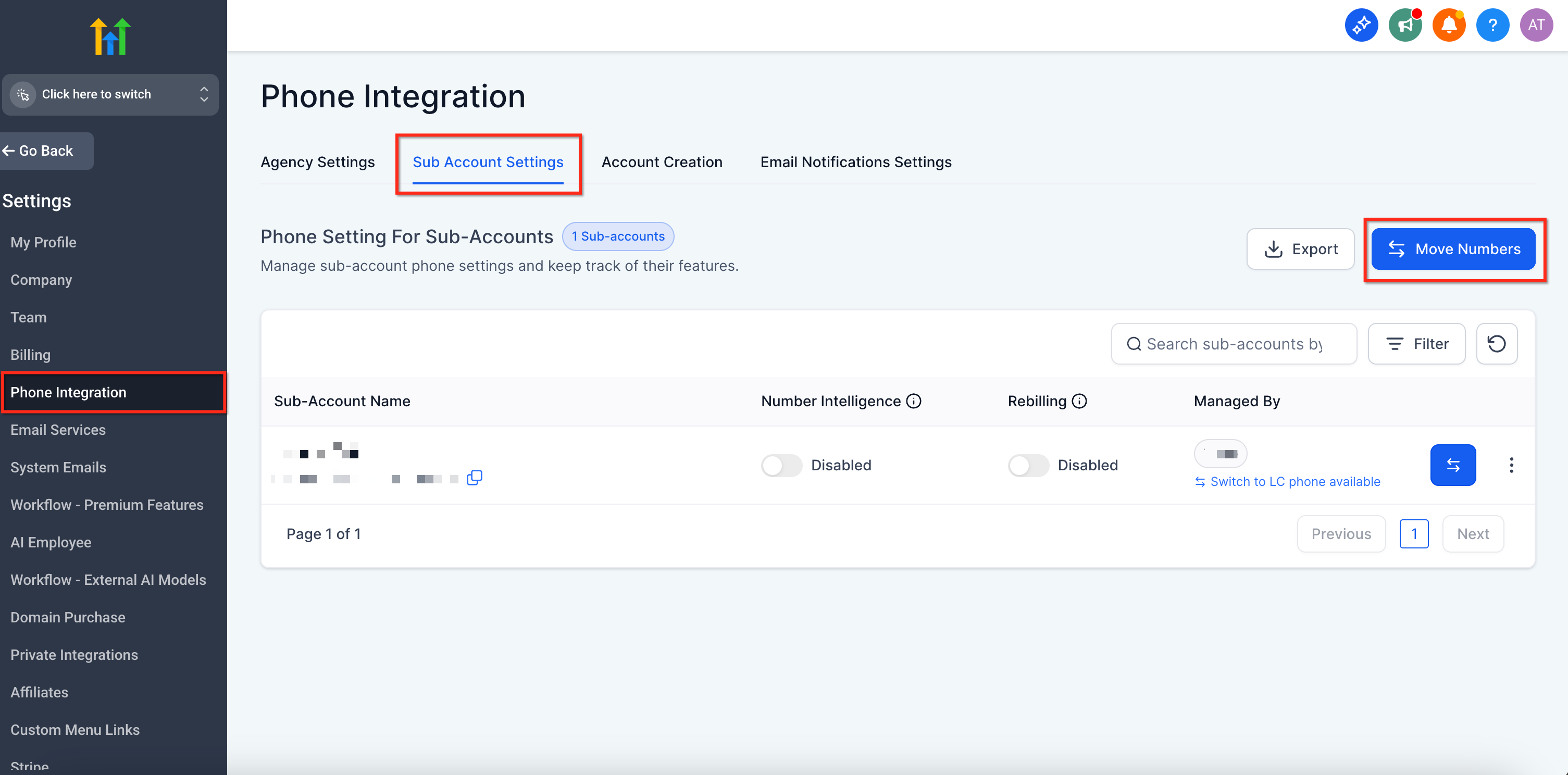
Navigate to the Agency Settings → Phone Integration. Under Sub-account Settings, click on Move Numbers.
Step 2: Select Source and Destination Sub-account and Phone Numbers to Move
Choose the destination sub‑account (search by name or paste the Location ID). Select the phone number(s) you want to move.
Troubleshooting & Known Limitations
If the Move Numbers action is unavailable or fails, common causes include:
- Different Twilio master accounts: Numbers under a different Twilio master can’t be moved in‑app. Contact Twilio Support in this case.
Missing regulatory configuration (international): Some countries (e.g., AU +61) require approved Regulatory Bundles and an Address SID in the destination. Configure those first, then follow the relevant migration guide.
Provider mismatch: If you’re converting Twilio ↔ LC Phone, follow the dedicated conversion articles rather than the in‑app move.
Country support (US & Canada in-app): The in-app tool currently moves US & Canada numbers. For other countries, please create a OmniReach Support ticket.
Frequently Asked Questions
Q. Can I move multiple numbers at once?
Yes—select multiple numbers in Move Numbers.
Q. Do I need to contact Twilio?
Not for in‑app sub‑account moves. For inter‑Agency moves or provider conversions, follow the linked guides and contact OmniReach Support.
Q. Do A2P/Toll‑Free approvals transfer automatically?
After the move, verify the number is attached to the correct brand/campaign or Toll‑Free verification in the destination.