
Workflows / Workflow Builder
Getting Started with Workflows
Modified on: Mon, 27 Apr, 2026 at 5:26 PM
Workflows help you automate repetitive tasks so you can save time and scale your business. Once configured, workflows run automatically based on triggers and perform a sequence of actions without manual intervention.
You can use workflows to manage leads, automate follow-ups, send communications, and streamline operations across your business.
TABLE OF CONTENTS
- What are Workflows?
- Workflow Triggers
- Workflow Actions
- Tasks Worth Automating
- Workflow Recipes: Pre-Built Templates
- How to Create a Workflow
- Workflows Landing Page (Updated Experience)
- Types of Advanced Workflows
- Chaining Multiple Workflows
- Webhooks (Trigger & Action)
- Troubleshooting
- Frequently Asked Questions
- Related Articles
What are Workflows?
A workflow is an automated sequence of actions triggered by a specific event.
Example:
A lead submits a form → send confirmation email + SMS
A customer books an appointment → notify team + follow-up
Workflows consist of:
Trigger → Starts the workflow
Actions → Tasks performed after the trigger
Workflow Triggers
Triggers define when a workflow begins.
Example:
Form submitted
Appointment booked
Payment received
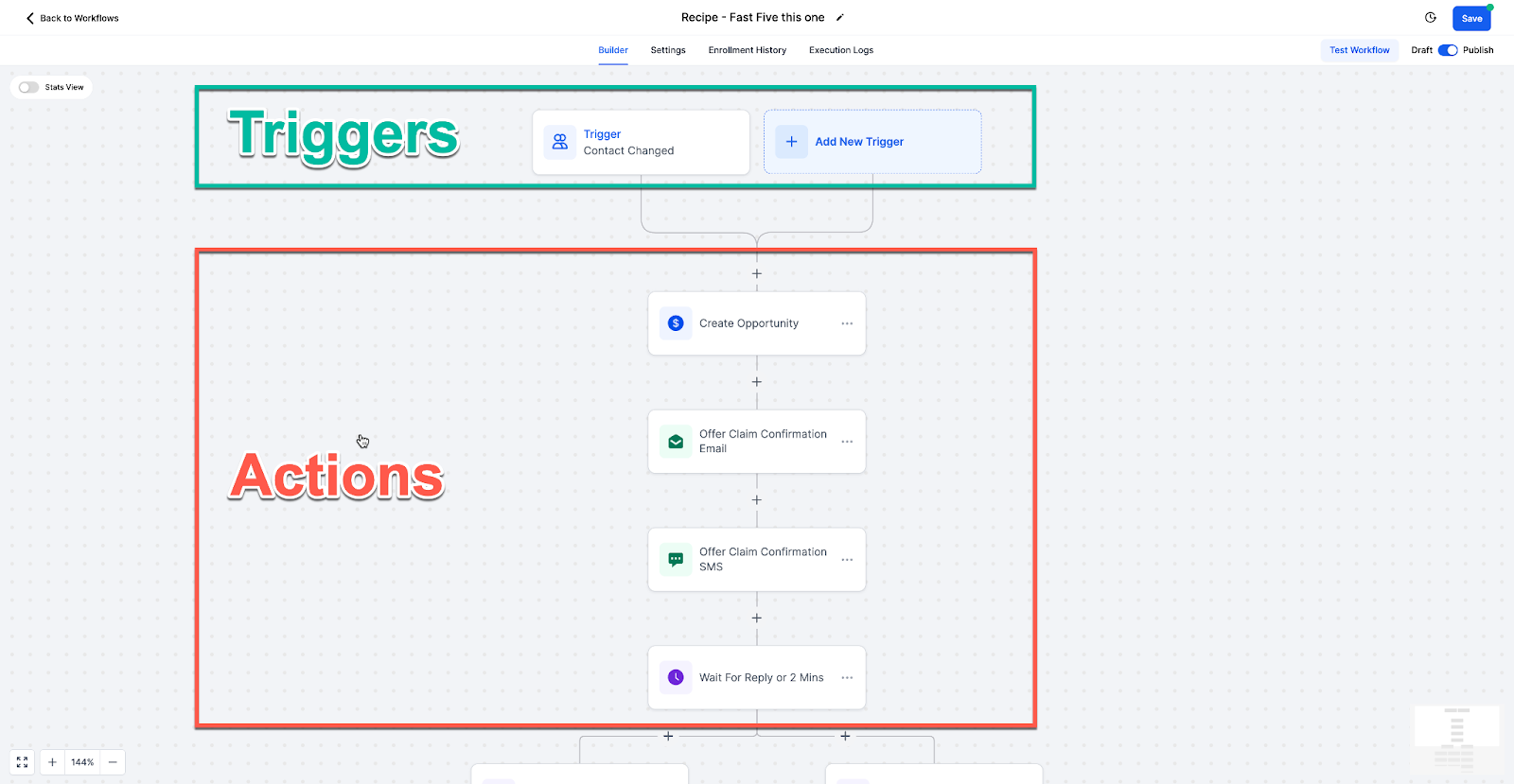
Workflow Actions
Actions are the steps that occur after a trigger fires.
Example:
Send email or SMS
Create or update contact
Assign tasks or opportunities
Tasks Worth Automating
Automate repetitive tasks such as:
Lead nurturing campaigns
Appointment scheduling
Follow-ups and reminders
Customer onboarding
Feedback collection
CRM updates
Automation improves efficiency, consistency, and scalability.
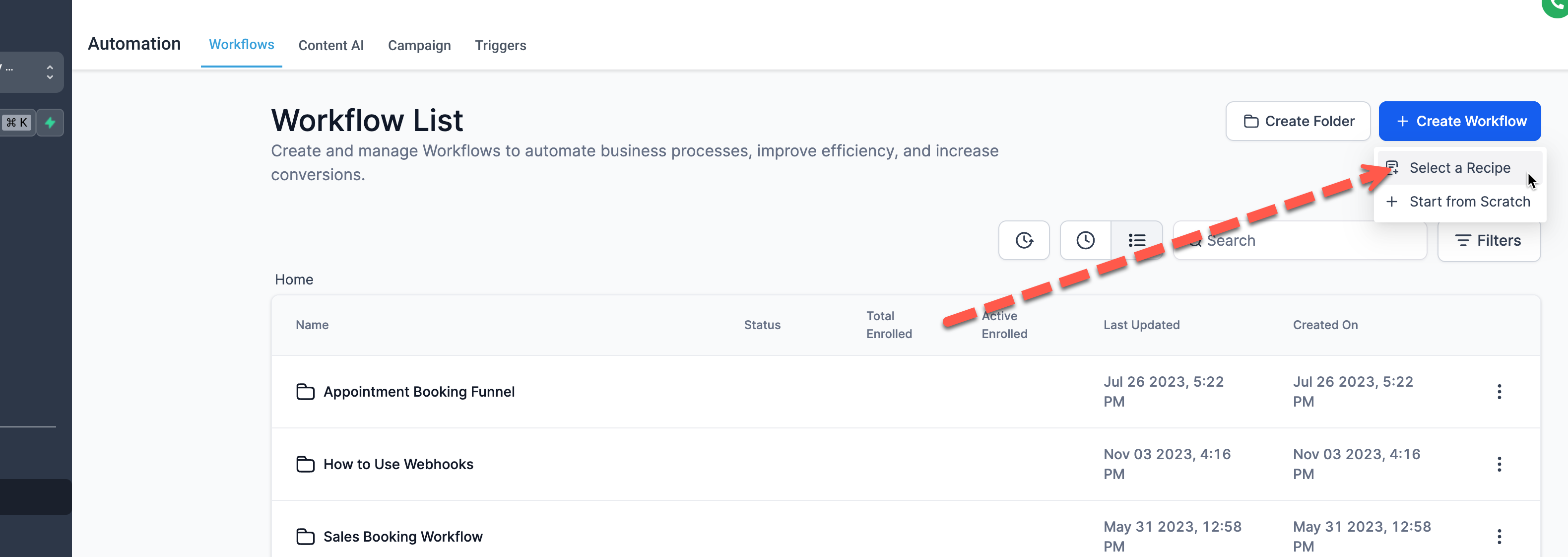
Workflow Recipes: Pre-Built Templates
OmniReach provides pre-built templates to help you get started quickly.
You can:
Use ready-made workflows
Customize them for your needs
Save time building from scratch
How to Create a Workflow
Workflows are created in three main steps:
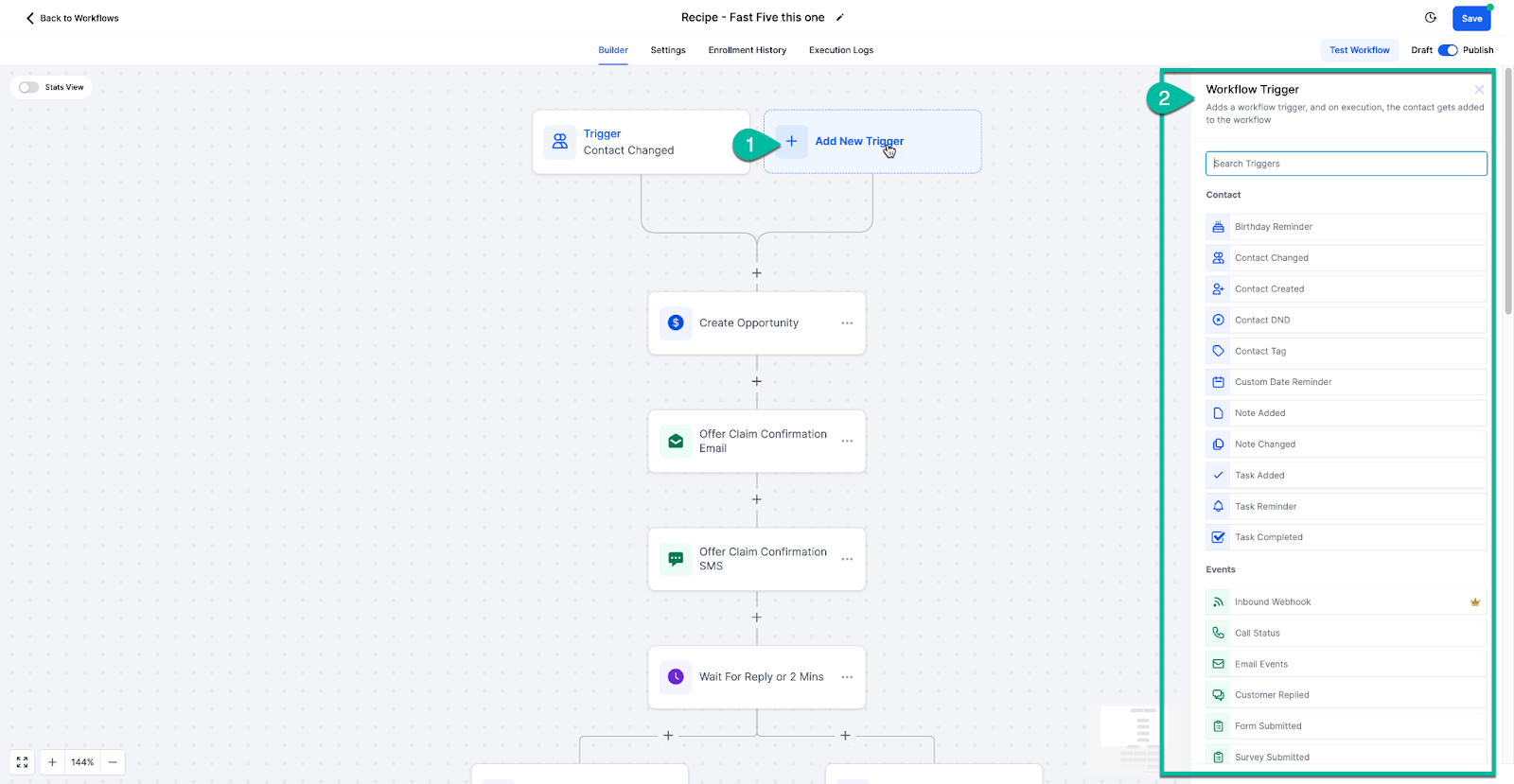
Step 1: Choose a Trigger
Select the event that starts the workflow.
Click Add New Trigger
Choose from available triggers
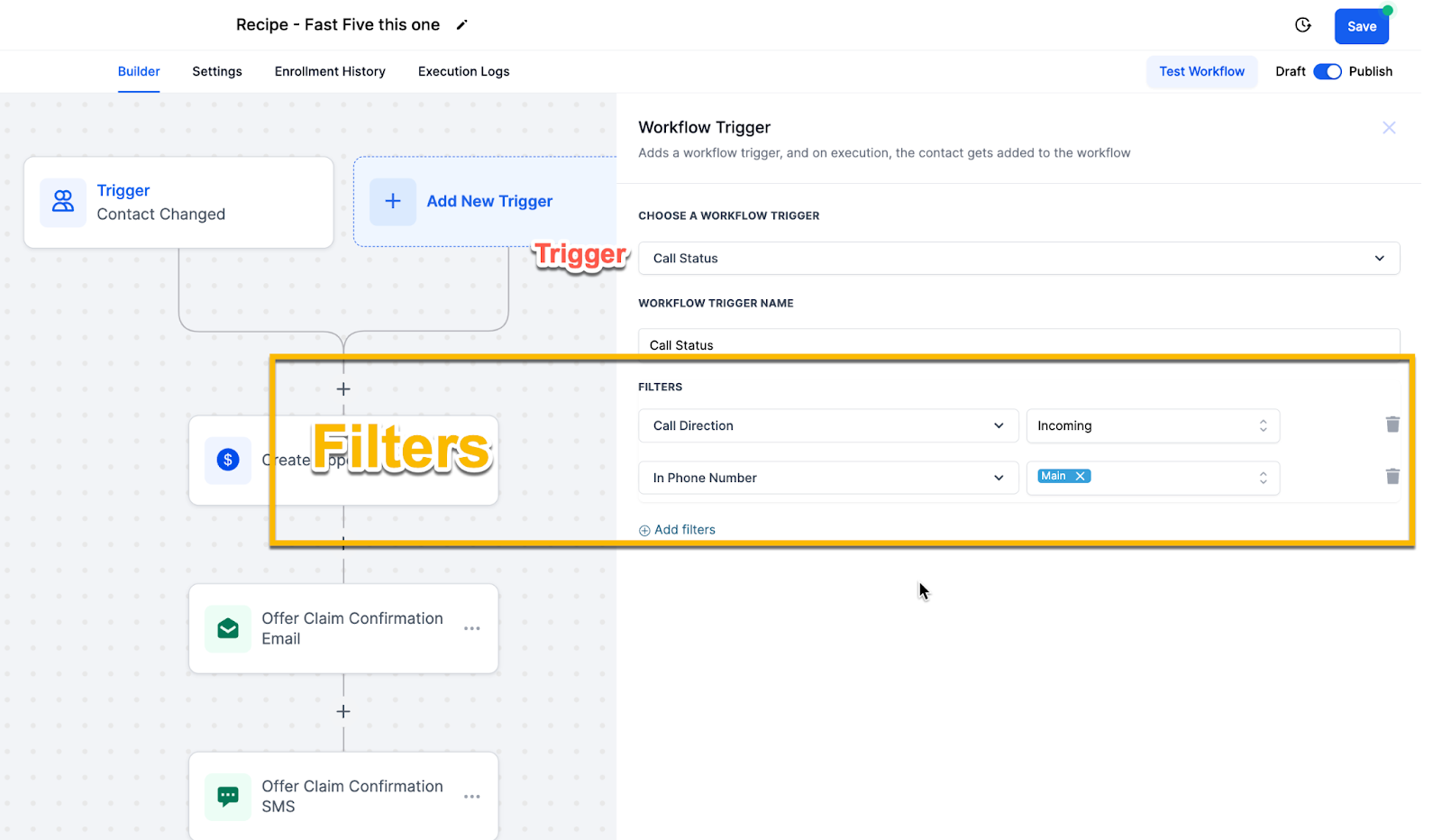
Step 2: Add Trigger Filters (Optional)
Filters refine when the workflow should trigger.
Example:
Only trigger for incoming calls
Only trigger for a specific phone number
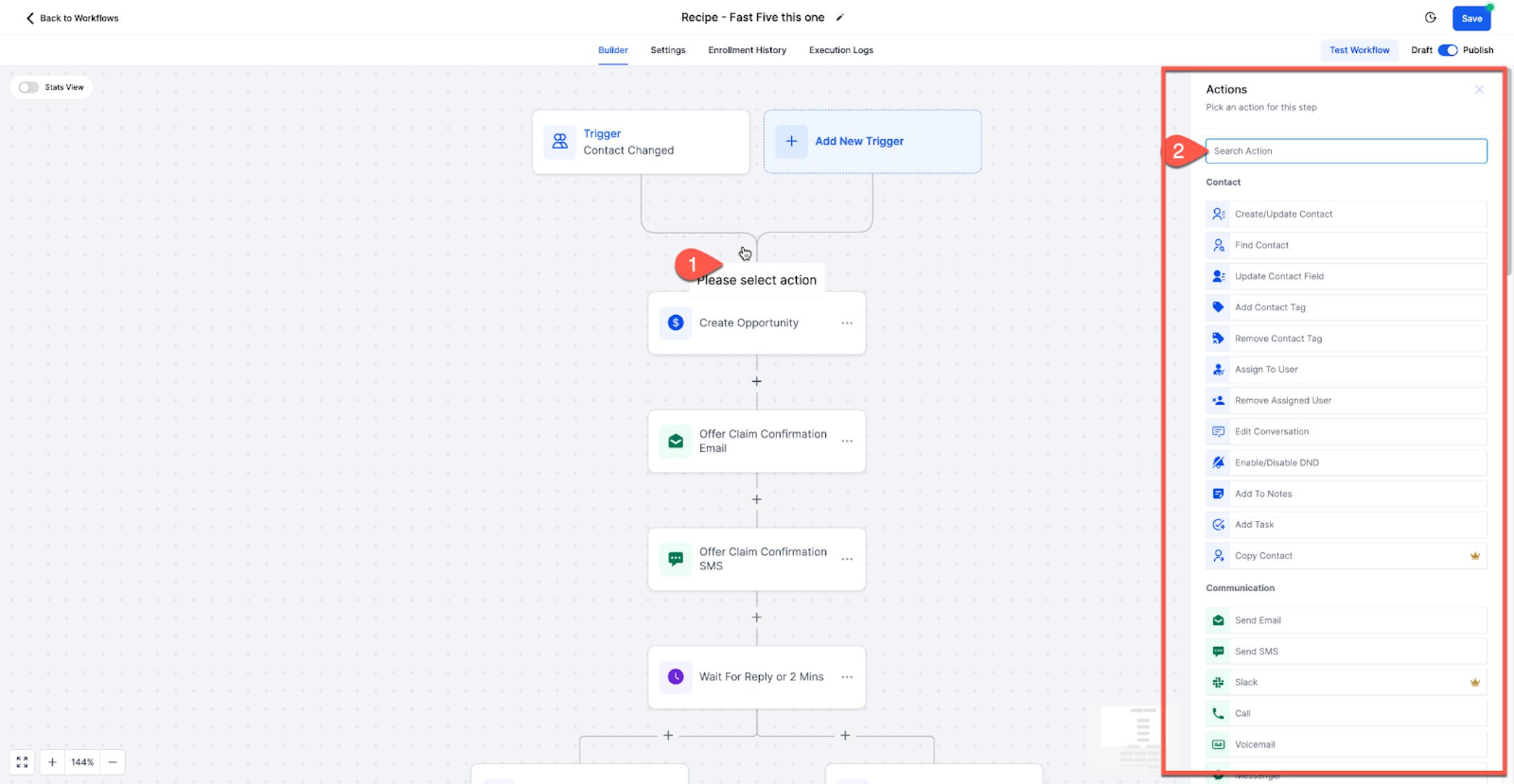
Step 3: Add Workflow Actions
Actions define what happens after the trigger.
Click Add Action
Select the action you want
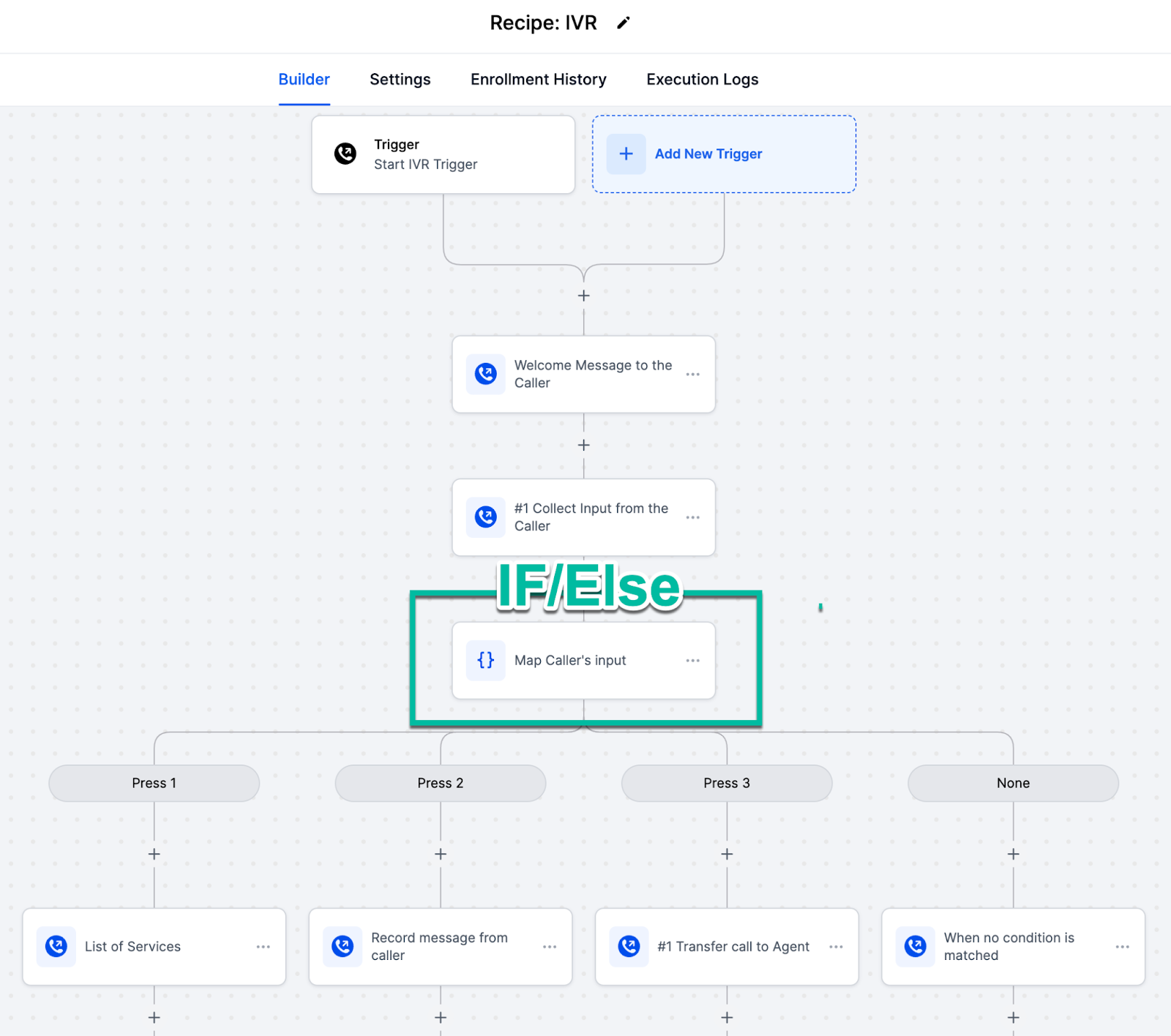
Workflows Landing Page (Updated Experience)
The Workflows landing page has been redesigned to make it easier to get started.
You now have three clear options:
Build using AI – Describe your workflow and let AI generate it
Browse Templates – Choose from pre-built workflows
Create Workflow – Start from scratch
This helps new users quickly choose the best way to begin building workflows.
If AI Builder is disabled in Labs, the previous landing experience will be shown instead.
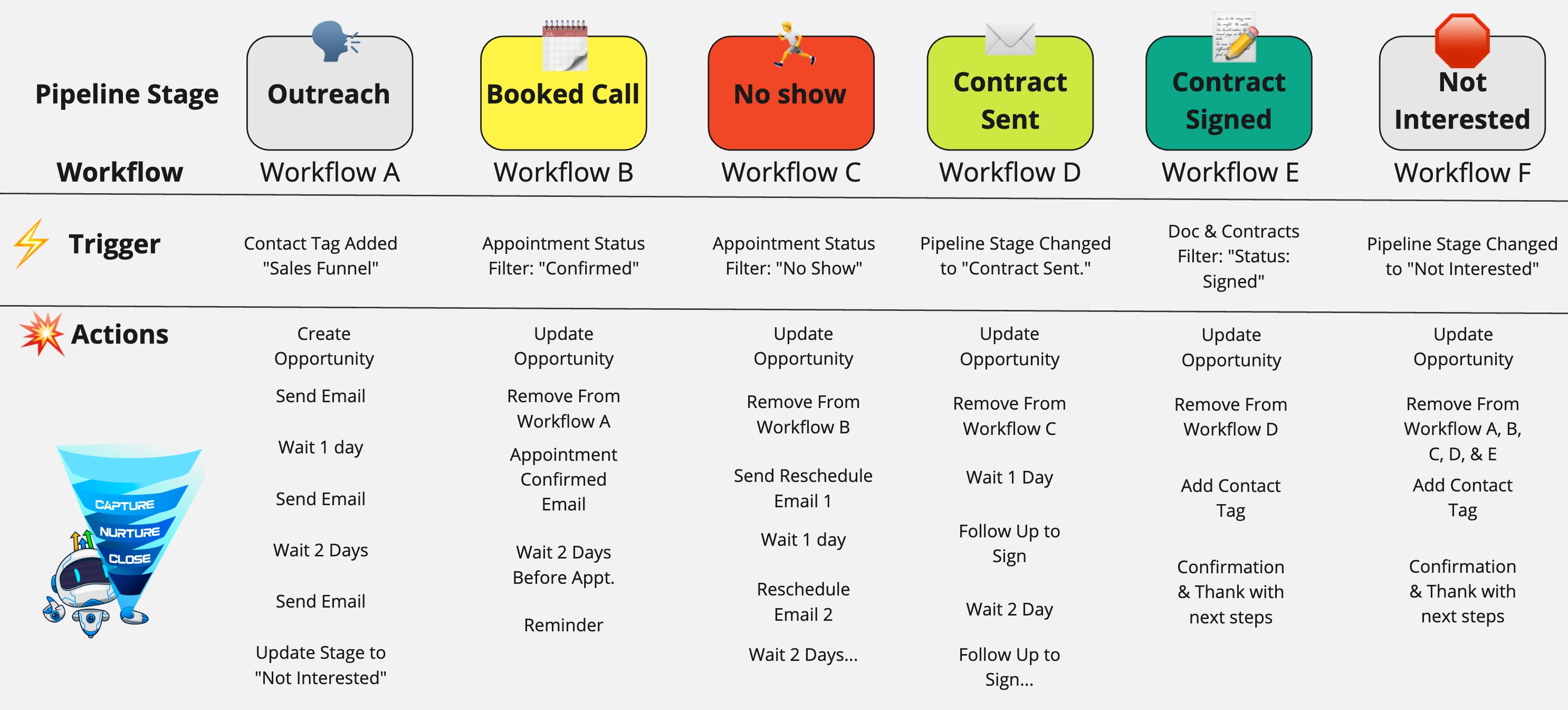
Types of Advanced Workflows
IF/Else Conditions
Split contacts into different paths based on conditions.
Chaining Multiple Workflows
You can connect multiple workflows together to automate full pipelines and customer journeys.
Webhooks (Trigger & Action)
Webhooks allow OmniReach to communicate with external systems and automate workflows across platforms.
Troubleshooting
If your workflow is not working:
Test with a fresh contact
Check trigger filters
Verify “Allow Reentry” settings
Run a live test instead of test mode
Frequently Asked Questions
Q: What is the difference between a trigger and an action?
A trigger starts the workflow when a specific event occurs, while actions are the steps that run after the trigger is activated.
Q: Can I use multiple triggers in one workflow?
Yes. You can add multiple triggers to a workflow, allowing contacts to enter from different sources.
Q: Are workflow filters required?
No, filters are optional. However, they are recommended to ensure workflows only run under specific conditions.
Q: Can I edit a workflow after creating it?
Yes. You can update triggers, filters, and actions at any time.
Q: Will workflows run automatically once created?
Yes, as long as the workflow is published and the trigger conditions are met.
Q: What happens if a workflow is not working correctly?
Check your trigger conditions, filters, and workflow settings. Testing with a fresh contact is also recommended.
Q: Can I use AI to create workflows?
Yes. The updated Workflows landing page allows you to describe your workflow and generate it using AI.