
SaaS Configurator / Saas Mode
Why can’t I see all my SaaS plans while creating a subscription?
Modified on: Tue, 17 Mar, 2026 at 6:03 AM
Overview
If you're unable to see certain SaaS plans while adding a subscription to a client account, it’s usually due to your agency using both SaaS V1 and SaaS V2 systems simultaneously.
This is expected behavior — not a bug.
How SaaS V1 and V2 Work
? SaaS V1 (Stripe-based)
Uses Stripe as the system of record
Products, customers, and subscriptions are managed directly in Stripe
Client sub-accounts are linked to Stripe customers
? SaaS V2 (Agency-based)
Uses your Agency’s master sub-account as the system of record
Products, customers, and subscriptions are managed inside OmniReach
Payment providers act only as gateways
Client sub-accounts are linked to contacts in your agency account
? Why You’re Not Seeing Some Plans
Each client sub-account is tied to only one system:
| Client is on | You will see |
|---|---|
| SaaS V1 | Only V1 plans |
| SaaS V2 | Only V2 plans |
? So if:
You created a plan in V2
But the client is on V1
➡️ That plan will NOT appear during subscription selection
? Common Scenario
You set up both V1 and V2
You create a new plan in V2
You try to add it to an older client (still on V1)
The plan is missing ❌
✅ How to Fix It
Step 1: Check whether the client is on V1 or V2:
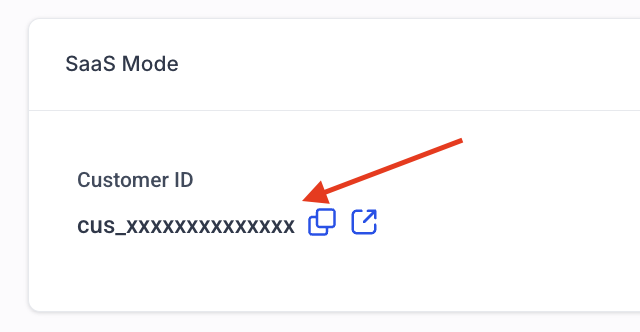
Go to Manage Client > SaaS
Look at the customer ID associated with the sub-account
If the customer Id starts with 'cus...', then it means that the client is on the V1 system (this is how Stripe customer IDs look like).
If not, then it means that the customer is on the V2 system (sub-account contact IDs are random strings).
Step 2: Move client to the correct system
Now that you know whether the client is on the V1 or V2 system, you can move them to the correct system according to where you've created your SaaS plans.
To move sub-account;
First, disable SaaS mode for the sub-account
Then re-enable SaaS
While re-enabling SaaS, make sure that you choose the correct provider/agency sub-account.
Step 3: Attach the SaaS plan
? Pro Tip
If you're actively using both systems:
Be consistent about which system you use per client
Avoid mixing V1 and V2 for the same workflow