
Workflows / Workflow Builder
Workflows: Version History & Restore
Modified on: Tue, 16 Dec, 2025 at 10:56 AM
UseTrack, compare, and roll back workflow edits with ease. The redesigned Version History to reviewsidebar, one-click restores, and smart version labeling give you total confidence while building automations—all without extra cost.
TABLE OF CONTENTS
- What is Workflow Version History?
- Key Benefits of Workflow Version History
- What’s included
- How Version History is created
- Browse versions
- Restore or create from a version
- How Versions Are Created
- Best practices
- Notes & limitations
What is Workflow Version History?
Version History is OmniReach’s built-in timeline of every saved state of your workflow. Each entry records who edited it, the exact time stamp, and whether the version was a draft or published build. With the 2025 revamp, you can browse, filter, and restore past versions of a workflowin seconds, eliminating guesswork and restore any version as a new draft, your live workflow doesn’t change until you Publish. This follows the same draft → publish model used across Workflow.risky re-builds.
Key Benefits of Workflow Version History
- Instant peace of mind—jump back to any of the last 10 versions (or 30 days) in one click.
- Team accountability—see every editor’s includedname and the moment they saved.
- Flexible recovery—convert a past version into a fresh draft or an entirely new workflow.
- Zero learning curve—clean sidebar UI with chronological labels (v12, v13, v14…).
- Part of the Editing Trifecta—works alongside Auto-Save and Undo/Redo at no extra cost.
Use Version History to review past versions of a workflow and restore any version as a new draft, your live workflow doesn’t change until you Publish. This follows the same draft → publish model used across Workflow.
What’s included
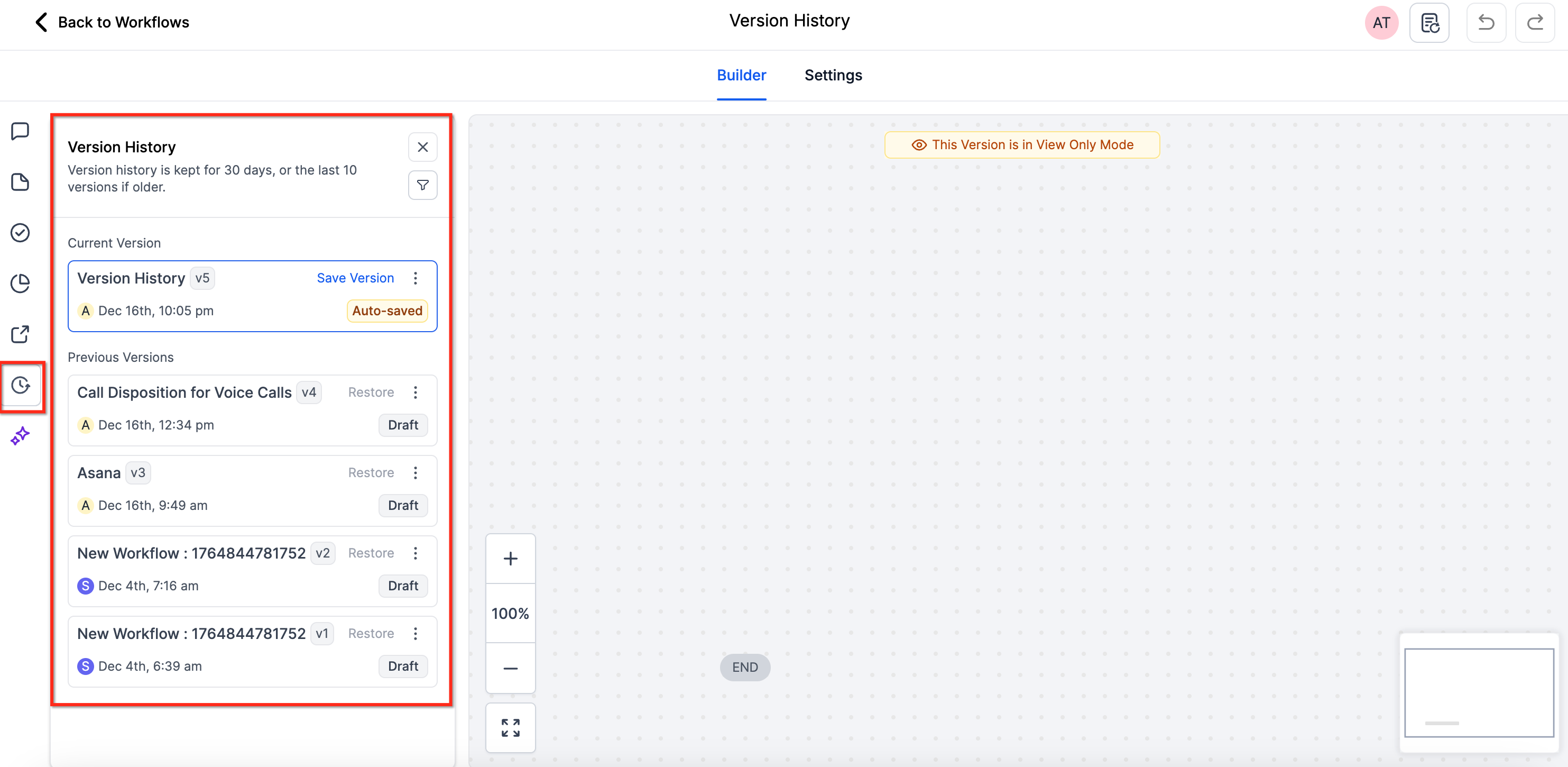
Version History Revamp
- Every saved version now captures your workflow at a specific point in time — including editor, timestamp, and workflow status (Draft or Published).
- Easily browse up to 10 versions or 30 days of version history, organized and filterable by editor.
Restore Previous Versions
- Click Restore beside any version to reopen it as a new draft.
- You can even create a new workflow from a previous version.
Enhanced Browsing Experience
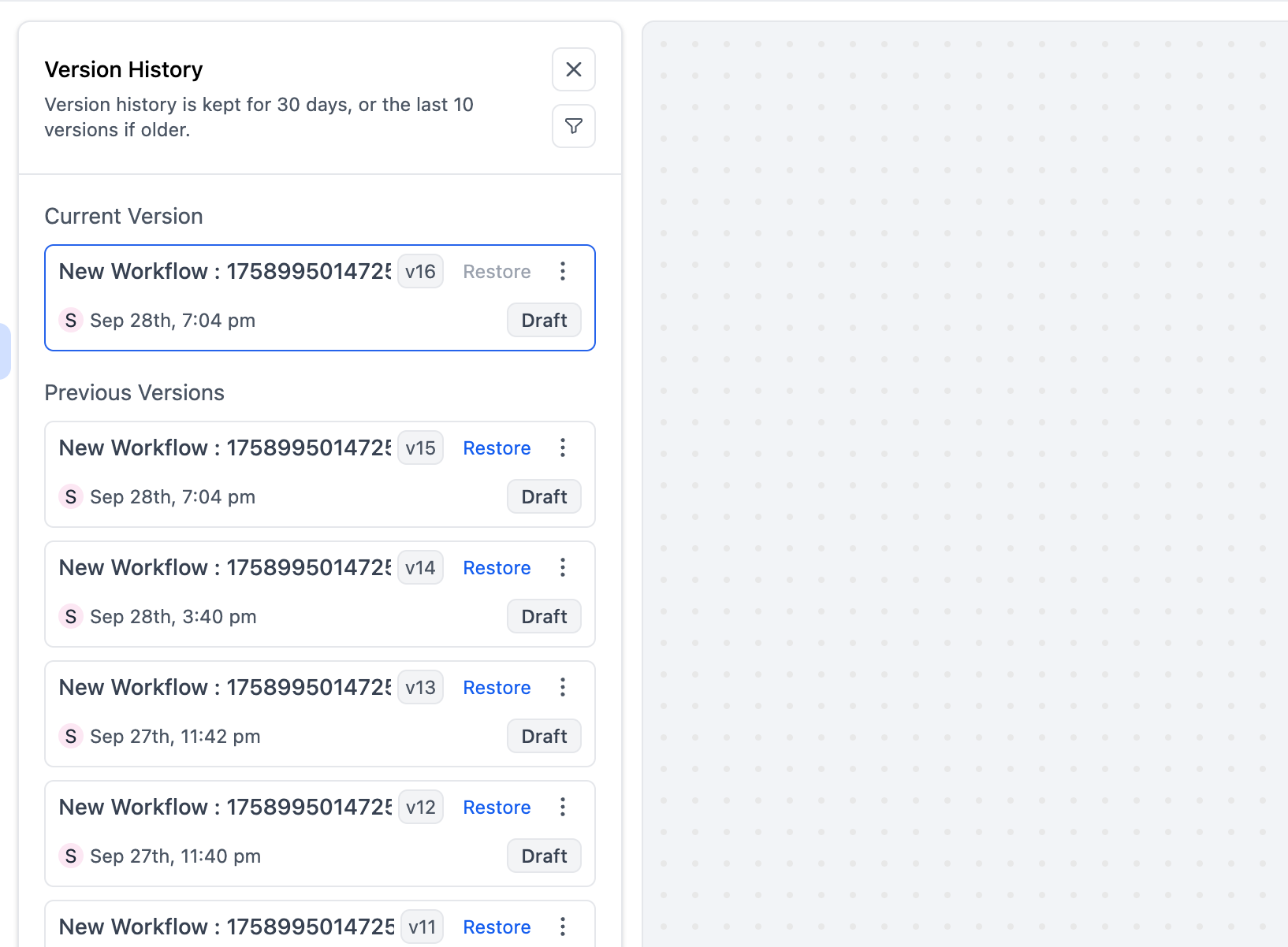
- The new Version History Sidebar gives a clean, chronological overview with quick filters and clear version labels (v12, v13, v14…).
- Find exactly what you need — no guesswork, no clutter.
How Version History is created
Version History automatically records versions at key moments:
- When you click Save manually
- When you confirm changes in the Unsaved Changes pop-up
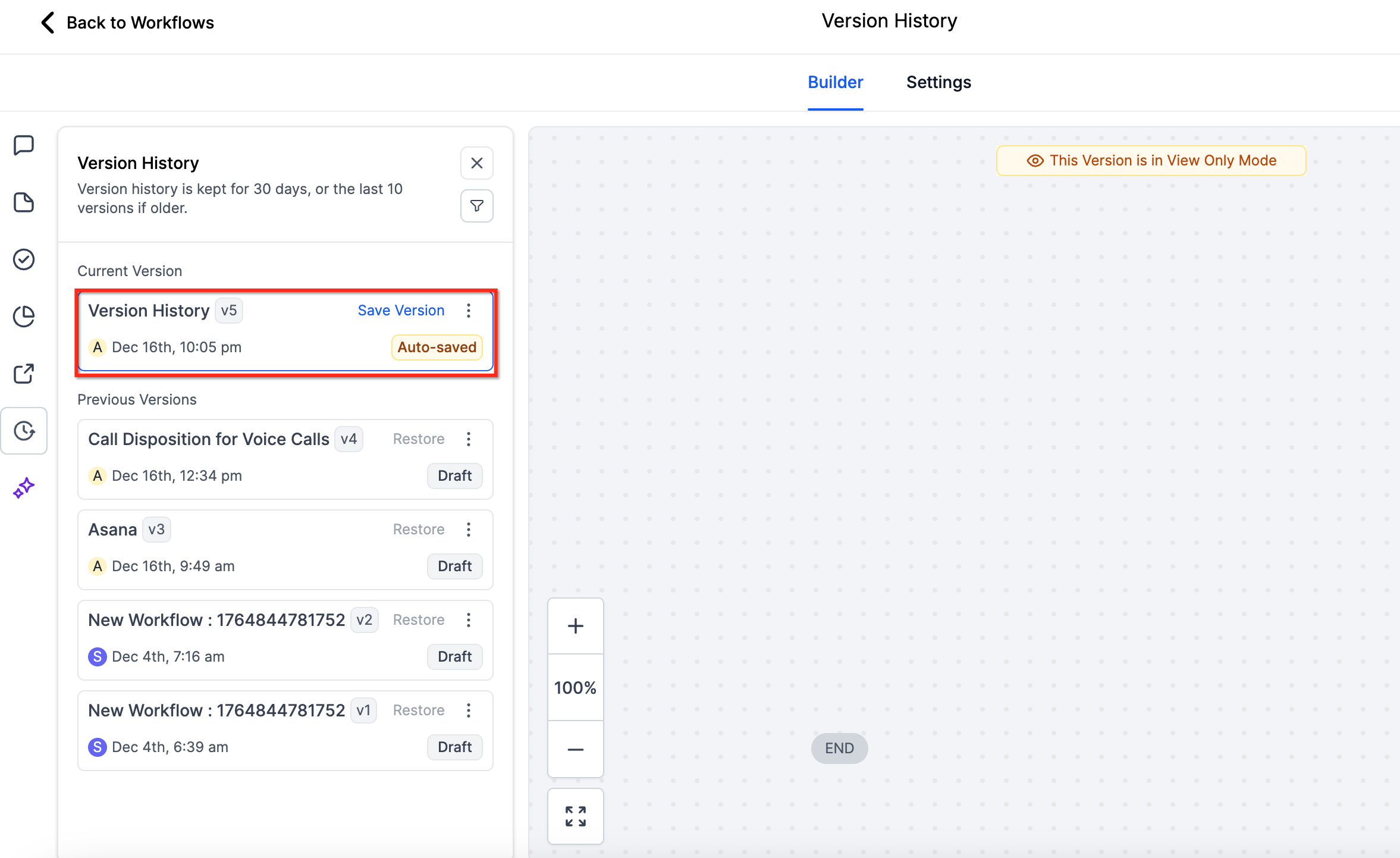
- When you use Save Version in the workflow
- When the workflow status changes (e.g., Draft → Publish or Publish → Draft)
Auto Save note: routine auto-saves do not create new versions by themselves.
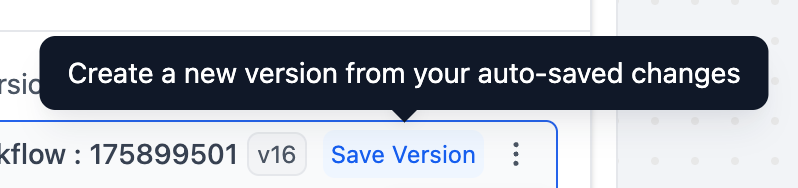
To capture your current state as a version, click Save Version—this snapshots your latest auto-saved changes into Version History.
Browse versions
Open Version History to see your saved entries, organized by time and editor.
Each entry shows:
Workflow name
Version number (e.g., v12, v13, v14)
Timestamp
Editor
Status (Draft or Published)
You can:
Filter by editor
View up to 10 versions or 30 days of history (whichever comes first)
Restore or create from a version
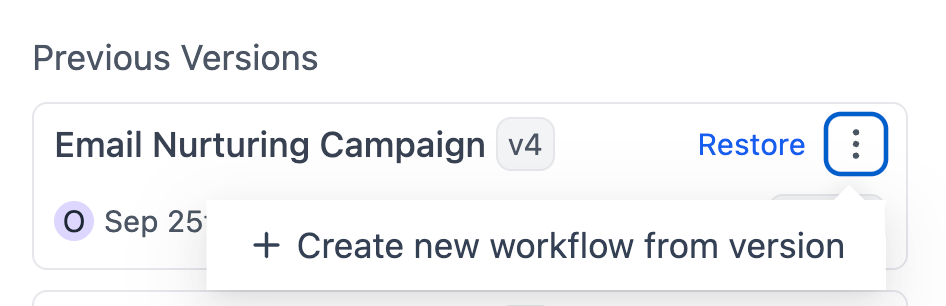
Click Restore next to any previous version to reopen it as a new draft.
Your Published workflow remains unchanged until you Publish the restored draft.
Or choose Create new workflow from version to branch into a separate workflow without touching the original.
When restoring:
The workflow must be in Draft.
There must be no enrolled contacts currently in the workflow.
The restored state becomes a new version—all prior versions remain available.
How Versions Are Created
1. Open a workflow and click the Version History icon in the sidebar.
2. Browse saved versions by timestamp and editor.
3. Click Save Version to snapshot your current auto-saved state.
4. Select any version → Preview (and Compare, if supported).
5. Click Restore to create a new draft, or Create new workflow from version for branching.
6. Test your draft and Publish when you’re ready.
Best practices
- Name versions at milestones (e.g., “Added enterprise branch,” “Updated welcome sequence”).
- Coordinate editors—use Save Version before large changes.
- Use Preview / Compare to validate differences before restoring.
- Branch safely with Create new workflow from version when you want to explore big ideas without touching the current build.
Notes & limitations
Draft → Publish: Restoring creates a new draft. You must Publish to push it live.
Undo/Redo resets after restore. Once you restore a version, your session history starts fresh from that draft.
Auto Save scope: Auto Save covers canvas edits; some configuration panel edits may still require their own save/apply (v1).
Retention: Version History keeps up to 10 versions or 30 days
Validation to restore: Workflow must be Draft with no enrolled contacts.
Availability: At launch, Version History is available via Labs Beta. Enable it in Settings → Labs for your account.