
Sites / Forms
How to Add Custom CSS to Forms, Surveys, and Quizzes!
Modified on: Fri, 19 Dec, 2025 at 10:42 AM
You can easily change how your forms, surveys, and quizzes look using Custom CSS. Follow these simple steps.
1. Where to Add Custom CSS
Option 1: Inside the Form, Survey, or Quiz (recommended)
Go to Sites → Form Builder (or Survey Builder / Quiz Builder).
Open your form.
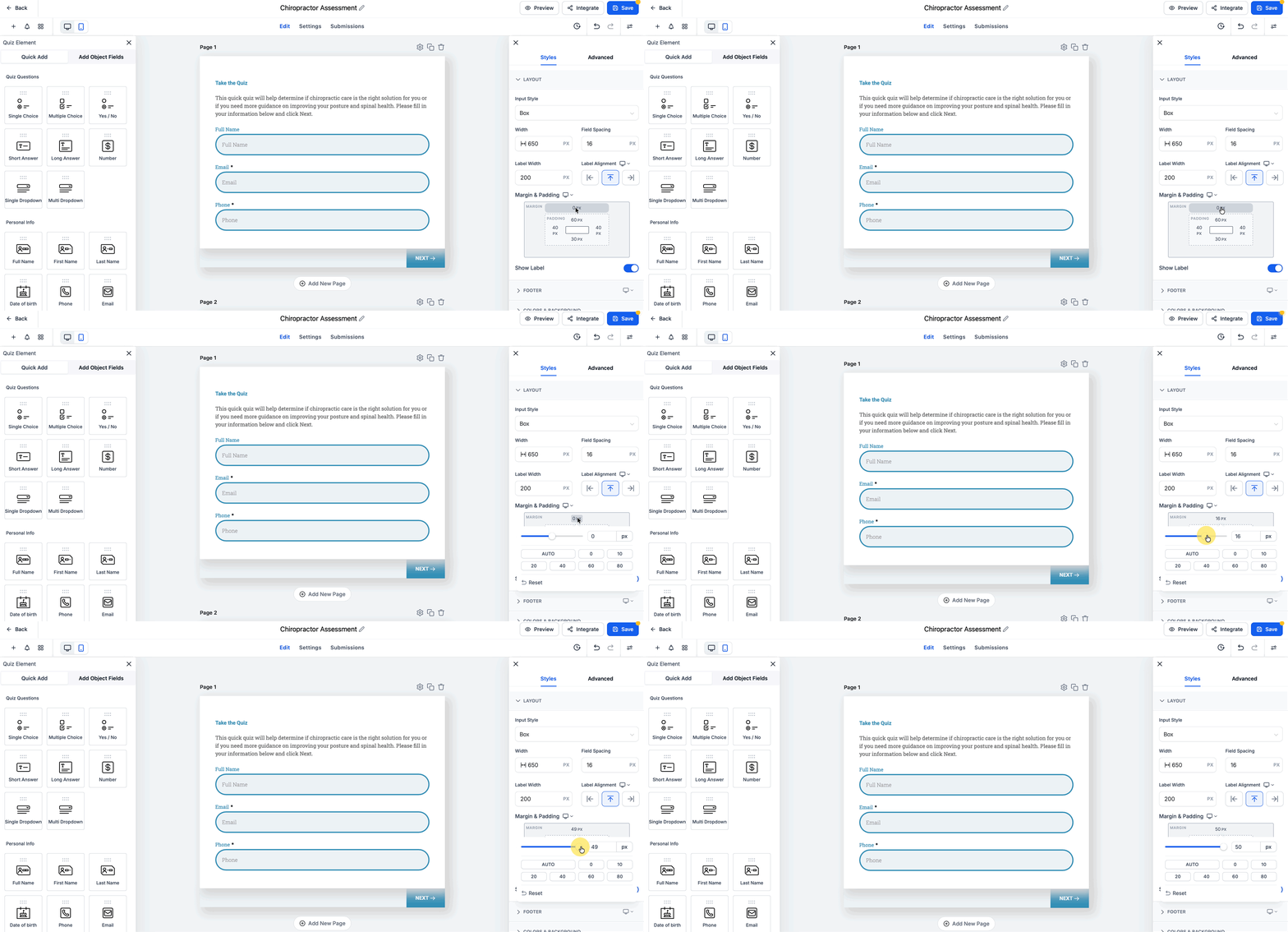
Click on the Styles tab → Advanced Section → Custom CSS section.
Paste your CSS code.
Click Save, then Publish.
This method updates how the form looks inside the form or survey itself.
Option 2: On the Funnel or Website Page
If your form is embedded on a page:
Open your Funnel or Website in the Builder.
Go to Settings → Custom CSS.
Add CSS here to style the container around the form (like margins, padding, or background color).
⚠ You cannot style fields or buttons here because the form is loaded inside an iframe.
Option 3: On External Sites (like WordPress)
You can still style the iframe container, but not the form fields inside.
2. Basic CSS Examples
A. Input Fields
input, textarea, select {  border: 1px solid #ccc;  border-radius: 8px;  padding: 10px;  font-size: 16px; }
input:focus, textarea:focus {  border-color: #7C3AED;  box-shadow: 0 0 4px rgba(124, 58, 237, 0.3); }
B. Submit Button
button[type="submit"] {  background-color: #7C3AED;  color: white;  padding: 12px 20px;  border: none;  border-radius: 8px;  font-size: 16px;  cursor: pointer; }
button[type="submit"]:hover {  background-color: #6931d4; }
C. Labels and Errors
label {  font-weight: 600;  color: #111827; }
.hl-error, .error-message {  color: #DC2626;  font-size: 14px; }
D. Survey/Quiz Progress Bar
.hl-progress .fill { background-color: #7C3AED; transition: width 0.3s ease; }
E. Mobile-Friendly Styling
@media (max-width: 480px) { form { padding: 0 10px; } button[type="submit"] { width: 100%; } }
3. Styling Survey Navigation Buttons
You can also style the Previous, Next, and Submit buttons in surveys using these CSS snippets.
.ghl-footer-preview .ghl-submit-btn {  background-color: #28A745 !important;  color: #FFFFFF !important; }
 .ghl-footer-preview .ghl-footer-next {  background-color: #28A745 !important;  color: #FFFFFF !important; }
 .ghl-footer-preview .ghl-footer-back {  background-color: #28A745 !important;  color: #FFFFFF !important; }
? You can change #28A745 to your brand color to match your theme.
4. Troubleshooting
CSS not working?
Make sure it’s added in the Custom CSS area inside the Form/Survey/Quiz.
Click Publish, then refresh your browser or open in Incognito.
If embedded, remember: page CSS won’t affect the inside of the form (because of the iframe).
5. Quick Tips
Always Save and Publish after edits.
Use Inspect (right-click → Inspect) to find element class names.
Avoid overusing
!important.Check how it looks on desktop and mobile.
6. Example Template (Copy & Paste)
Paste this into your Form’s Custom CSS box:
input, textarea, select {  width: 100%;  border: 1px solid #D0D5DD;  border-radius: 8px;  padding: 10px; }
label { font-weight: 600; color: #111827; } button[type="submit"] {  background: #7C3AED;  color: #fff;  padding: 12px 18px;  border: none;  border-radius: 8px;  cursor: pointer; }
button[type="submit"]:hover {  background: #6931d4; }
You’re done! Your form, survey, or quiz will now have your custom styles applied, including buttons styled to match your brand.