
Workflows / Getting Started w/ Workflows
Basecamp Actions & Triggers in Workflows
Modified on: Fri, 6 Mar, 2026 at 3:43 PM
Connect Basecamp to OmniReach to automate project setup, tasks, and team communication in real time. This guide mirrors the Typeform article’s structure and covers instant Basecamp → OmniReach triggers, all available Basecamp actions you can run from a workflow, and step‑by‑step setup. You’ll also find mapping tips, billing notes, and related resources so your team can launch confidently.
TABLE OF CONTENTS
- What is the Basecamp Integration in Workflows?
- Key Benefits of the Basecamp Integration
- Triggers & Actions
- How To Set Up the Basecamp Integration
- Build your first flow
- Use Cases
- Frequently Asked Questions
- Related Articles
What is the Basecamp Integration in Workflows?
OmniReach’s native Basecamp integration lets you react to Basecamp activity instantly and perform Basecamp tasks directly from a workflow. Use Basecamp triggers (like New To‑do or New Message Posted) to enroll records the moment activity happens, and add Basecamp actions (like Create Project, Create/Update To‑do, Create Message, Create Document) to streamline onboarding, task tracking, and client delivery.
Key Benefits of the Basecamp Integration
Faster handoffs: Automatically create projects, to‑do lists, and tasks when deals move to delivery.
Instant triggers: Webhook‑based triggers fire immediately—no polling delays.
Fewer duplicates: “Find” actions (Project/List/To‑do/Person/Document) let you search first, then create only when needed.
Flexible plans: Works with Basecamp’s free and paid plans (feature availability depends on your Basecamp plan).
Predictable costs: Basecamp triggers/actions are premium and billed per execution under Workflow Pro tiers; agencies can optionally rebill.
Triggers & Actions
Triggers (Basecamp → OmniReach)
These events enroll records into a workflow the moment they occur in Basecamp.
| Trigger | Fires when |
|---|---|
| New To‑do | A new to‑do is created in Basecamp. |
| New Comment Added | A comment is added to a to‑do or message. |
| New Document | A new document is created. |
| New Activity | New activity occurs in a Basecamp project (project‑level event). |
| New Message Posted | A new message is posted in a project. |
| New To‑do List | A new to‑do list is created. |
Actions (OmniReach → Basecamp)
Run these steps in workflows to create, update, or look up items inside Basecamp.
| Action | Purpose / Example uses |
|---|---|
| Create Project | Create a new project (blank or from a template, where supported). |
| Create To‑do List | Create a list inside a specific project. |
| Create To‑do | Add a task to a selected to‑do list (title, due date, assignee, etc.). |
| Update To‑do | Modify an existing task’s fields (title, due date, assignee, status). |
| Create Message | Post to a project’s message board. |
| Create Campfire Message | Send a chat message to a project's Campfire room. |
| Create Document | Create a text note or file entry in a project. |
| Add Person to Project | Add a team member or client to a project. |
| Find Project | Locate an existing project to reference later steps and prevent duplicates. |
| Find To‑do List | Locate an existing to‑do list for downstream mapping. |
| Find To‑do | Locate a to‑do by name/ID so you can update it reliably. |
| Find Document | Locate an existing document to link/update. |
| Find Person | Locate a Basecamp user/client to add/assign. |
How To Set Up the Basecamp Integration
Connect Basecamp (two paths)
From a Trigger/Action step
In Workflows → open or create a workflow.
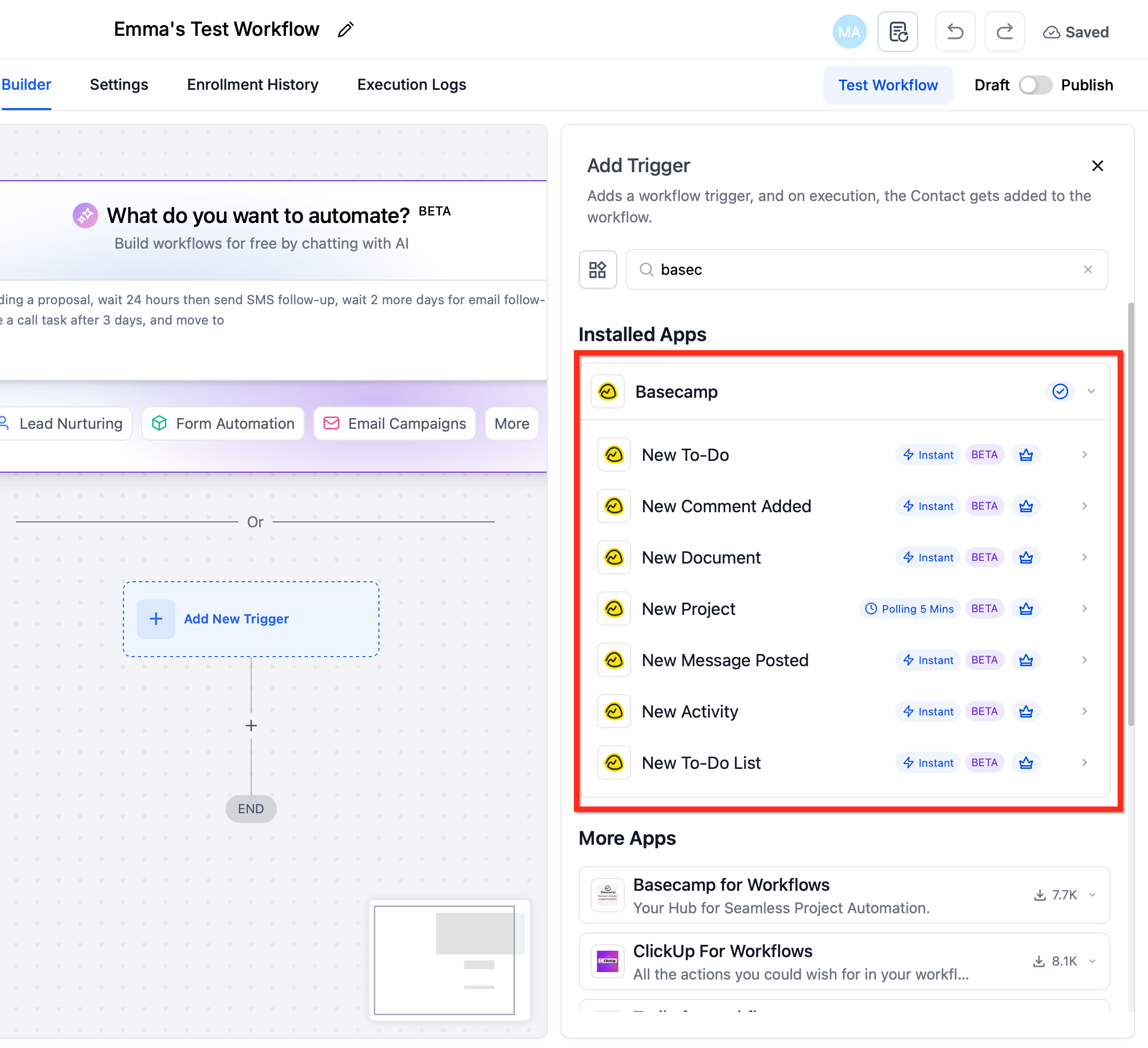
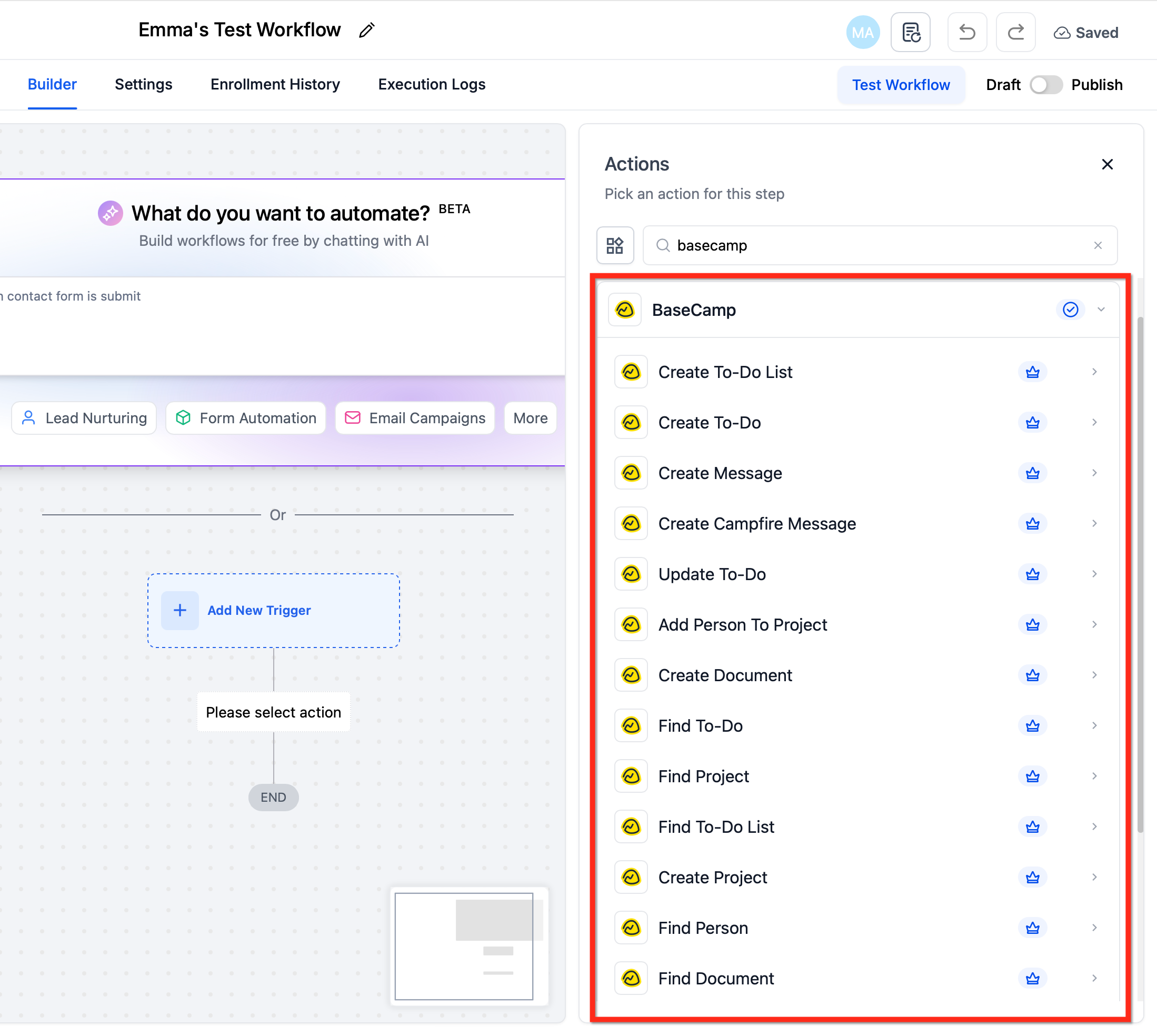
Click + Add Trigger (or + Add Action) and search Basecamp.
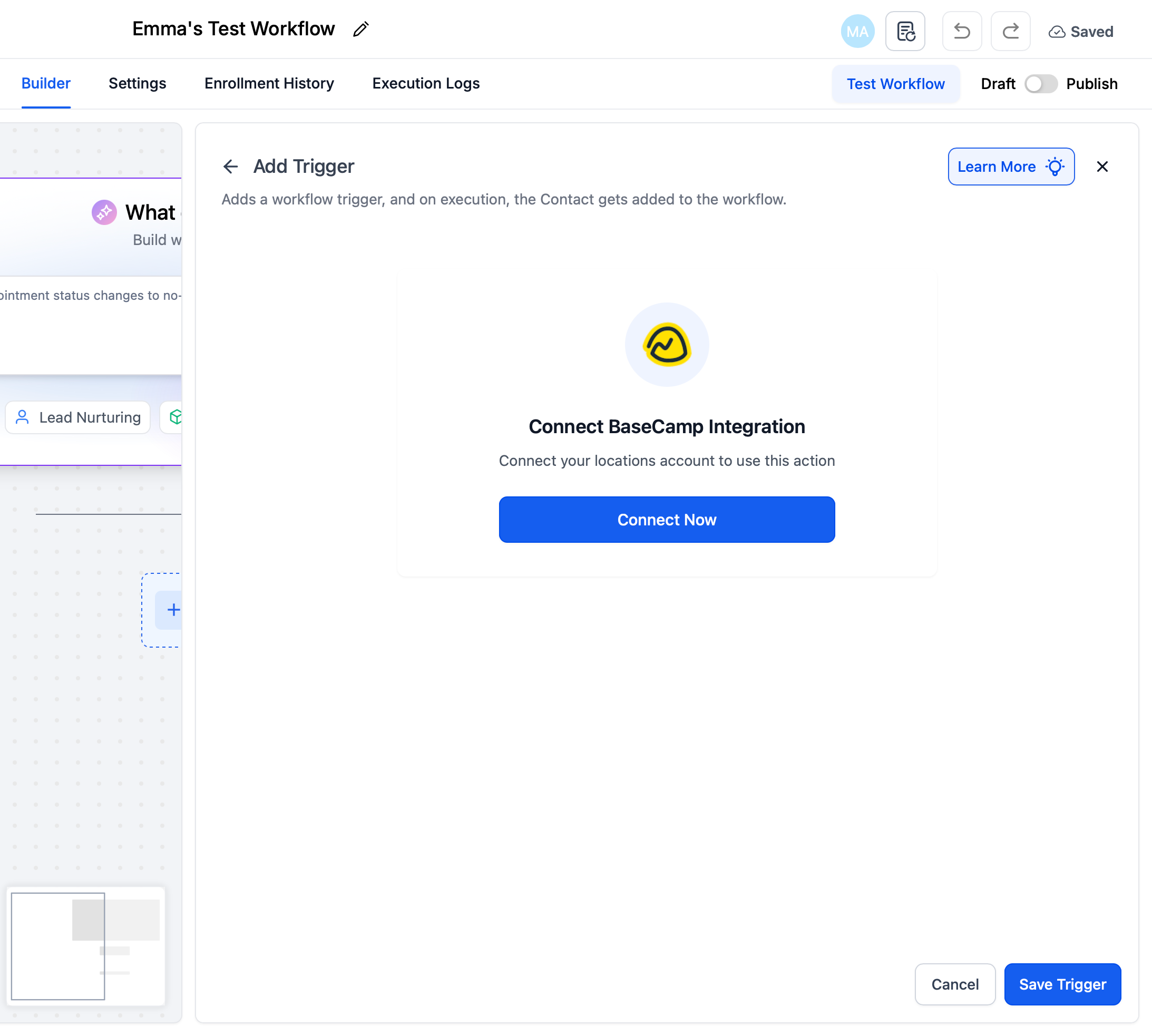
Choose a Basecamp trigger or action, then click Connect Now.
Sign in to Basecamp and authorize OmniReach.
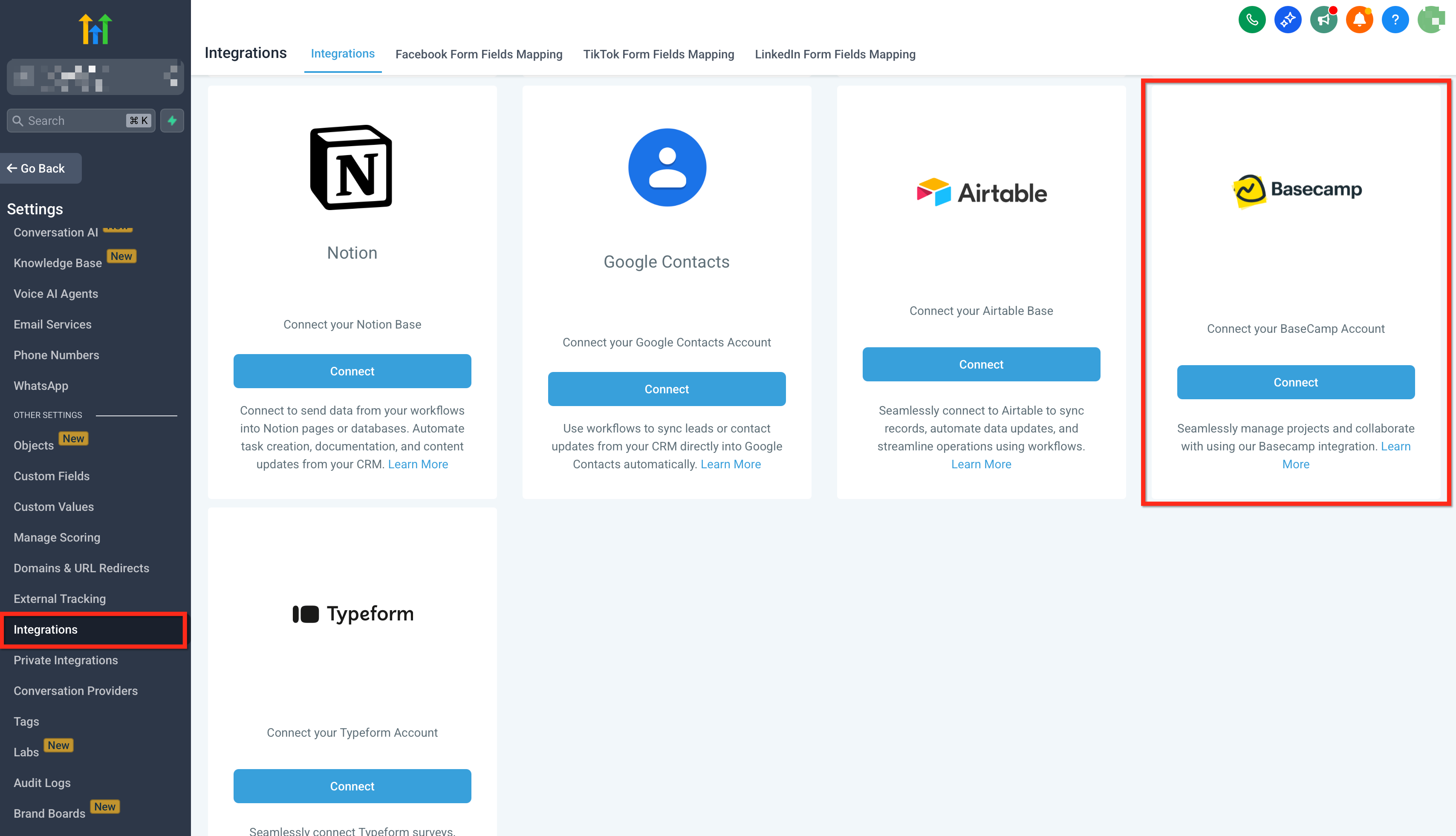
From Settings → Integrations
Go to Settings → Integrations, locate Basecamp, and complete the OAuth connection.
Note: Connections are per sub‑account (location). Install/bulk install does not auto‑connect every location—authorize in each sub‑account that needs Basecamp.
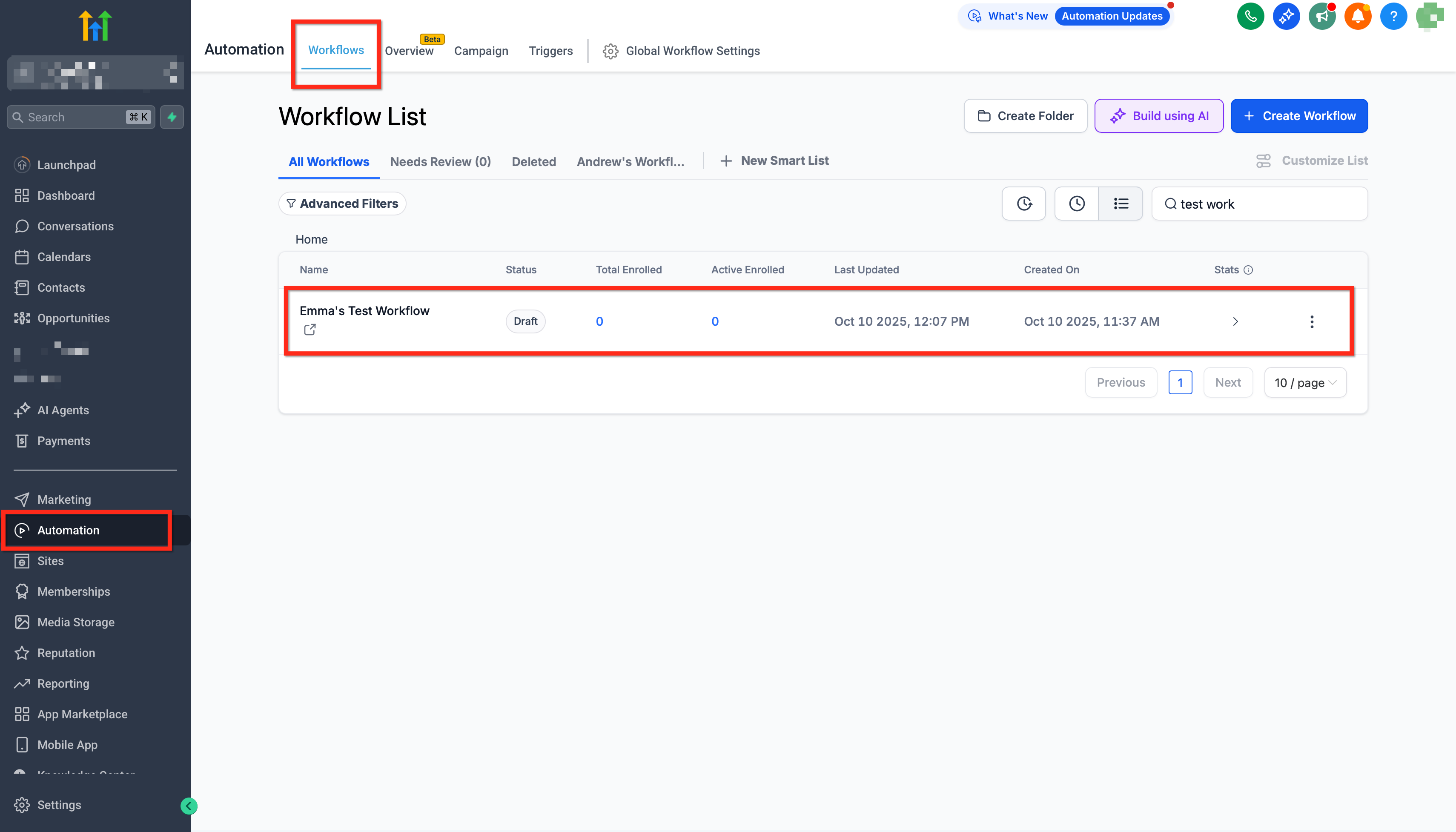
Build your first flow
From the desired sub‑account, go to Automations → Workflows and click Create Workflow (or open an existing one).
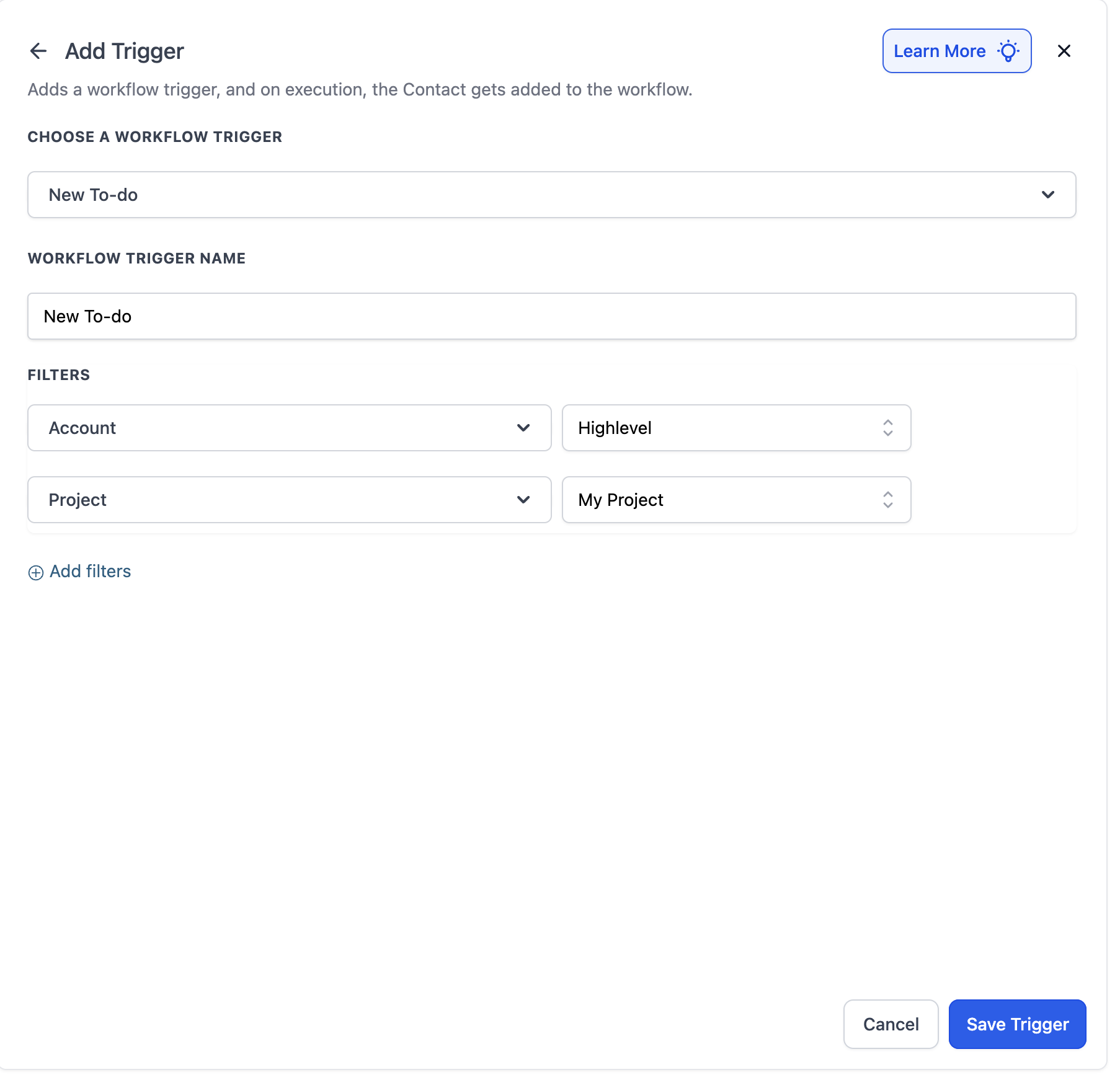
Add a Basecamp Trigger (e.g., New To‑do) and select the target project or scope (as required).
Add Basecamp Actions (e.g., Find Project → If Not Found → Create Project, then Create To‑do List → Create To‑do).
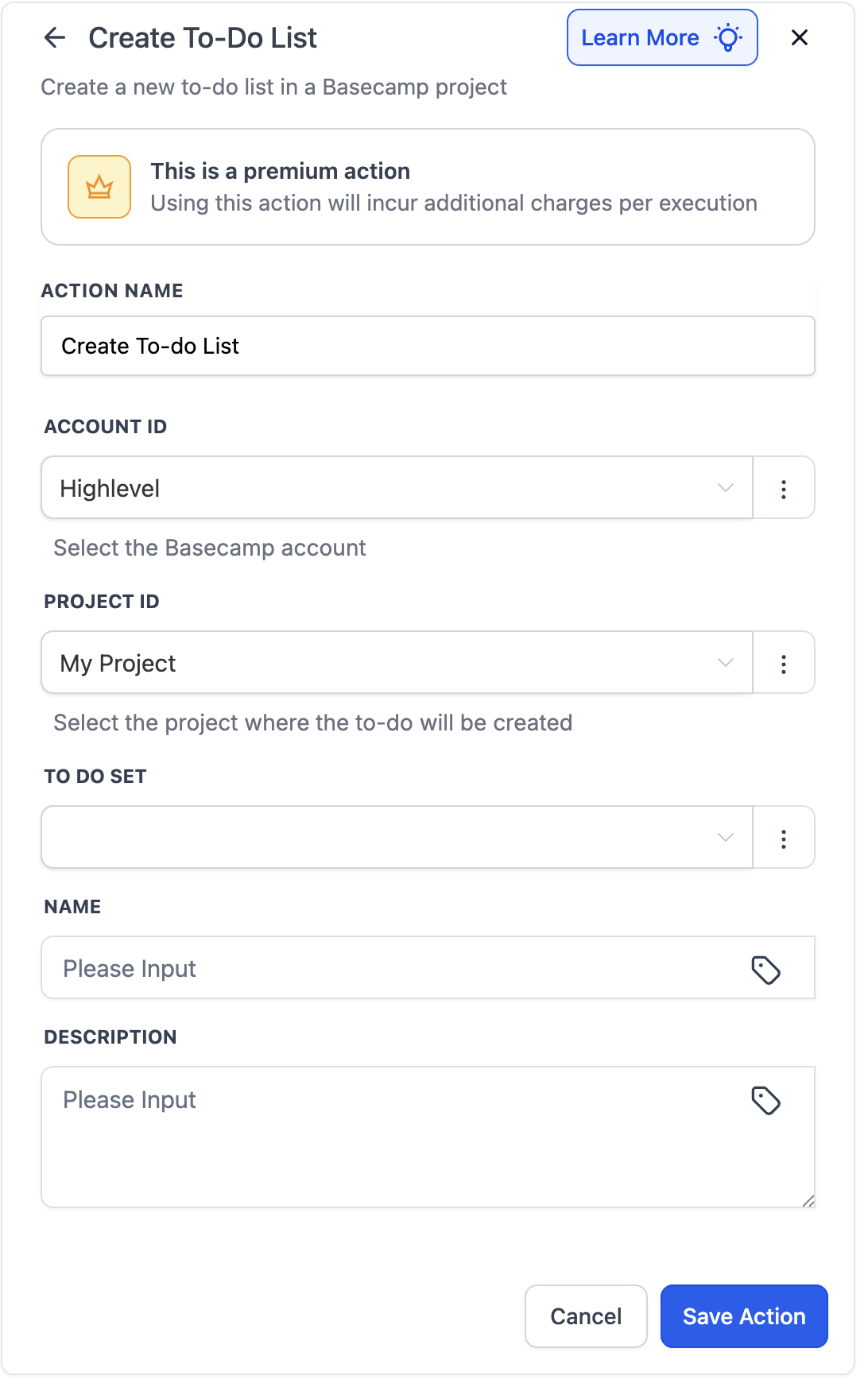
Add internal follow‑ups (e.g., Notify User, Send Email, Update Opportunity).
Publish and perform a one‑time event (e.g., create a to‑do in Basecamp) to verify entries appear in Execution Logs.
Use Cases
Use Case 1: Create To‑do + Project Document from a OmniReach Form
Goal: Turn a submitted intake form into actionable Basecamp work and documentation.
Workflow Setup:
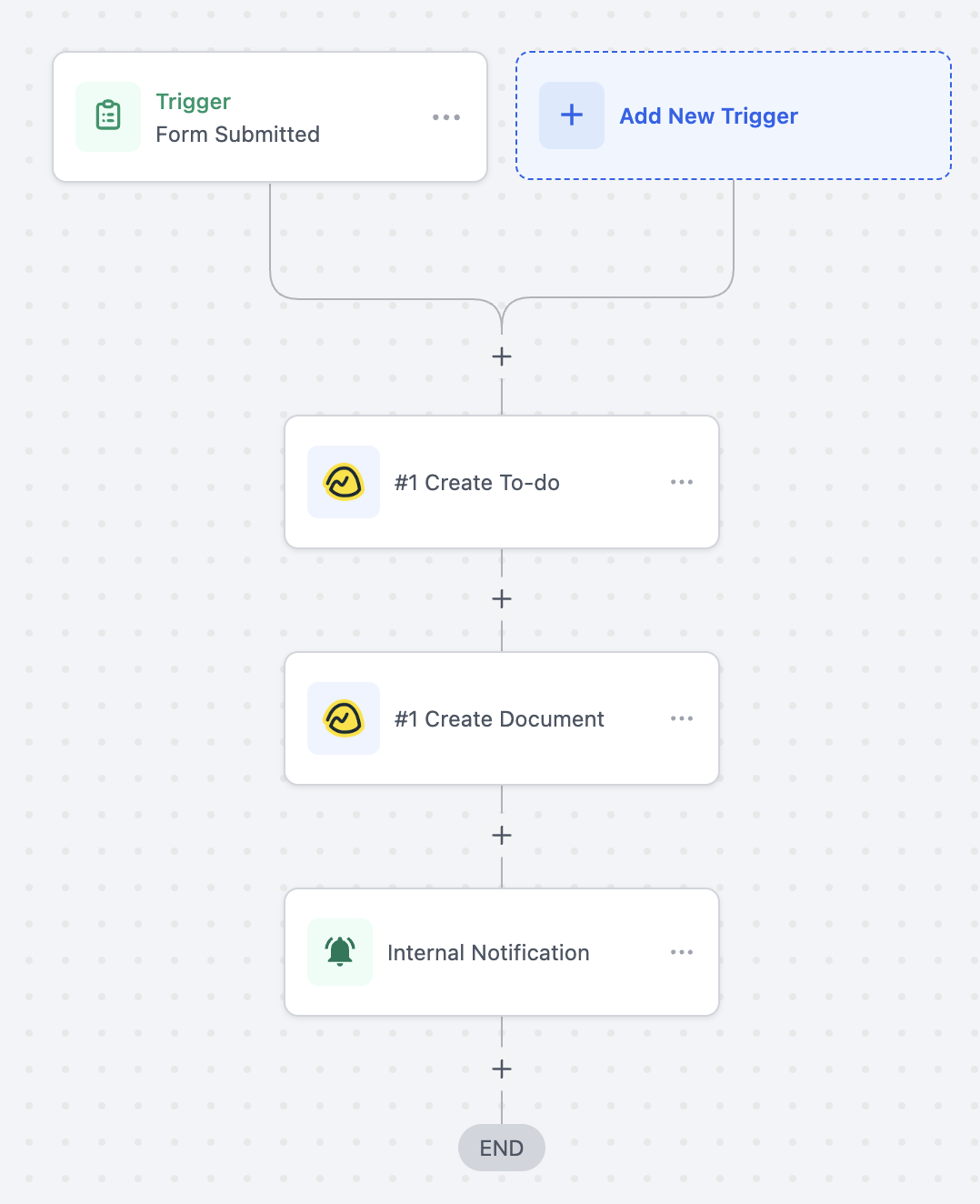
Trigger: Form Submitted
- Filter: Form Name = “Project Intake Form”
Actions: Create To‑do (Basecamp), Create Document (Basecamp), Notify User
Example: A client submits the “Project Intake” form. A task appears in Basecamp (“Create workspace for Client X”), a document is created with the form answers, and your team is notified to kick off.
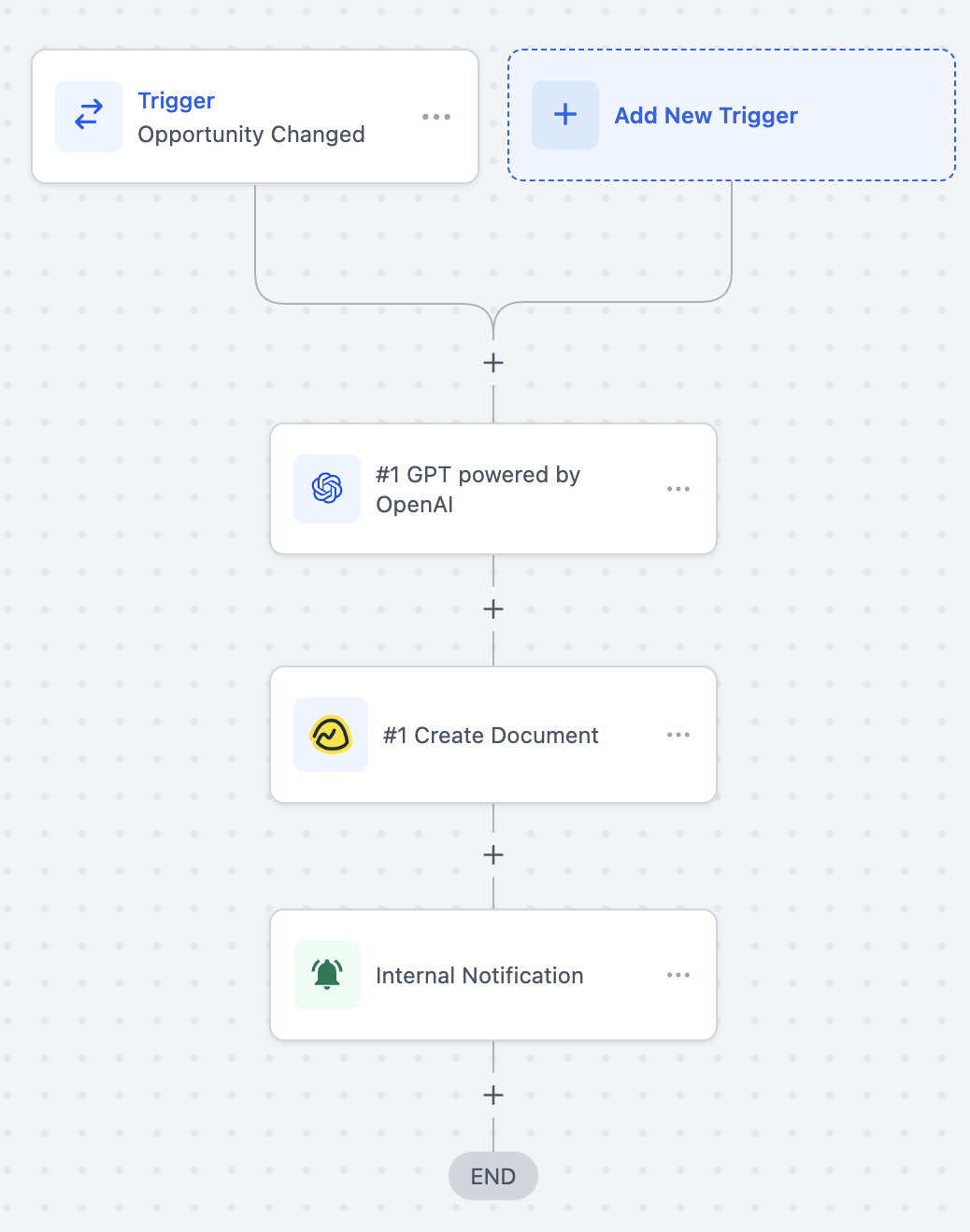
Use Case 2: AI Kickoff Brief on “Closed Won”
Goal: Generate a project summary via AI, store it in Basecamp, and alert the team.
Workflow Setup:
Trigger: Opportunity Stage Changed (Stage = Closed Won)
- Filter: Opportunity Stage = “Closed Won”
Actions: GPT (OpenAI) → Create Document (Basecamp) → Notify User
Example: When the deal closes, AI drafts a kickoff brief using opportunity details. The brief is saved as a Basecamp document and the onboarding team is notified.
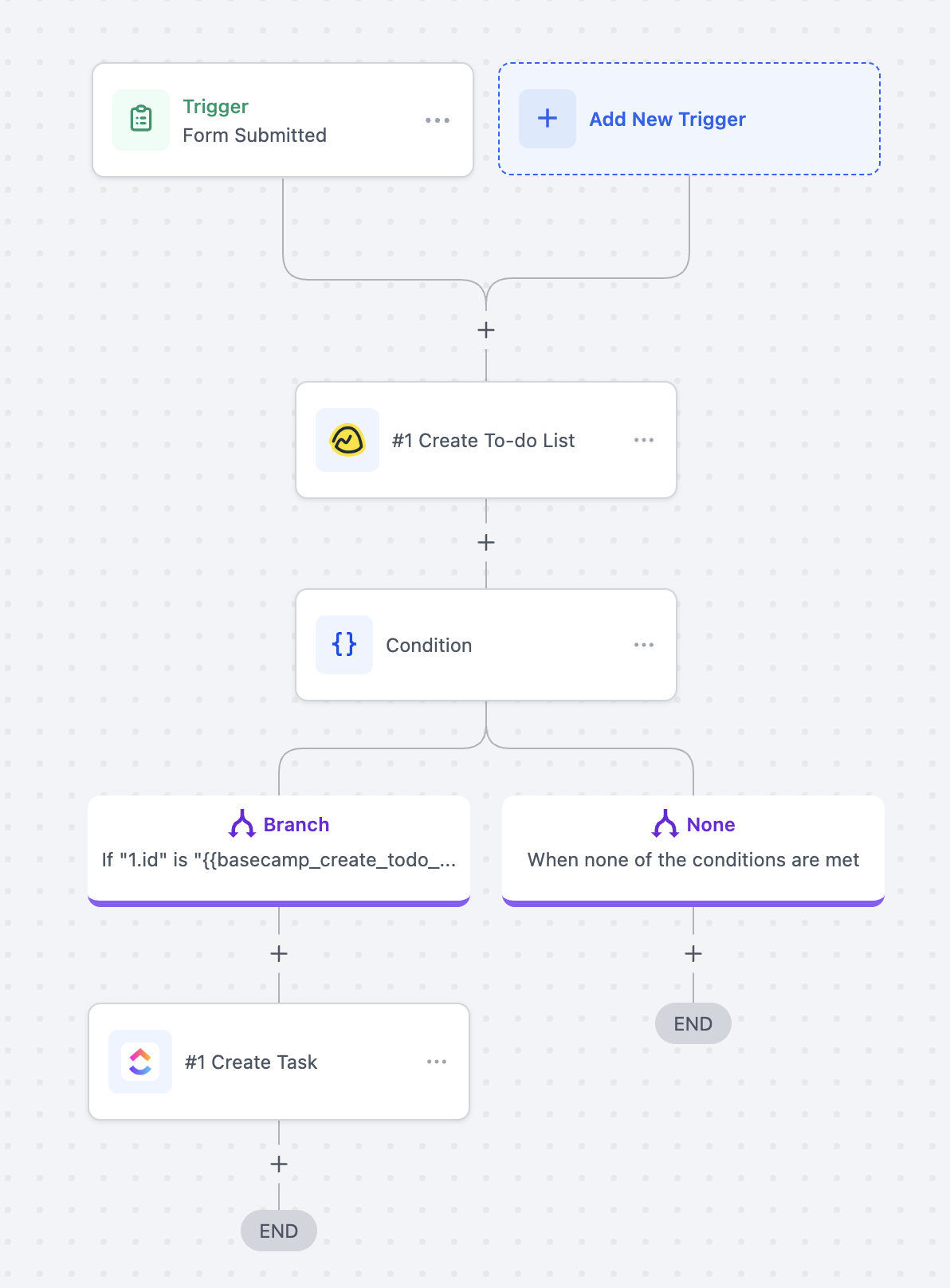
Use Case 3: Create To‑do List + Task from a OmniReach Form
Goal: Stand up a fresh list with a first task whenever a request form is submitted.
Workflow Setup:
Trigger: Form Submitted
- Filter: None
Actions: Create To‑do List (Basecamp) → Condition → Create To‑do (Basecamp)
Example: On submission, a new list “Website Redesign – Client ABC” is created. If successful, a task “Assign designer & schedule kickoff” is added so work can begin immediately.
Frequently Asked Questions
Q: Do I need a paid Basecamp plan?
The integration works with Basecamp’s free and paid plans. Advanced Basecamp features still follow your Basecamp subscription limits.
Q: Can I sync data both ways between Basecamp and OmniReach?
The integration currently supports one-way sync. You can trigger workflows when events happen in Basecamp or perform actions in Basecamp from OmniReach. For full bi-directional syncing, use middleware platforms like Make or Zapier.
Q: Are the Basecamp steps premium‑billed in OmniReach?
Yes. Basecamp triggers and actions are premium and billed per execution at your account’s standard rate. Agencies can optionally rebill sub‑accounts.
Q: Can I create a project from a template?
Yes. Create Project supports creating from a template when available in your Basecamp account.
Q: Where do I troubleshoot failures?
Open Execution Logs to review the specific step error (e.g., invalid ID, missing permission). If authorization expired, reconnect Basecamp under Settings → Integrations and re‑run a test.
Q: Can I connect multiple Basecamp accounts?
Yes. Authenticate the appropriate Basecamp account per sub‑account and select the desired connection in each action/trigger step.