
Marketing / Social Planner
External Link Approval Flow in Social Planner
Modified on: Wed, 8 Apr, 2026 at 4:55 AM
TABLE OF CONTENTS
- Overview
- What You Can Do with This Feature
- Step 1: Generate an Approval Link
- Step 2: Share the Link
- Step 3: Approver Reviews the Post
- Step 4: Approver Takes Action
- Step 5: View Approval Status & Notes
- Managing Approval Links
- Link Expiry & Recovery
- Important Notes
- Best Practices
Overview
External Approval Flow allows you to share social media posts with clients or stakeholders for approval using a secure link (Magic Link) without requiring them to log in.
This helps you streamline approvals, reduce back-and-forth, and manage collaboration directly inside Social Planner.
What You Can Do with This Feature
- Share posts using a secure approval link
- Allow external users to approve, reject, or reschedule posts
- Add and view approval notes
- Track all approval links in one place
- Manage approvals without adding users to your account
Step 1: Generate an Approval Link
- Go to Marketing → Social Planner
- Select an Approver from the dropdown
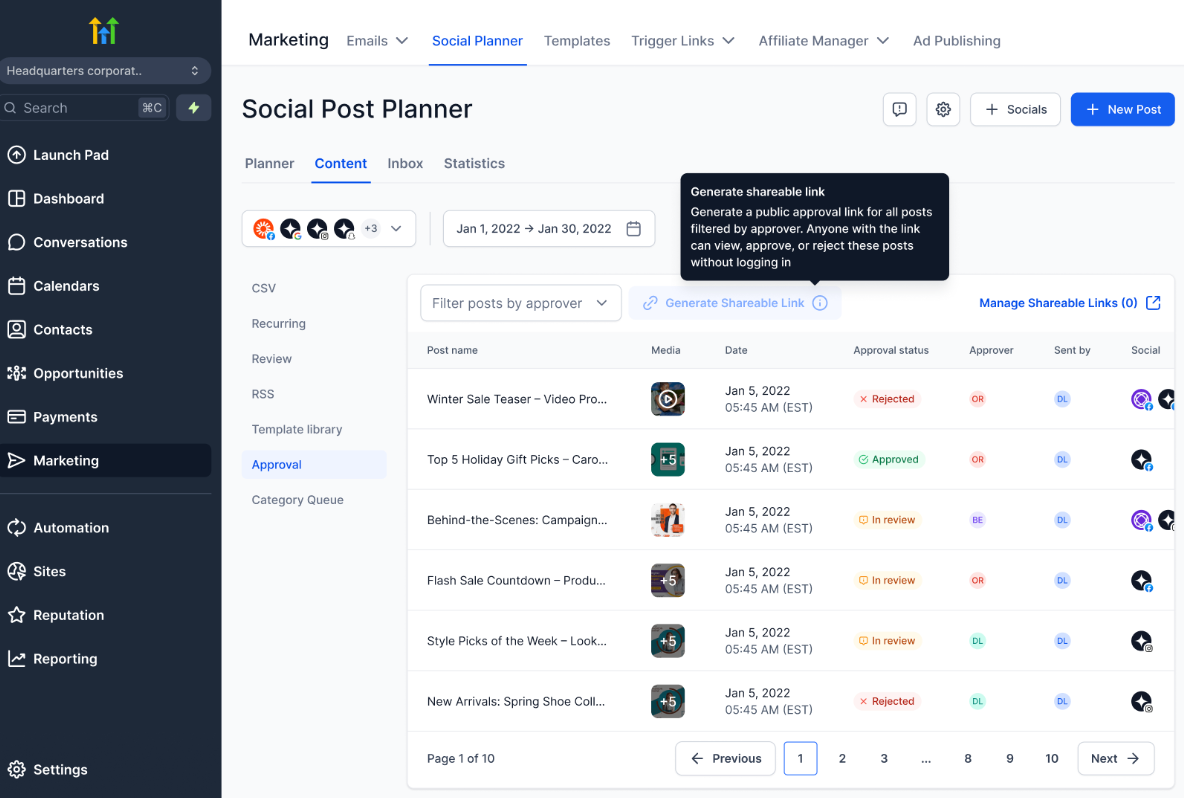
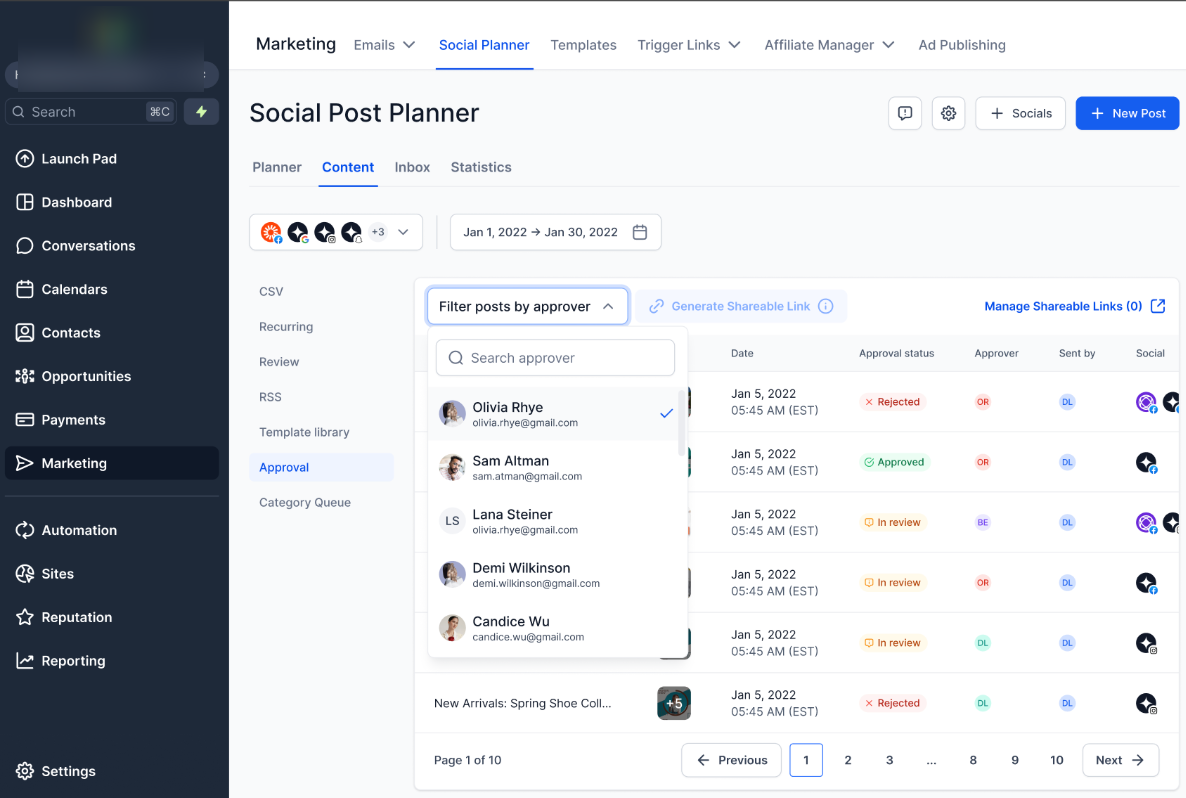
3. Click Generate Approval Link
4. Set a password:
- Auto-generate OR
- Enter a custom password
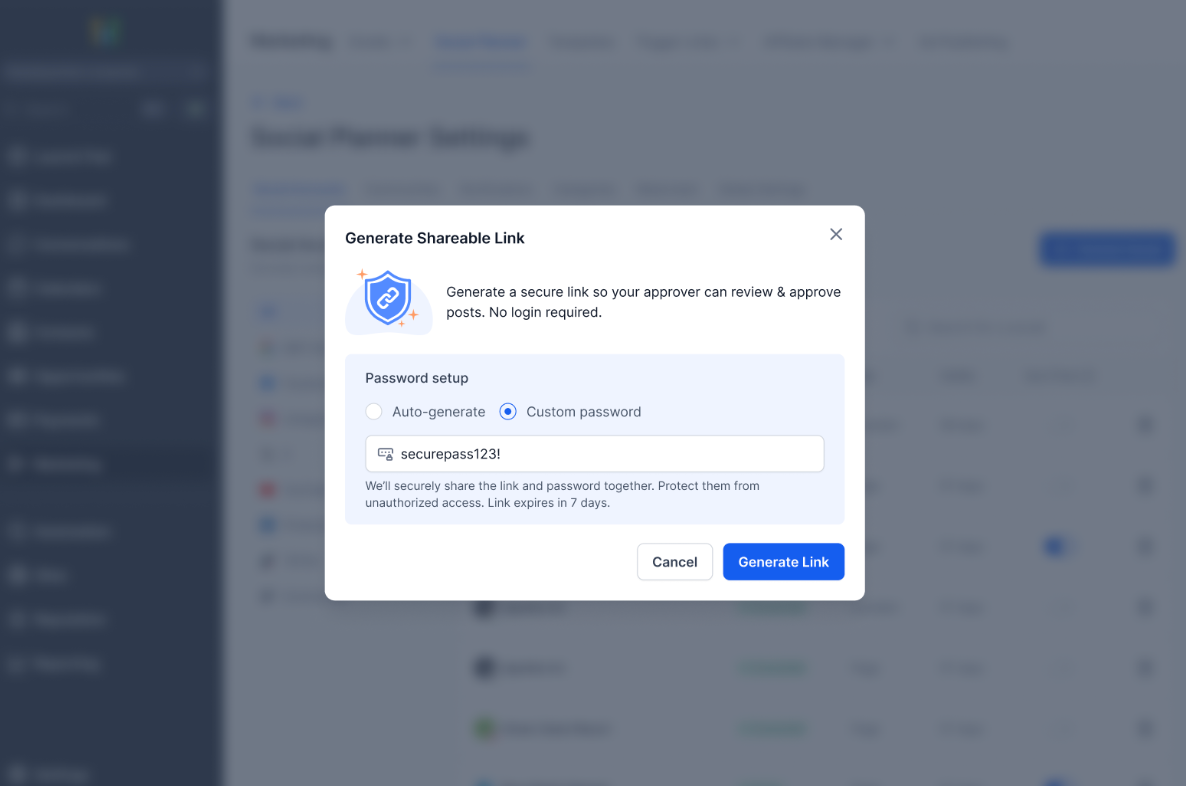
5. Copy and share the link with your client or stakeholder
Step 2: Share the Link
You can share the approval link via:
- Slack
- Any messaging platform
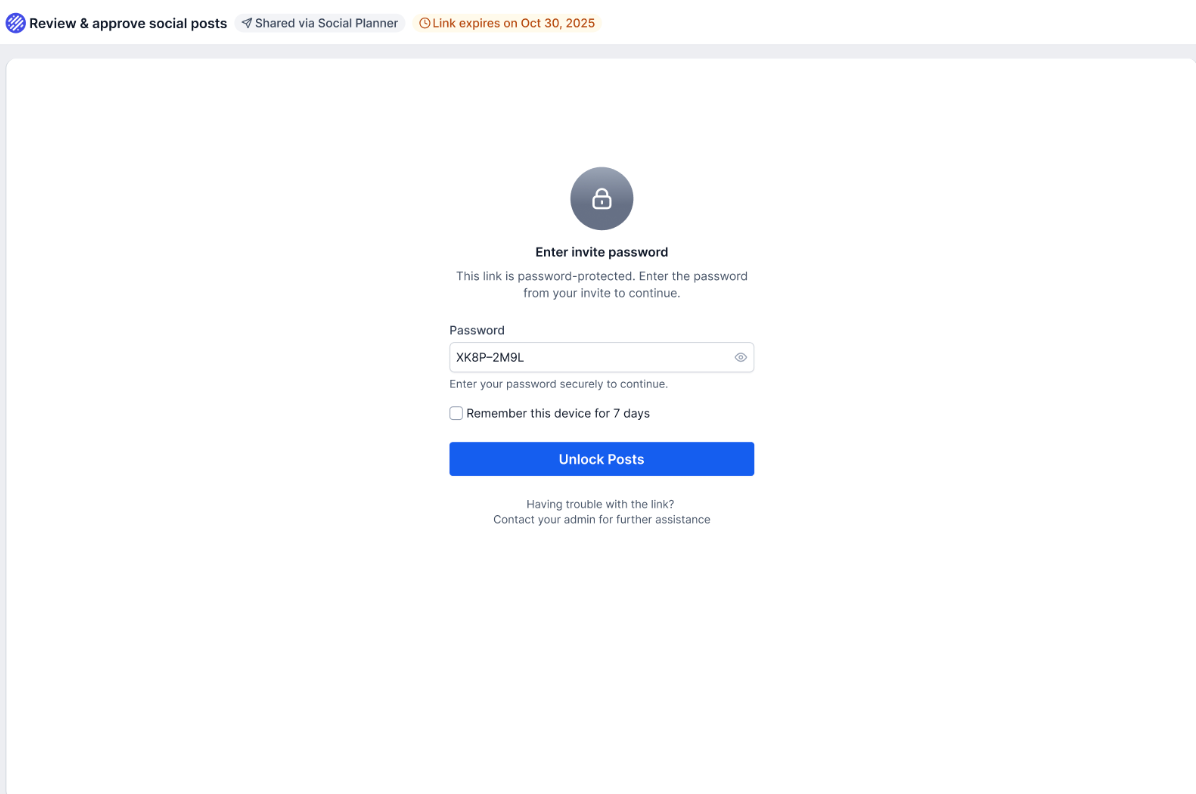
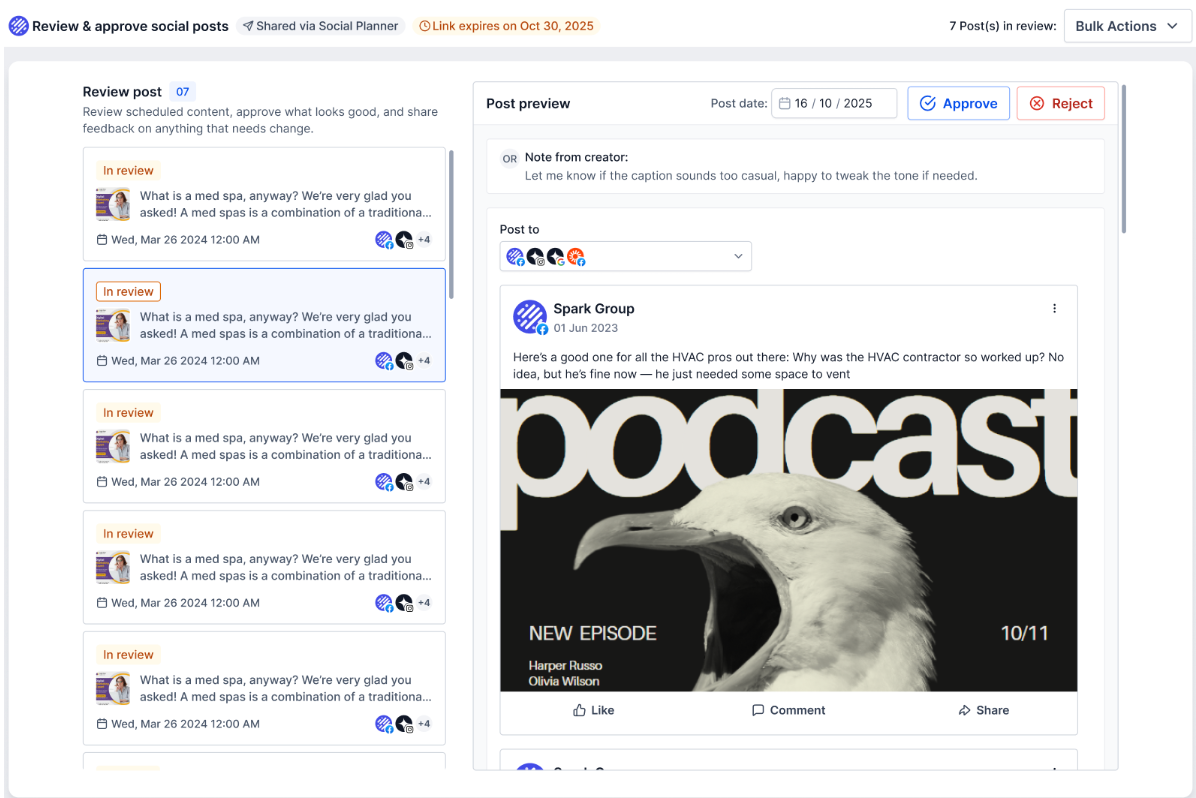
Step 3: Approver Reviews the Post
When the approver opens the link, they can view:
- Post content (caption + media)
- Scheduled date & time
- Platform details
- Notes added by the creator
This ensures they have full context before taking action.
Step 4: Approver Takes Action
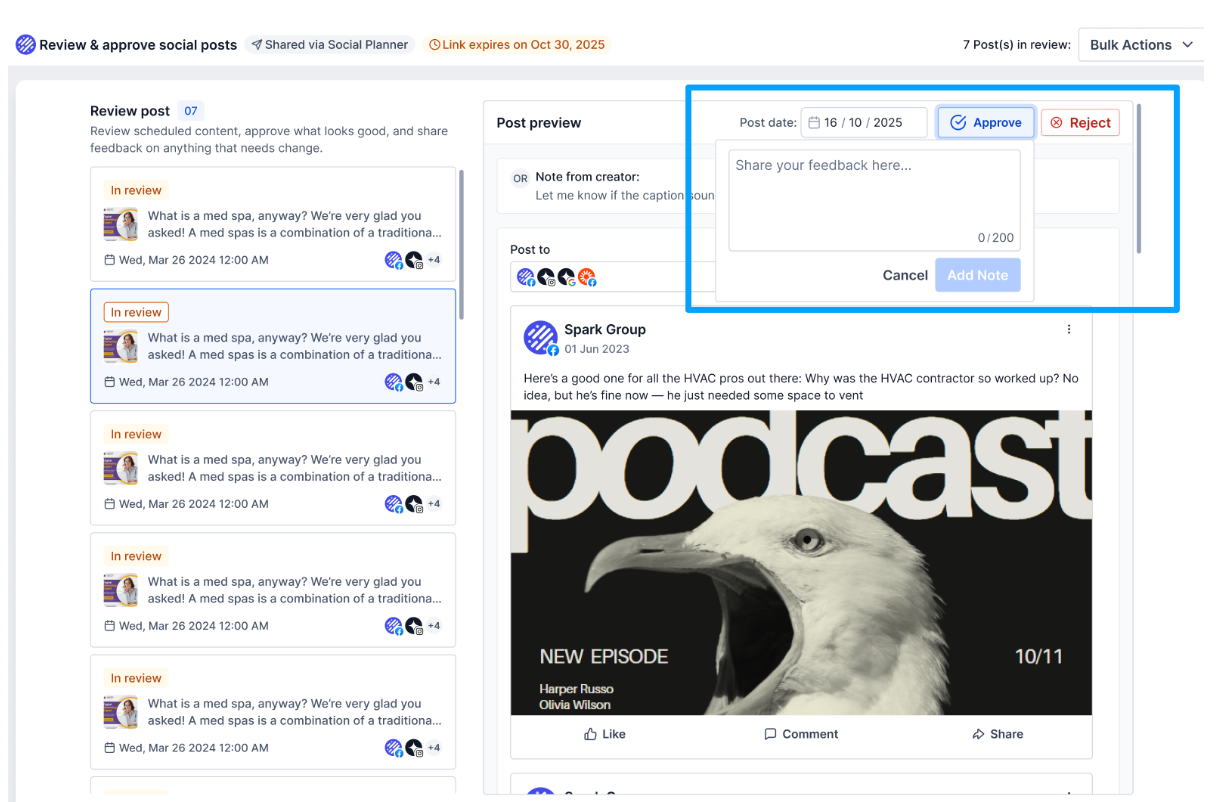
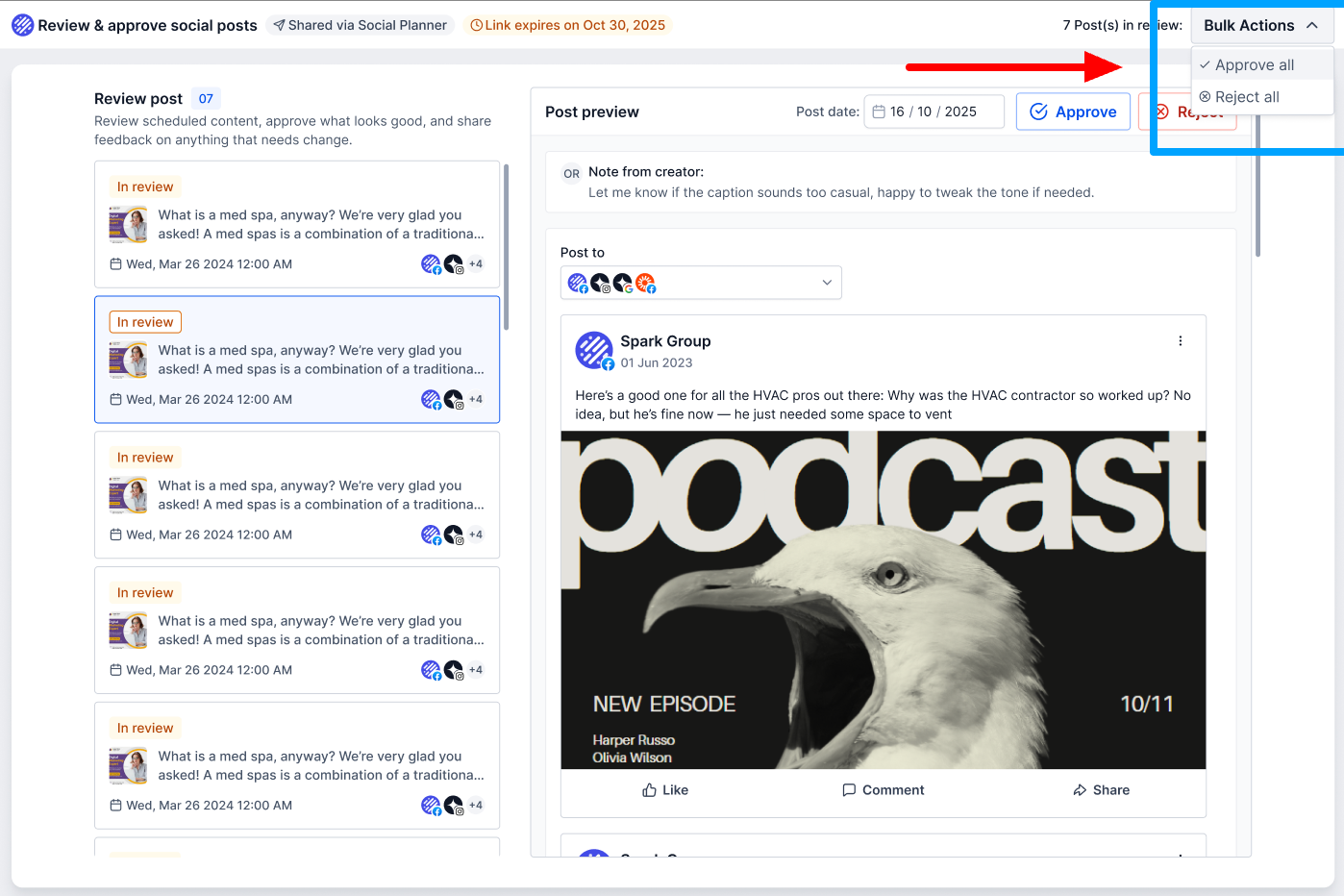
The approver can:
- Approve the post (with optional notes)
- Reject the post (with feedback)
- Reschedule the post
- Approve/Reject multiple posts (bulk actions)
Step 5: View Approval Status & Notes
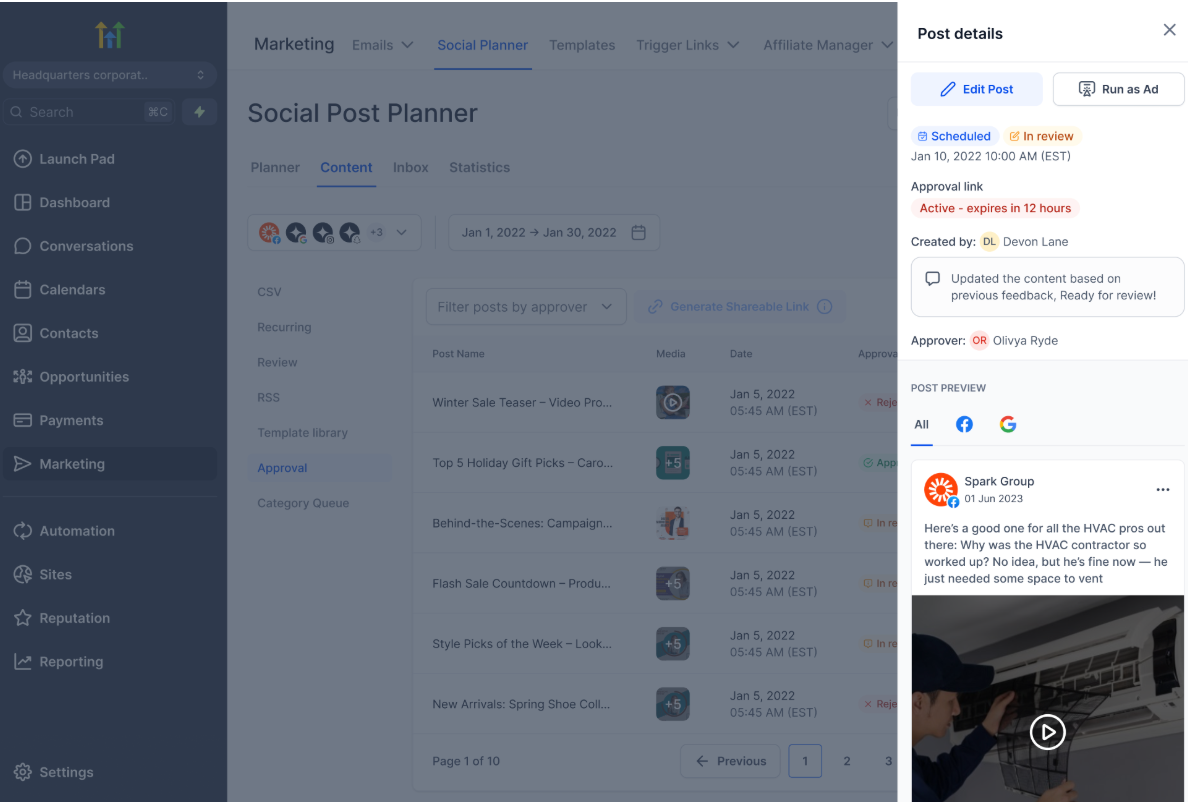
Once action is taken:
- The post status updates in Social Planner
- You can view approval/rejection notes
- You can edit and resend if changes are required
Approved posts will proceed to scheduled publishing.
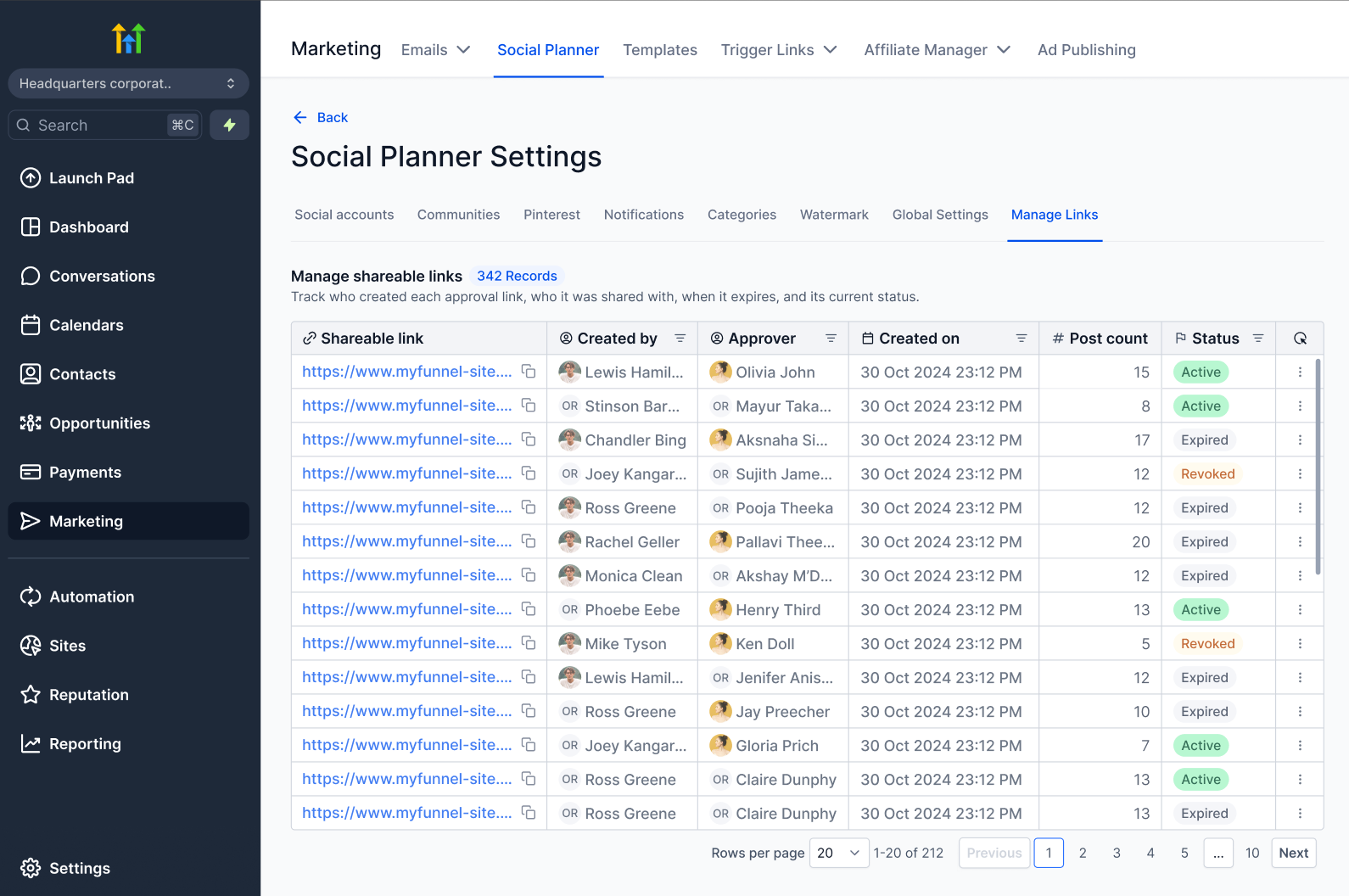
Managing Approval Links
You can manage all your approval links from one place.
Steps:
- Go to Settings → Manage Links
Available Actions:
- View all approval links
- Check status:
- Active
- Expired
- Revoked
- Regenerate links
- Revoke access
- Extend validity
Link Expiry & Recovery
- Links are valid for 30 days
- After expiry:
- Approver can request a new link
- You can regenerate the link instantly
Important Notes
- Approval links are password protected
- Links expire after 30 days
- You can regenerate or revoke links anytime
- Actions are restricted once a post is published
- Only users with required permissions can generate links
- The Approver can only open the approval link desktop/web view and mobile view is currently is progress and will release soon.
Best Practices
- Add clear notes for approvers to avoid confusion
- Share links with the right stakeholders only
- Regularly monitor approval status to avoid delays
- Regenerate links if clients report access issues