
Email / LC Email
Google Postmaster Tools
Modified on: Tue, 5 May, 2026 at 9:41 AM
Google Postmaster Tools is a free platform that gives email senders deep visibility into Gmail deliverability — domain reputation, IP reputation, spam rate, authentication, and delivery errors.
This guide explains why it matters, how to set it up, and how to connect it to LeadConnector so all your data lives in one place.
What is Google Postmaster Tools?
Google Postmaster Tools is a free platform that provides email senders with data and insights into their email deliverability, especially when sending to Gmail users. It helps track metrics such as domain and IP reputation, spam rates, and the success of email authentication protocols (SPF, DKIM, DMARC).
By using this tool, email senders can better understand how Google perceives their emails and take steps to improve their sender reputation. It is primarily useful for email marketers and bulk senders who are looking to improve inbox placement, reduce spam rates, and maintain a strong domain reputation with Gmail users.
Why Should You Use Google Postmaster Tools?
Your sender reputation is crucial for ensuring your emails reach the inbox rather than being marked as spam. Google Postmaster Tools provides transparency into how Gmail rates your emails based on several factors:
If too many users mark your emails as spam, it will affect your sender reputation.
These metrics let you know if your sending infrastructure is considered trustworthy by Gmail.
Tools like SPF, DKIM, and DMARC are essential to proving that your emails are legitimate. Postmaster Tools helps you monitor whether your authentication is passing.
By monitoring these metrics, you can proactively fix issues before they hurt your deliverability — keeping your campaigns out of the spam folder.
How Can Google Postmaster Tools Help Email Senders?
Google Postmaster Tools offers data that helps email senders in four key ways:
How Do I Set Up Google Postmaster Tools?
Go to postmaster.google.com and sign in using your Google account.
Once signed in, add your email sending domain. This domain must be one you have control over, and it's important that it's set up correctly with SPF, DKIM, and DMARC authentication records.
To verify that you own the domain, add a TXT record to your domain's DNS settings. Google provides this record when you register your domain with Postmaster Tools.
After setup, it might take a few days to start seeing data like domain reputation, IP reputation, spam rate, and more.
Postmaster Tools requires a meaningful sending volume before it surfaces reliable data. Low-volume domains may see partial or empty dashboards until traffic builds up.
How Do I Set Up Google Postmaster with LeadConnector?
To view your domain's Gmail delivery reputation and other important metrics inside the platform, follow these steps to connect your Google Postmaster account.
Navigate to Settings → Email Services → Postmaster Tools → Google Postmaster Tool.
Click the Connect to Google Postmaster button on the Postmaster Tools tab.
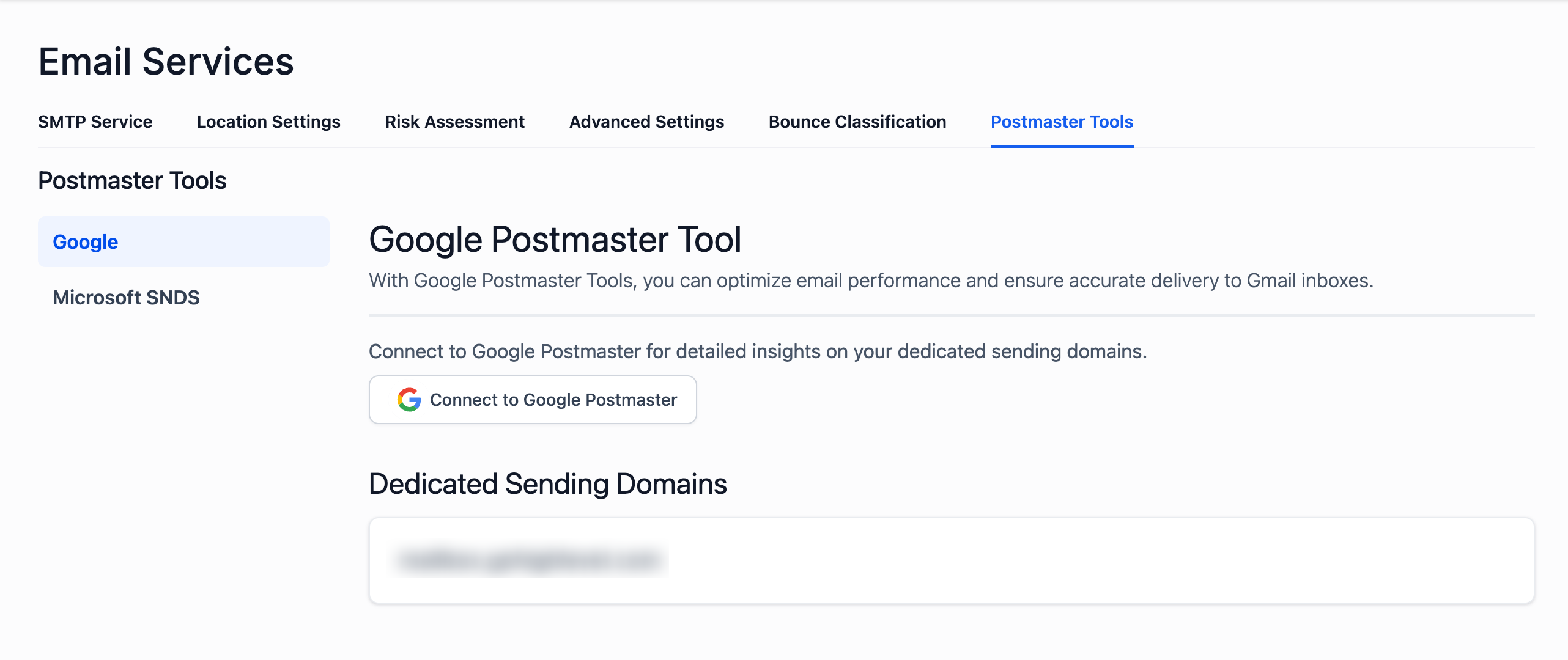
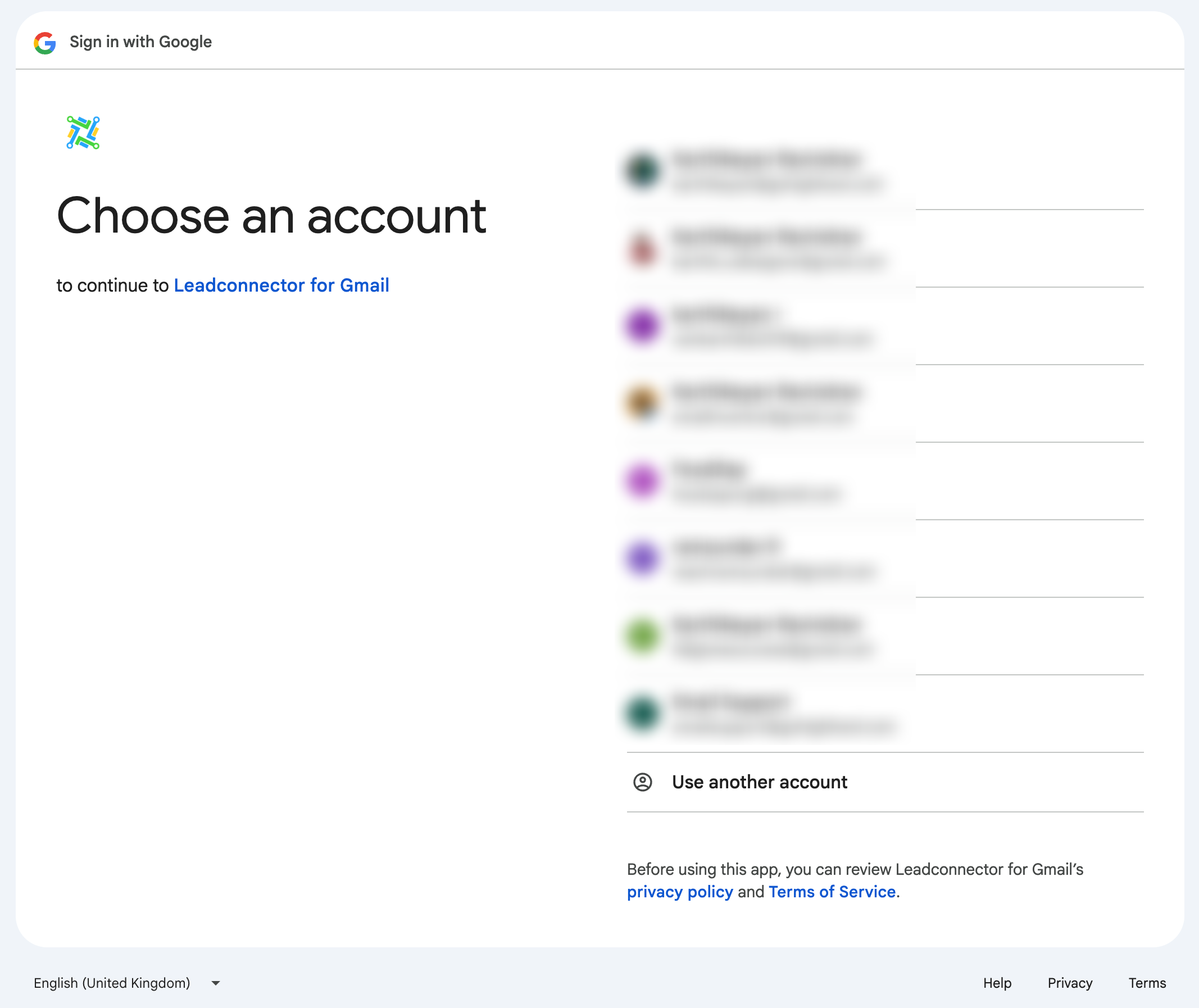
Choose the Google account that has access to the domains registered in Google Postmaster Tools.
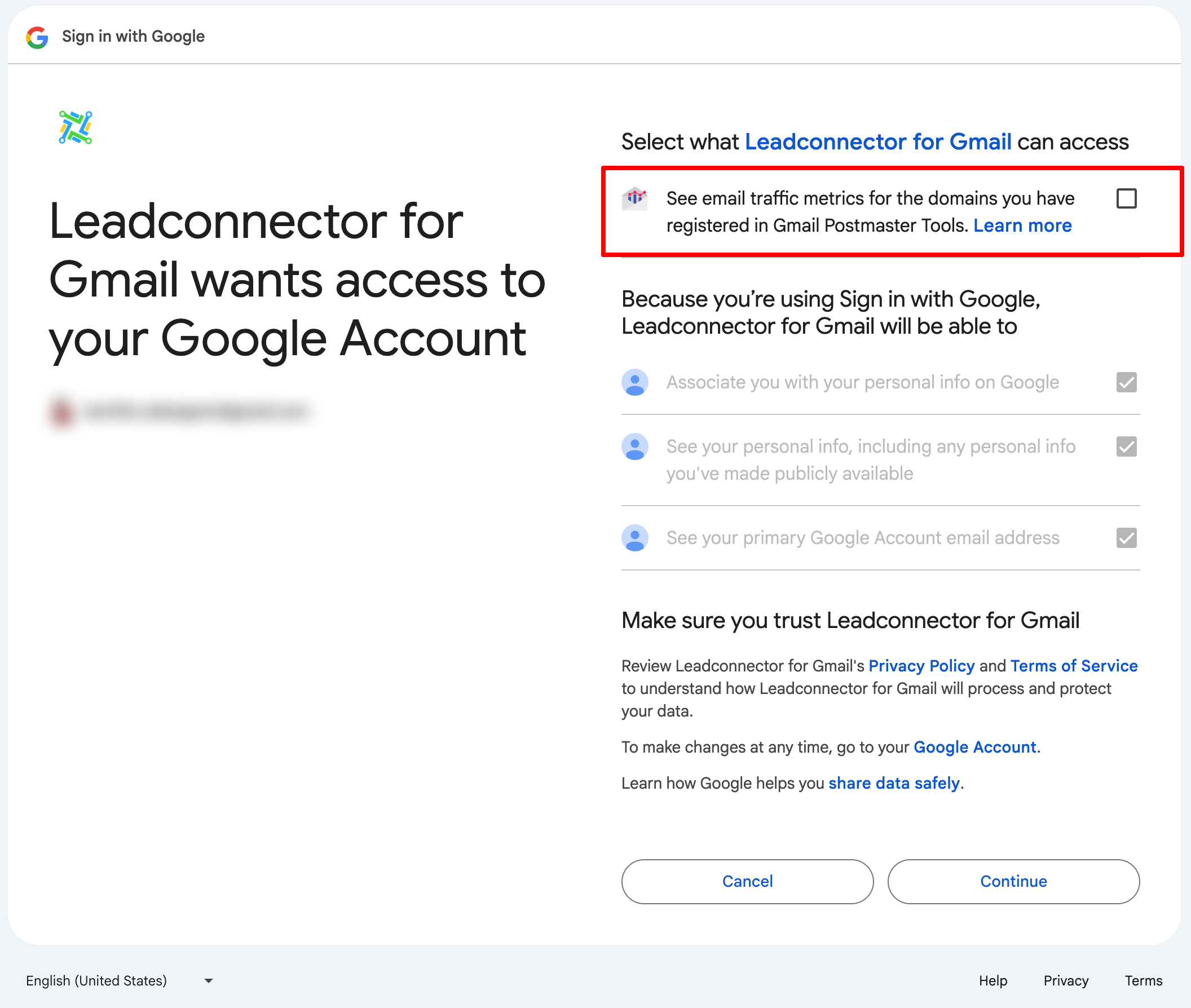
On the permissions screen, check the box next to:
✓ "See email traffic metrics for the domains you have registered in Gmail Postmaster Tools."
Then click Continue to complete the connection.
Once connected, your verified dedicated sending domains will start displaying metrics pulled from Google Postmaster.
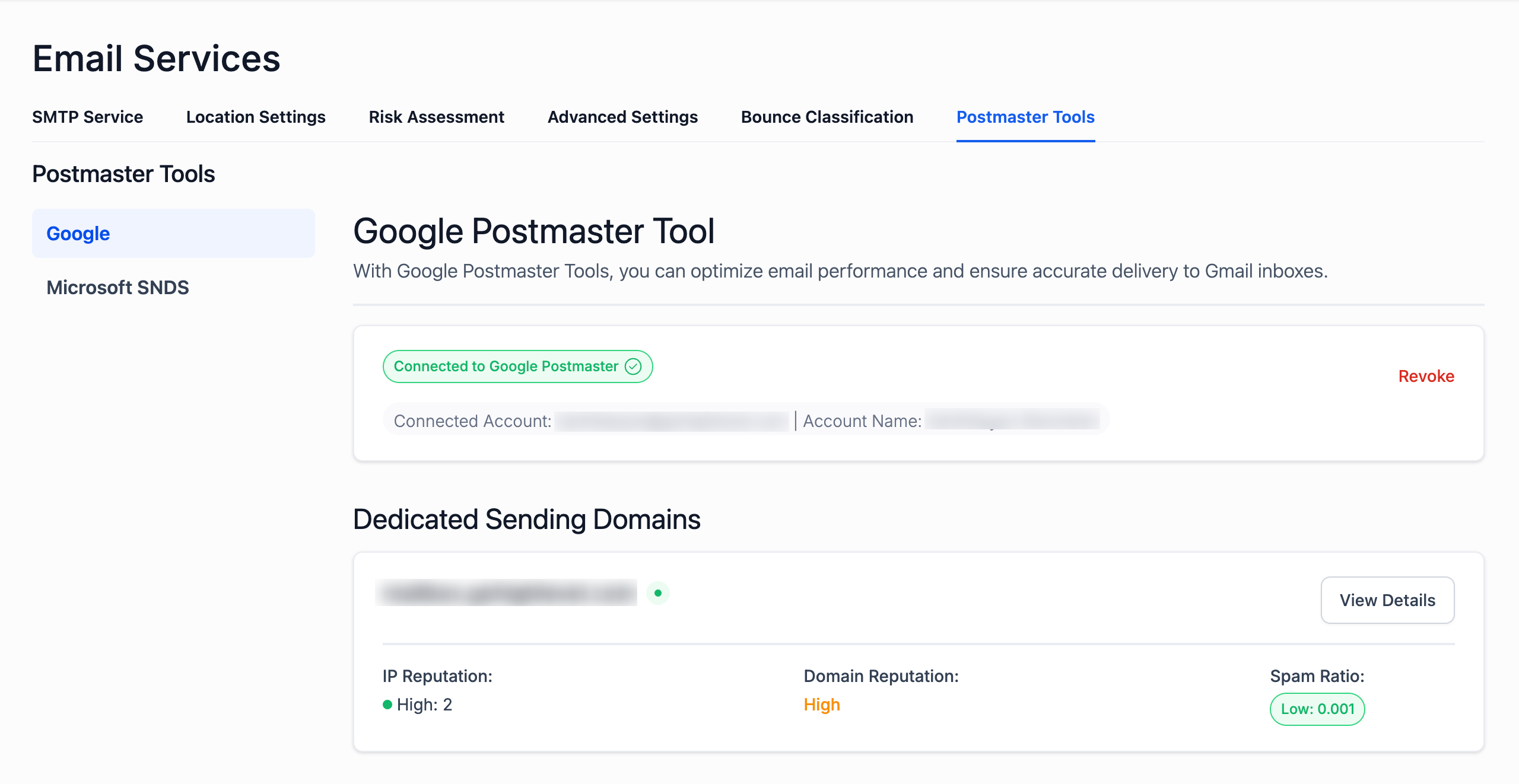
All available Postmaster Tools data — spam rates, IP reputation, and domain reputation — is pulled directly into the platform so you can manage everything from one place.
What Data Points Does Google Postmaster Tools Provide?
Google Postmaster Tools provides several key data points for monitoring email deliverability:
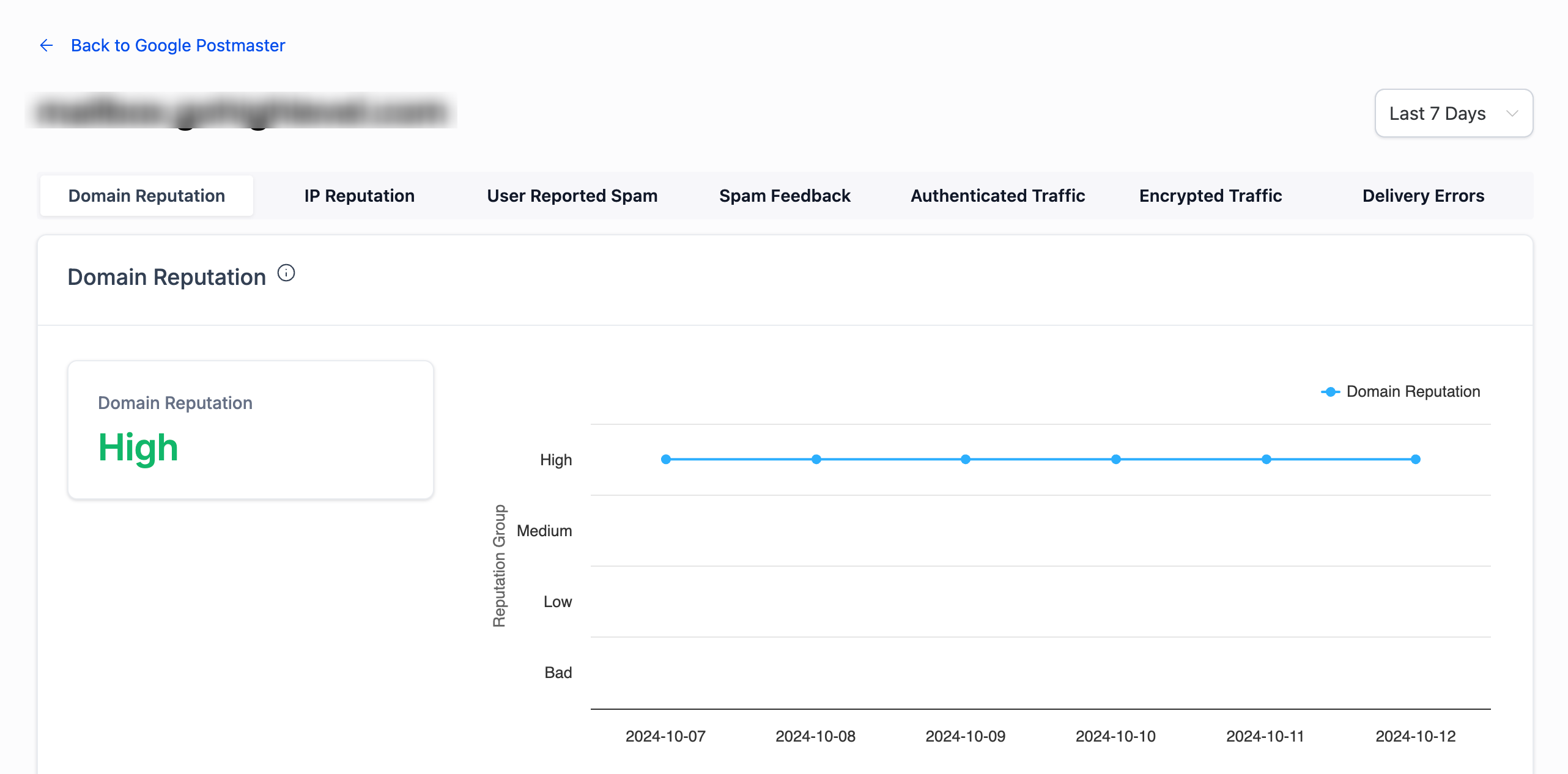
| Dashboard | What it shows |
|---|---|
| Spam Rate | The percentage of your emails that Gmail users have marked as spam. |
| Domain Reputation | The reputation of your domain based on Google's perception of your sending practices. |
| IP Reputation | Insight into the reputation of the IPs you use to send emails. Higher IP reputation means better deliverability. |
| Message Authentication | Tracks the success rate of your emails passing SPF, DKIM, and DMARC authentication protocols. |
| Encryption | The percentage of emails being delivered over encrypted connections. |
| Delivery Errors | Details on any issues or errors preventing your emails from being delivered. |
| Feedback Loop | User-reported spam complaints, used to help you reduce spam rate and maintain a good reputation. |