
Marketing / Statistics
How to Access the All-in-One Dashboard for Email Marketing
Modified on: Tue, 10 Feb, 2026 at 2:31 AM
This article will show you how to use OmniReach’s All-in-One Dashboard for Email Marketing. This powerful dashboard gives you a unified view of all email activity — including emails sent through Campaigns, Workflows, and Bulk Actions — making it easier to monitor performance and make data-driven decisions.
TABLE OF CONTENTS
- What is the All-in-One Dashboard for Email Marketing?
- Key Benefits of the All-in-One Dashboard
- How To Use the All-in-One Dashboard
- Feature Highlight: Top Performing Emails
- Frequently Asked Questions
- Next Steps
What is the All-in-One Dashboard for Email Marketing?
The All-in-One Dashboard is a centralized hub in OmniReach where you can view performance metrics for every email sent through Campaigns, Workflows, and Bulk Actions. Rather than switching between tools, you now have a consolidated view that streamlines email performance tracking and planning.
Key Benefits of the All-in-One Dashboard
A centralized dashboard simplifies monitoring and planning by combining all email metrics into one place.
See performance for Campaign, Workflow, and Bulk Action emails in one view
Gain insights from Top Performing Emails by type
Use filters to isolate data by channel
Scroll to explore detailed stats including open/click rates
Improve decision-making with all relevant data at your fingertips
How To Use the All-in-One Dashboard
Learn how to navigate and interact with the dashboard to monitor your email marketing efforts effectively.
Go to Marketing > Emails > Statistics
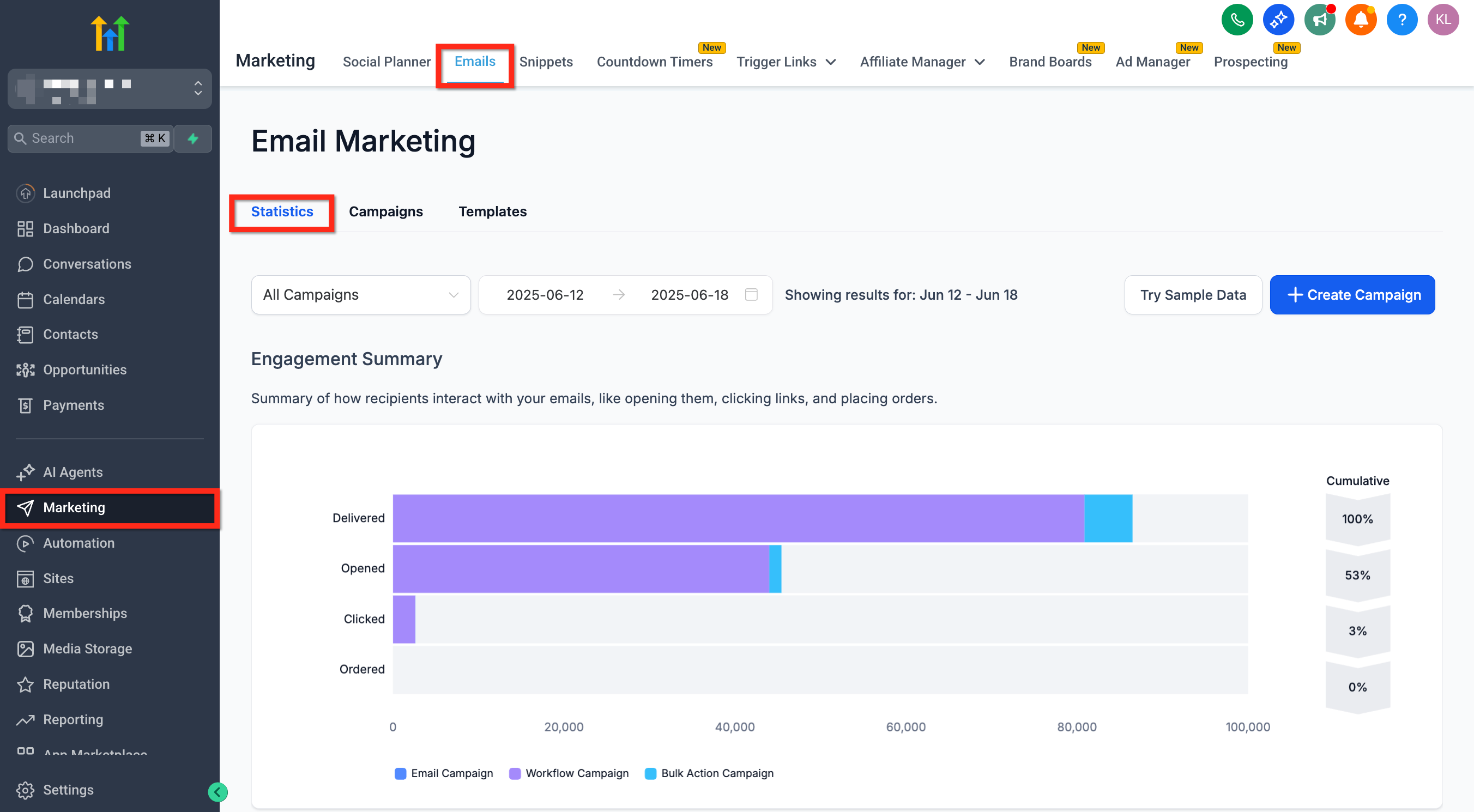
View the unified stats displayed by default
Use the dropdown in the top-left to filter by email channel. (Emails sent via Contacts → Bulk Actions are grouped under Bulk Action Campaigns in the dashboard filter)
Scroll down to explore deeper performance metrics including Top Performing Emails
Feature Highlight: Top Performing Emails
This section helps identify which email content drives the most engagement, broken down by type.
Top Performing Emails displays the most effective individual emails:
For Campaigns and Bulk Actions: tracks entire email sends
For Workflows: highlights performance at the individual email action level, not the full workflow
Frequently Asked Questions
Q: Can I export data from the dashboard?
Currently, export functionality is not available directly from the dashboard.
Q: Does the dashboard include SMS or other messaging stats?
No, the dashboard currently focuses on email activity only.
Q: Can I compare performance across different email types?
Yes, use the dropdown to filter by channel, and visually compare performance metrics.
Q: Are automated emails from triggers included?
Yes, emails sent through Workflow triggers are included and tracked.
Next Steps
Start planning campaigns using insights from top performers
Customize filters to compare email performance by source
Consider optimizing underperforming emails based on these metrics