
Marketing / LinkedIn Ads
How to create a LinkedIn ad campaign in Ad Manager
Modified on: Mon, 29 Sep, 2025 at 7:40 AM
Ad Manager organizes LinkedIn advertising into a three-level hierarchy:
Campaign Group : The top-level container.
Campaign : Defines budget, audience, and scheduling.
Ad : Defines creatives (media, text, CTA, forms).
This guide walks you through creating a Campaign Group and then building campaigns and ads inside it.
TABLE OF CONTENTS
- Step 1: Create a Campaign Group
- Step 2: Create a Campaign Inside the Group
- Step 3: Create Ads Inside the Campaign
- Step 4: Review & Publish
- Step 5: Viewing Campaign Group Performance
- Best Practices
Step 1: Create a Campaign Group
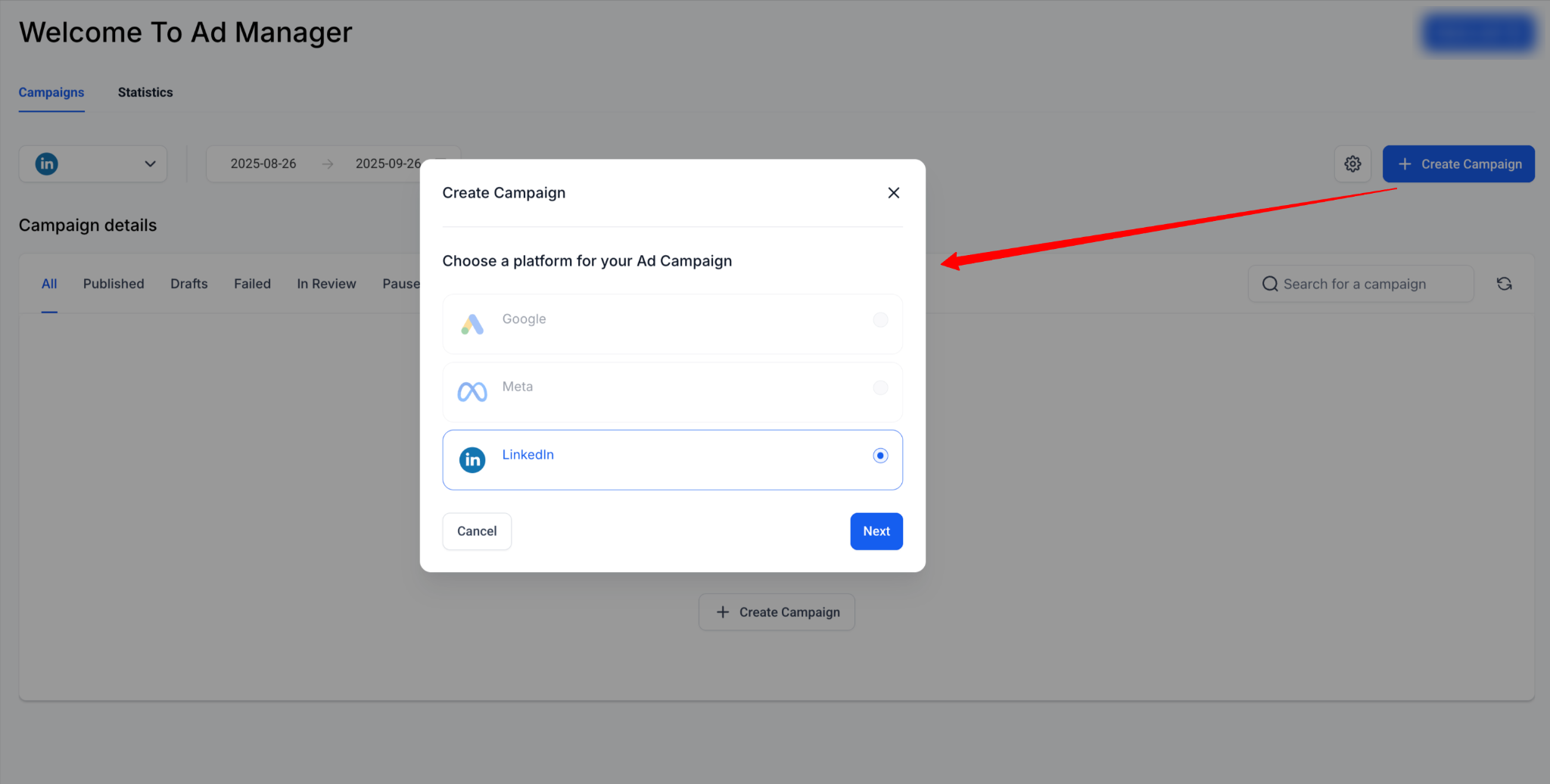
A Campaign Group is the top-level container for your LinkedIn campaigns.
Campaign Group Name: Choose a descriptive name (e.g., “Q4 SaaS Leads”).
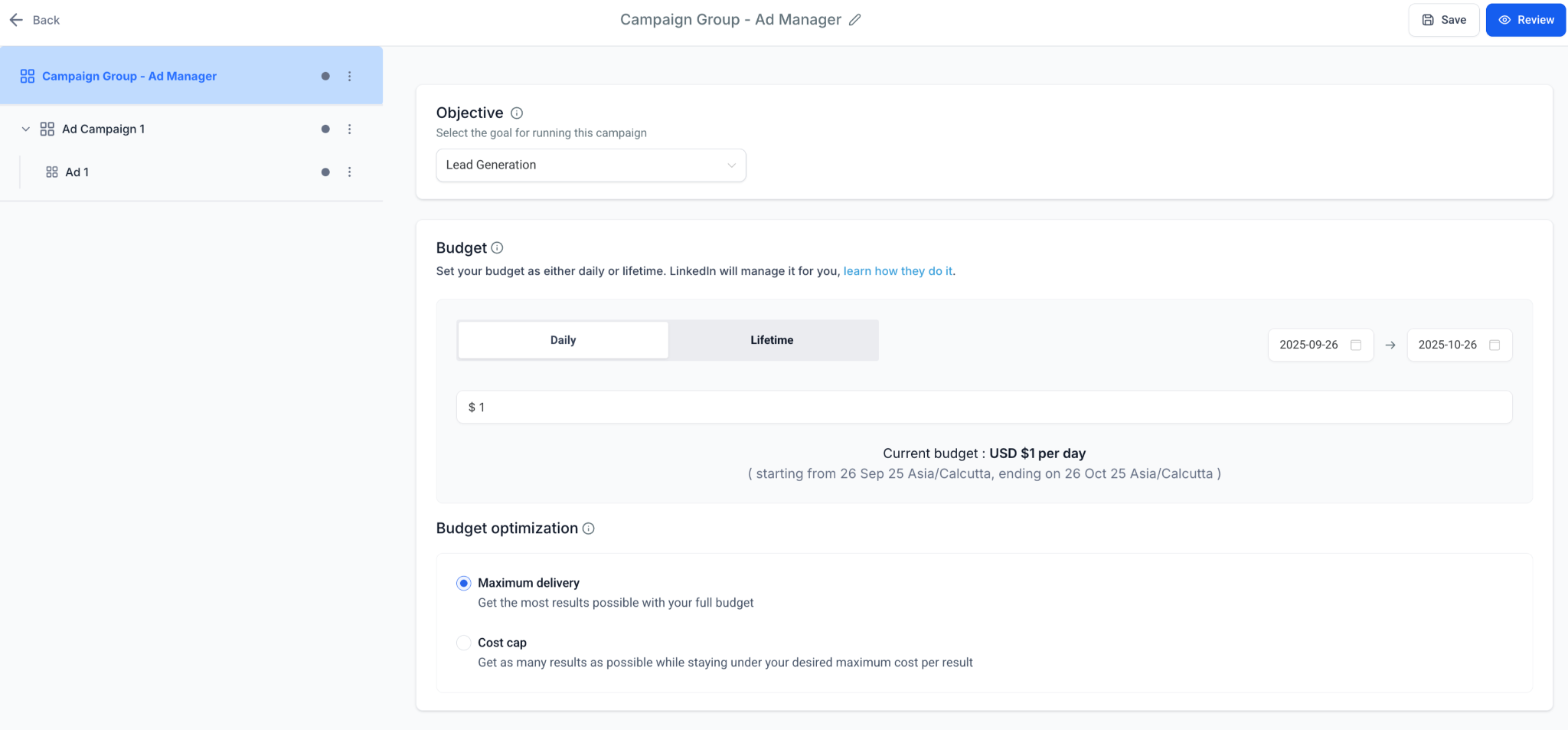
Objective Selection: Select between:
Lead Generation - capture leads with LinkedIn forms
Website Traffic drive clicks to external landing pages
Budget & Schedule
Define the daily or lifetime budget for the campaign group.
Schedule : Set start and end dates for the campaign group.
Bidding
- Manual bid input for Cost Per Lead (Lead Gen) or CPC (Traffic).
Tip: Campaign Groups help you organize campaigns by business goals.
Step 2: Create a Campaign Inside the Group
Once your group is created, you can add Campaigns.
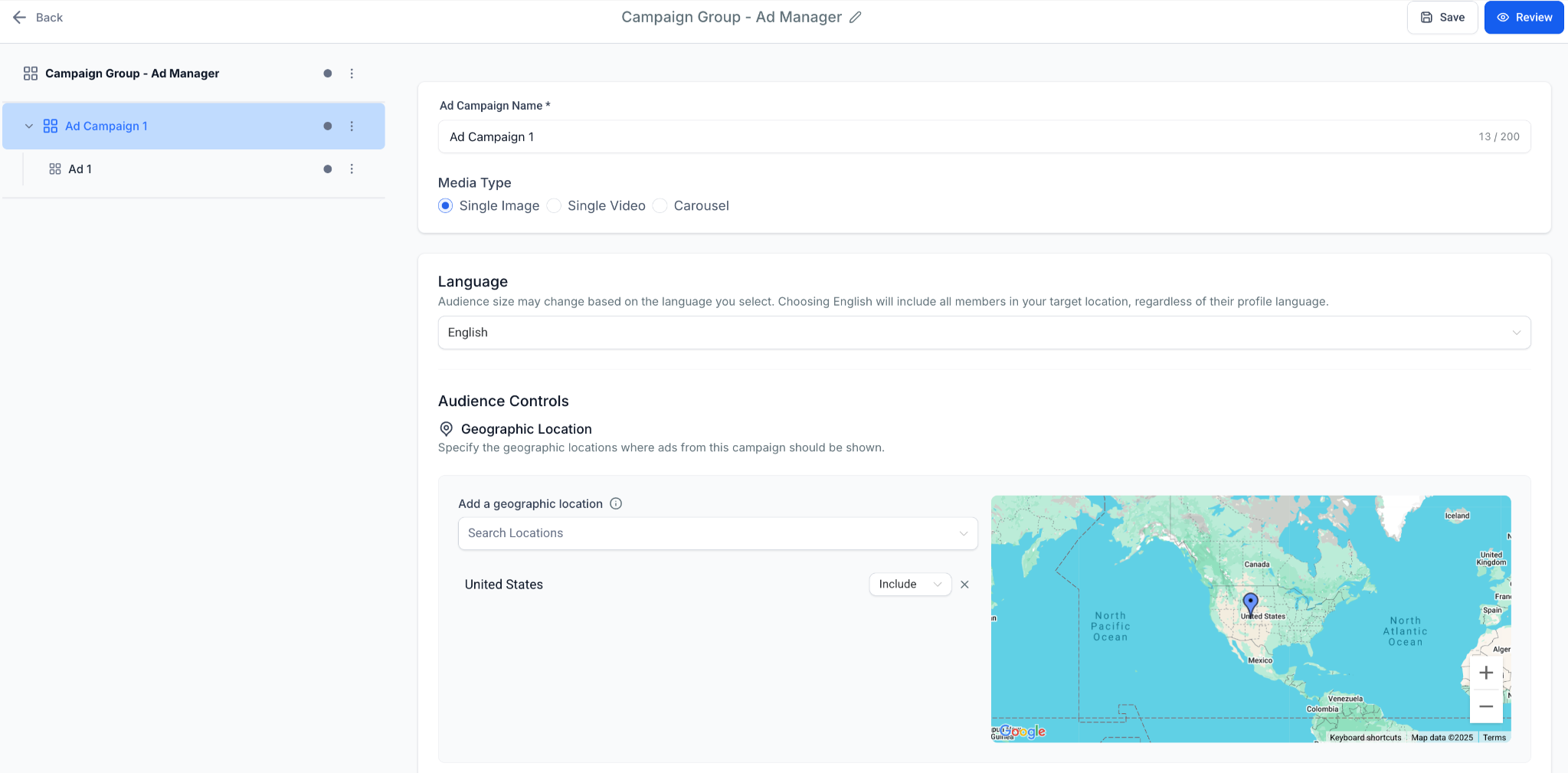
Fields Defined at Campaign Level
Campaign Name : This will have a unique identifier.
Media Type : Single image, video or carousel type of media.
Language
Geographic location and
Optional: Intended Audience
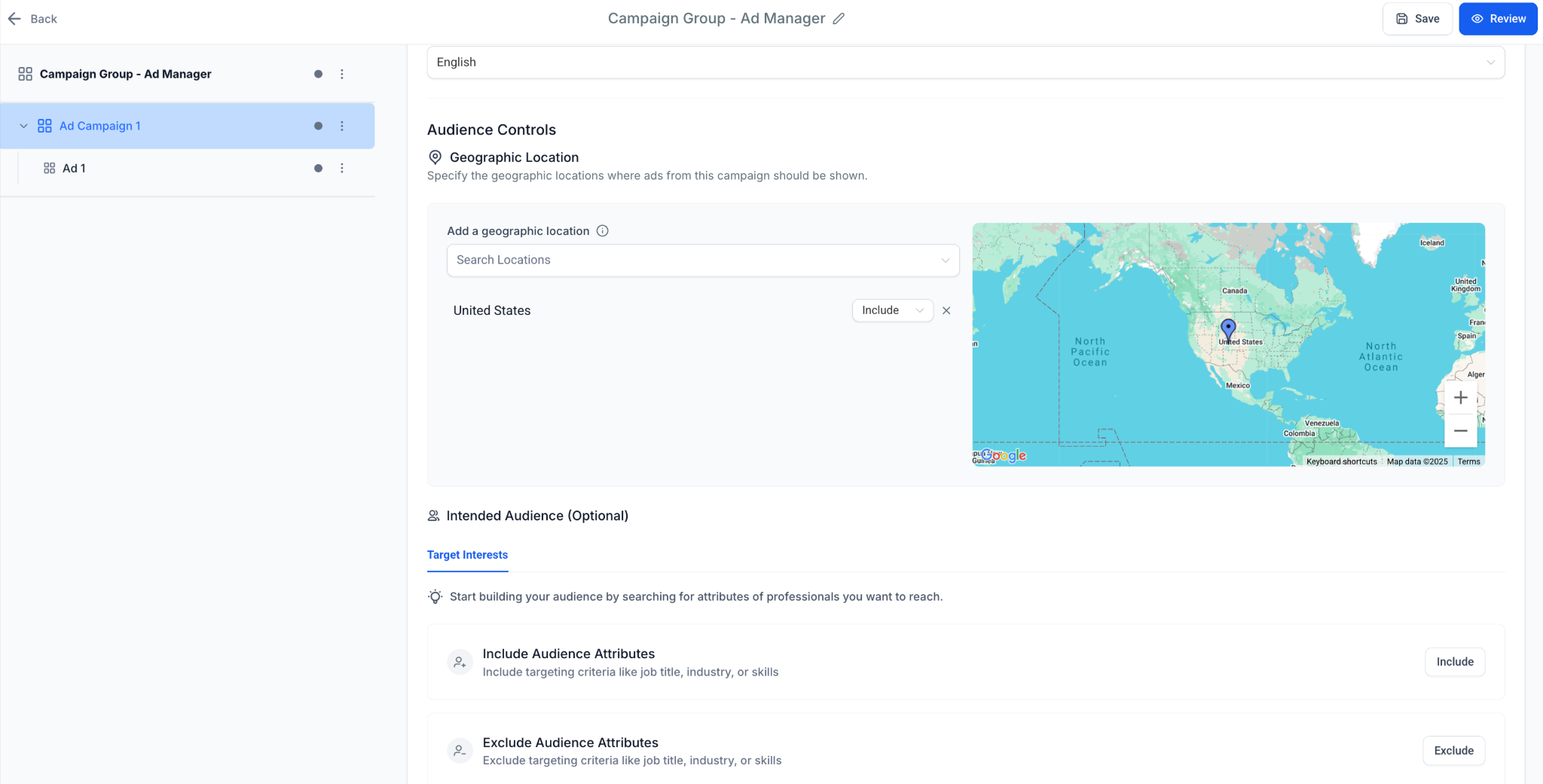
Audience Targeting(learn more: here)
Mandatory: Location (include/exclude).
Optional Filters: Job Title, Industry, Company Size, Seniority, Skills, Education, Interests & Traits.
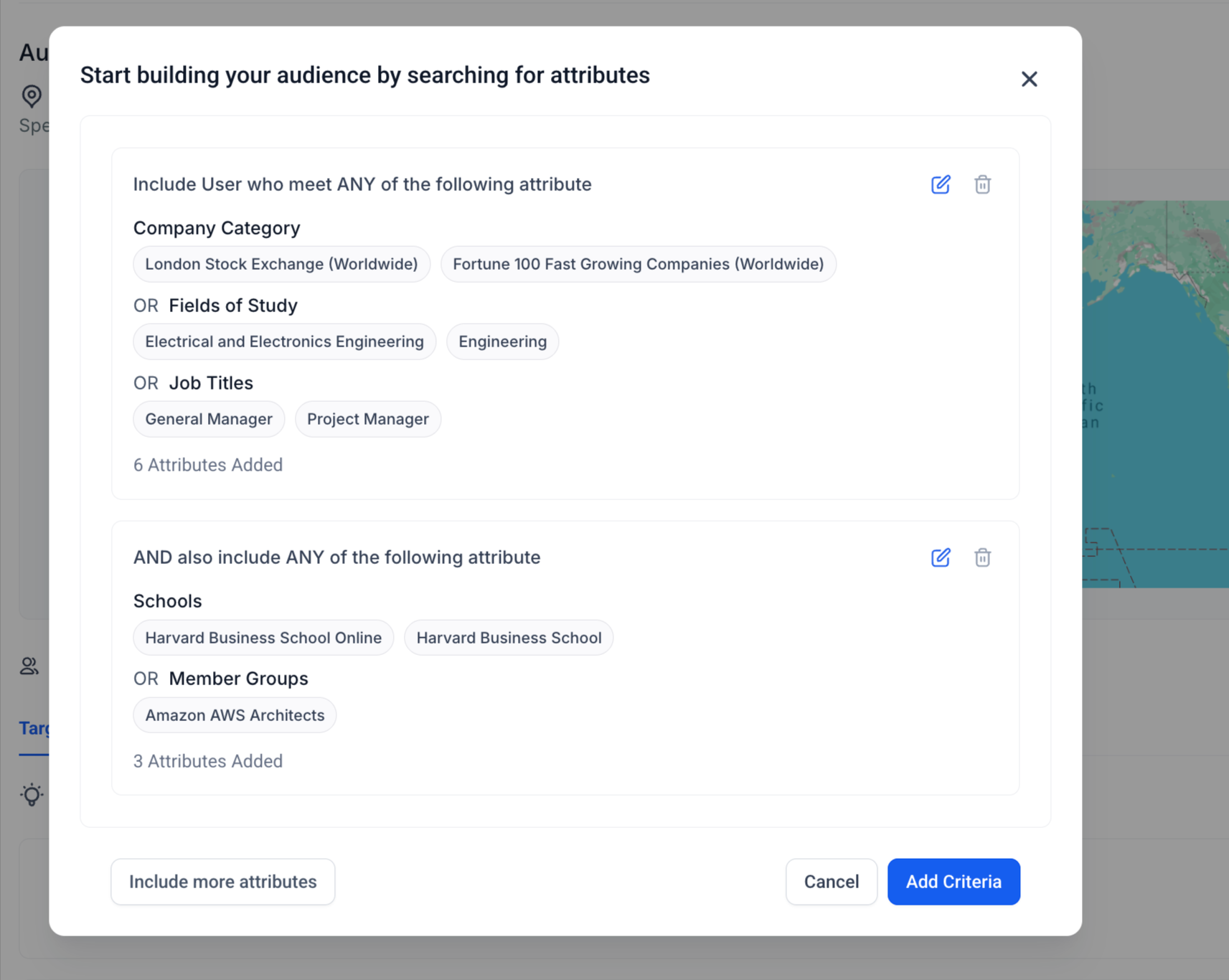
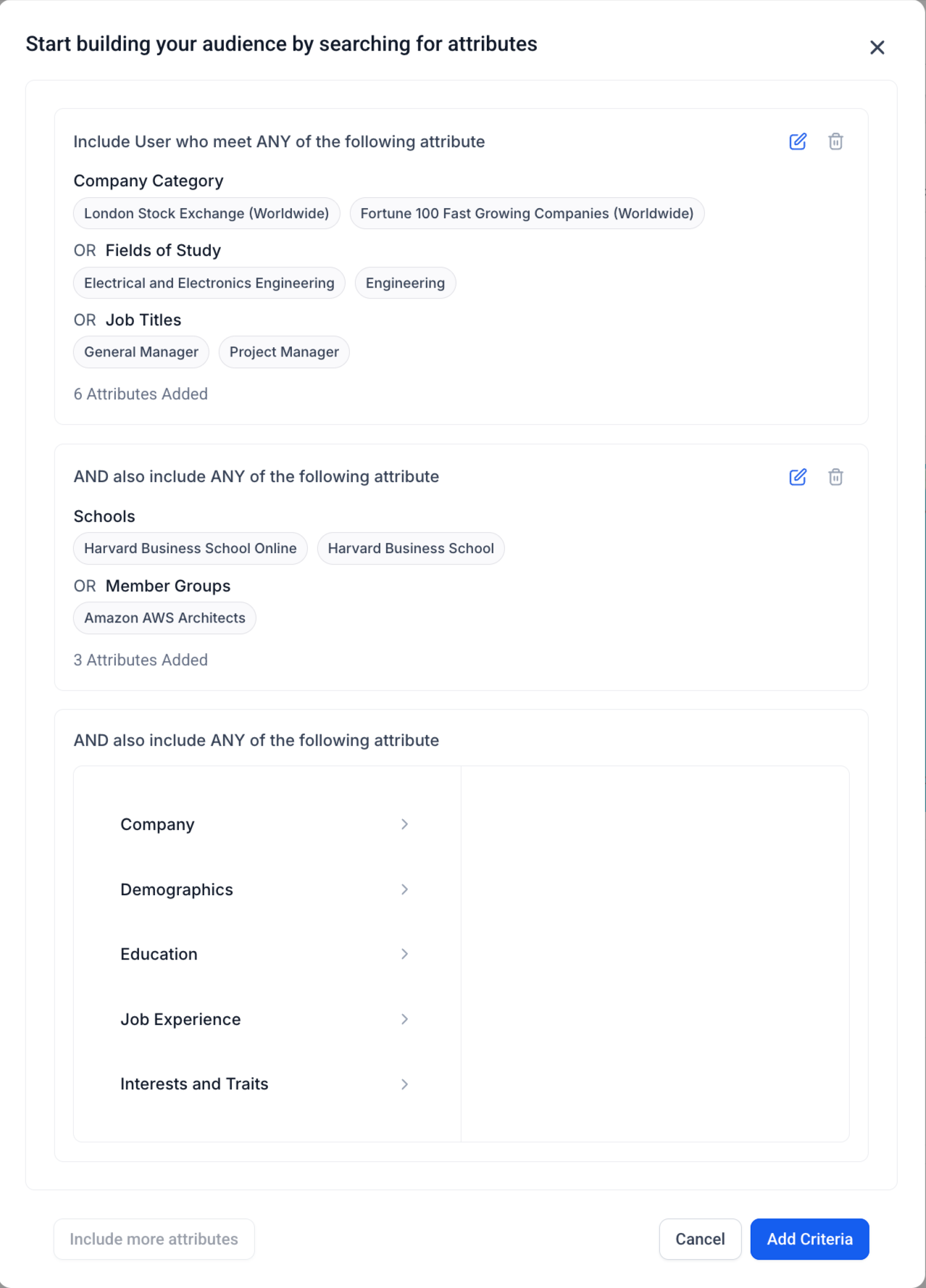
Logic Builder:
Add up to 3 attribute groups.
OR logic inside groups.
AND logic between groups.
Include and Exclude supported.
Example:
Group 1 - Job Title = Marketing Manager OR Director
Group 2 - Industry = Healthcare
Exclude - Interns
Step 3: Create Ads Inside the Campaign
Each campaign can contain multiple ads.
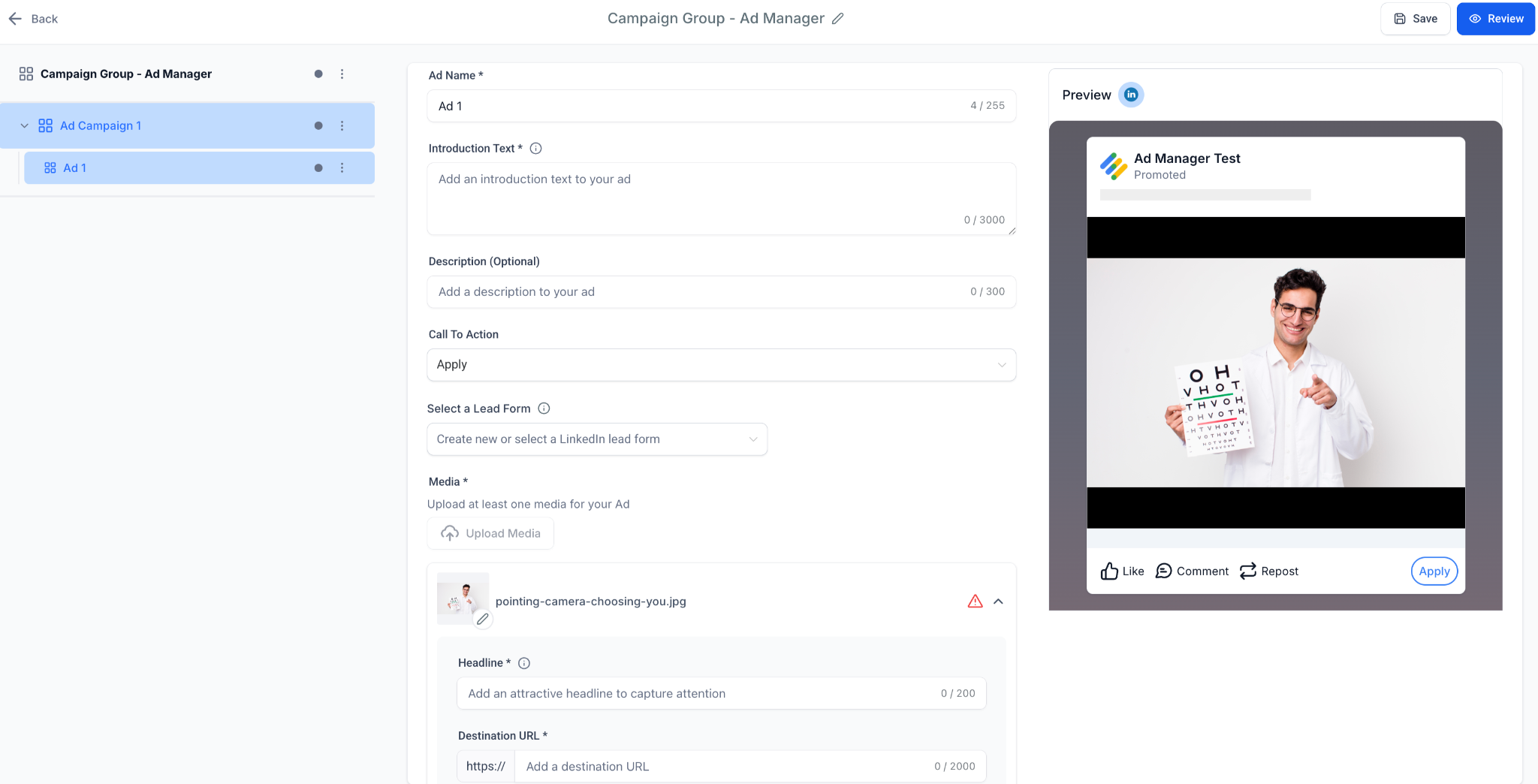
Fields Defined at Ad Level
Ad Name : Internal identifier.
Media Type (chosen at campaign level):
Single Image Ad - Upload one image.
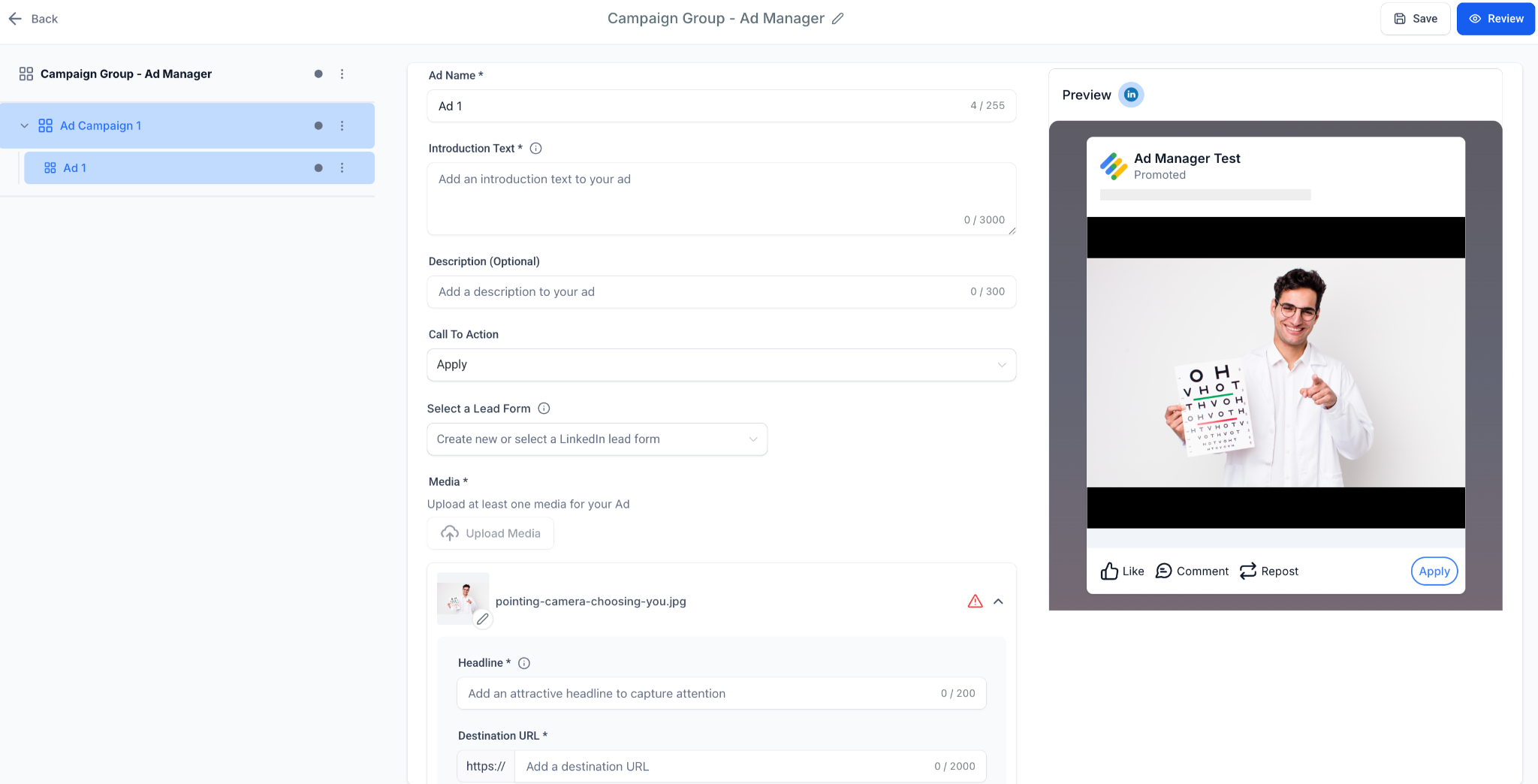
Single Video Ad - Upload a video.
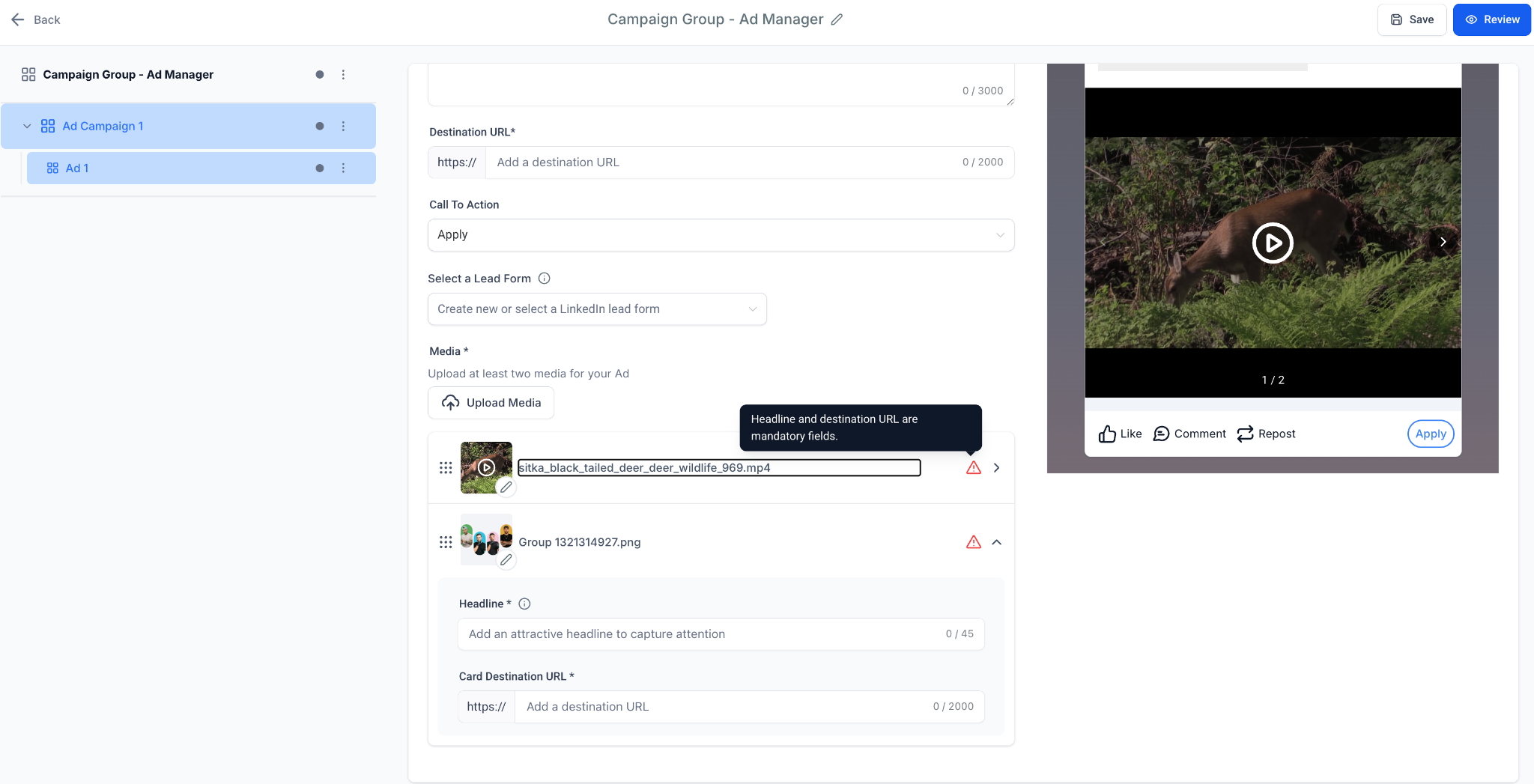
Carousel Ad - Multiple cards, each with its own:
Headline
Image/video
Destination URL
Creative Fields
Introduction Text : Up to 3000 characters.
Headline : Up to 70 characters (mandatory).
Description : Up to 300 characters (optional).
Call-to-Action : Choose from LinkedIn CTA list (Learn More, Download, Apply, etc.).
Destination URL : Required for all ads. OmniReach auto-prepends
https://if missing.
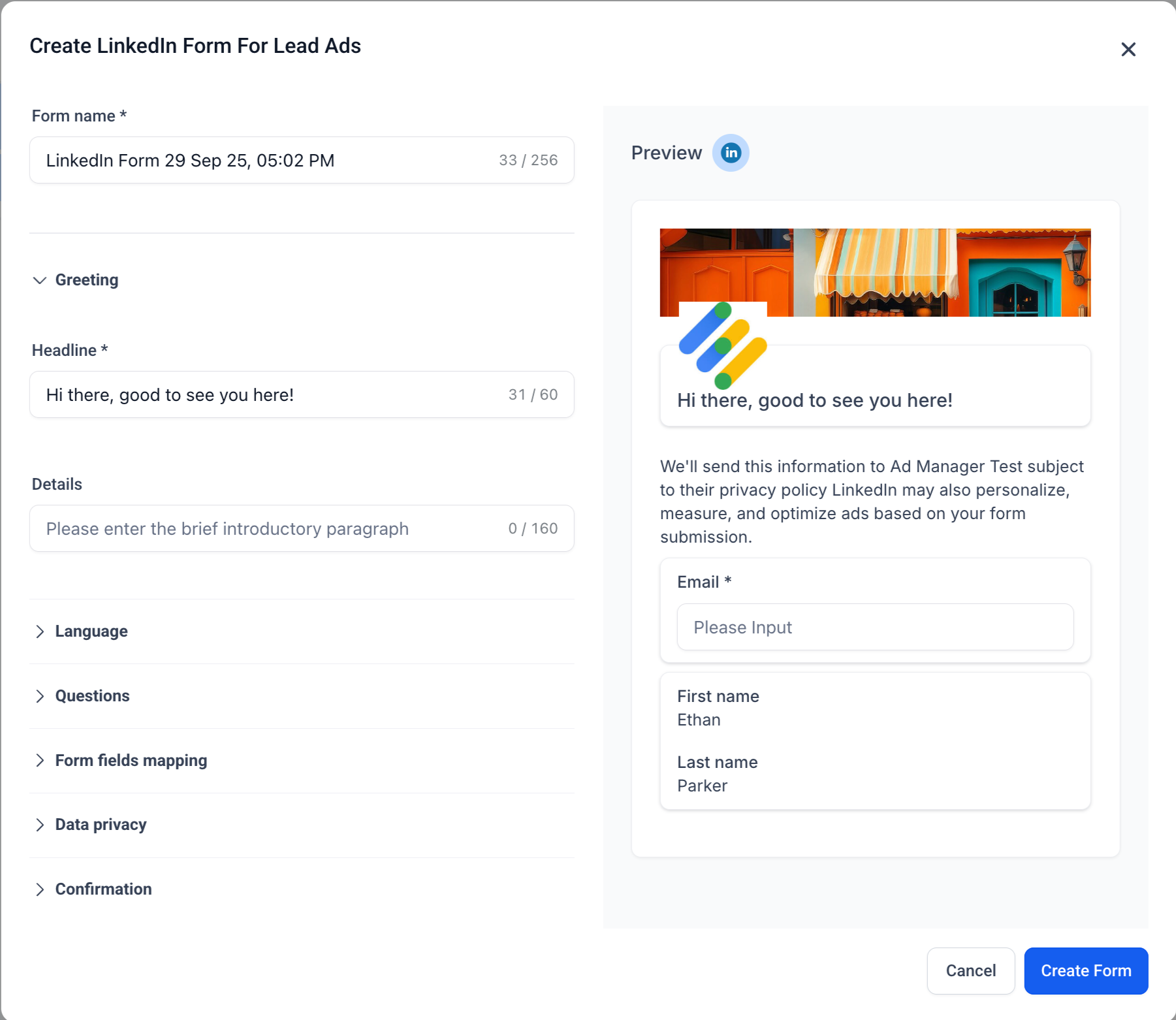
Lead Gen Forms (if Objective = Lead Generation)
Form Name : Auto-generated, editable.
Headline & Description : Shown prominently in the form.
Pre-filled Fields : Up to 12 (Name, Email, Job Title, etc.).
Custom Questions : Up to 3 (short answer or multiple choice).
Hidden Fields : Up to 20 (UTM tags, campaign IDs).
Privacy Section : Mandatory privacy URL + optional disclosure text.
Consent Checkboxes : Up to 5.
Confirmation Page : Thank-you message + optional CTA (Visit Website, Download, Call).
Learn more about LinkedIn lead forms and how to create it: here
Step 4: Review & Publish
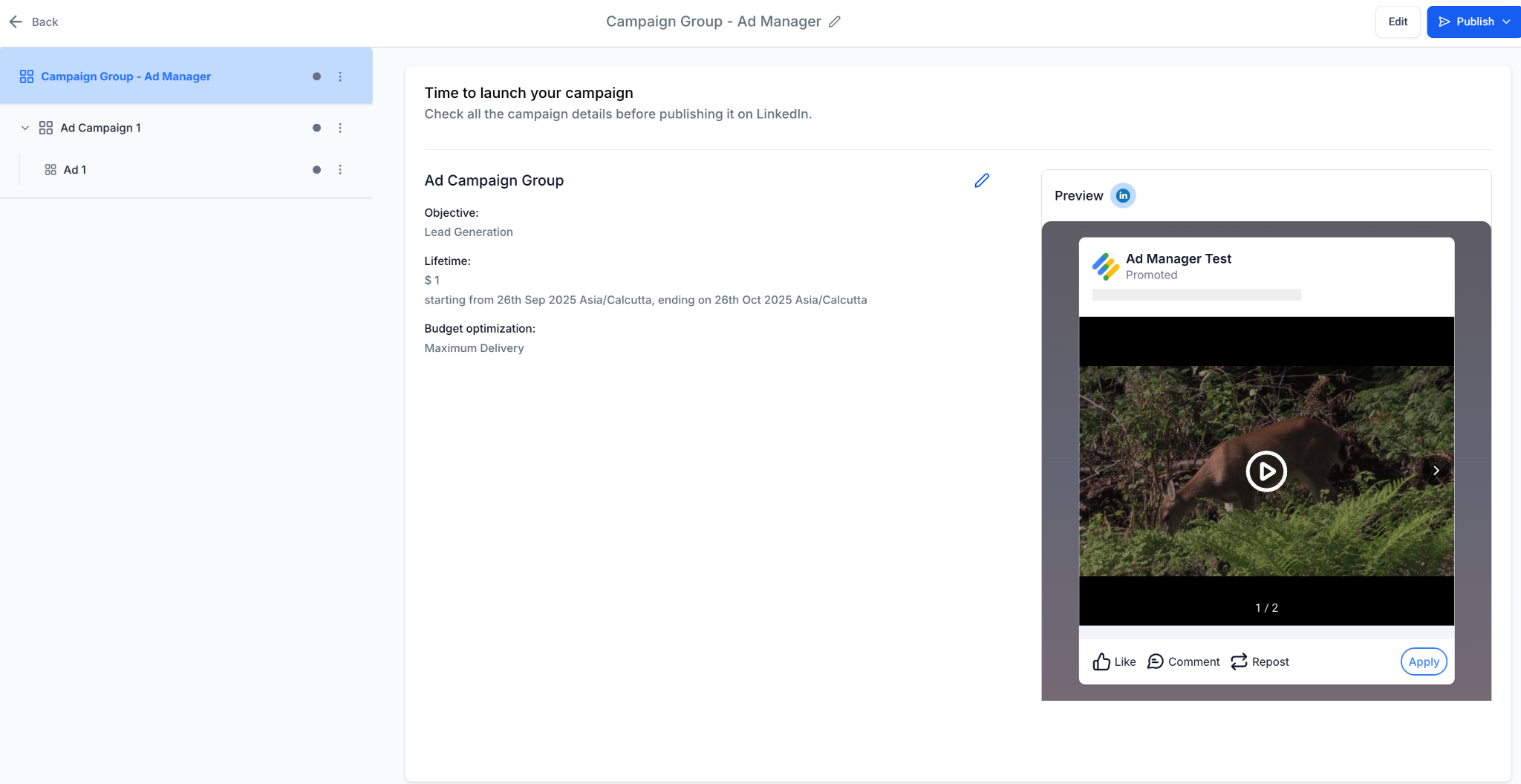
Before launching, you’ll land on the Review & Publish screen:
Campaign objective, budget, schedule and optimization mode.
Full creative preview (desktop & mobile).
Validation: ensures URLs are valid, budgets meet LinkedIn’s minimums, and required fields are filled.
Step 5: Viewing Campaign Group Performance
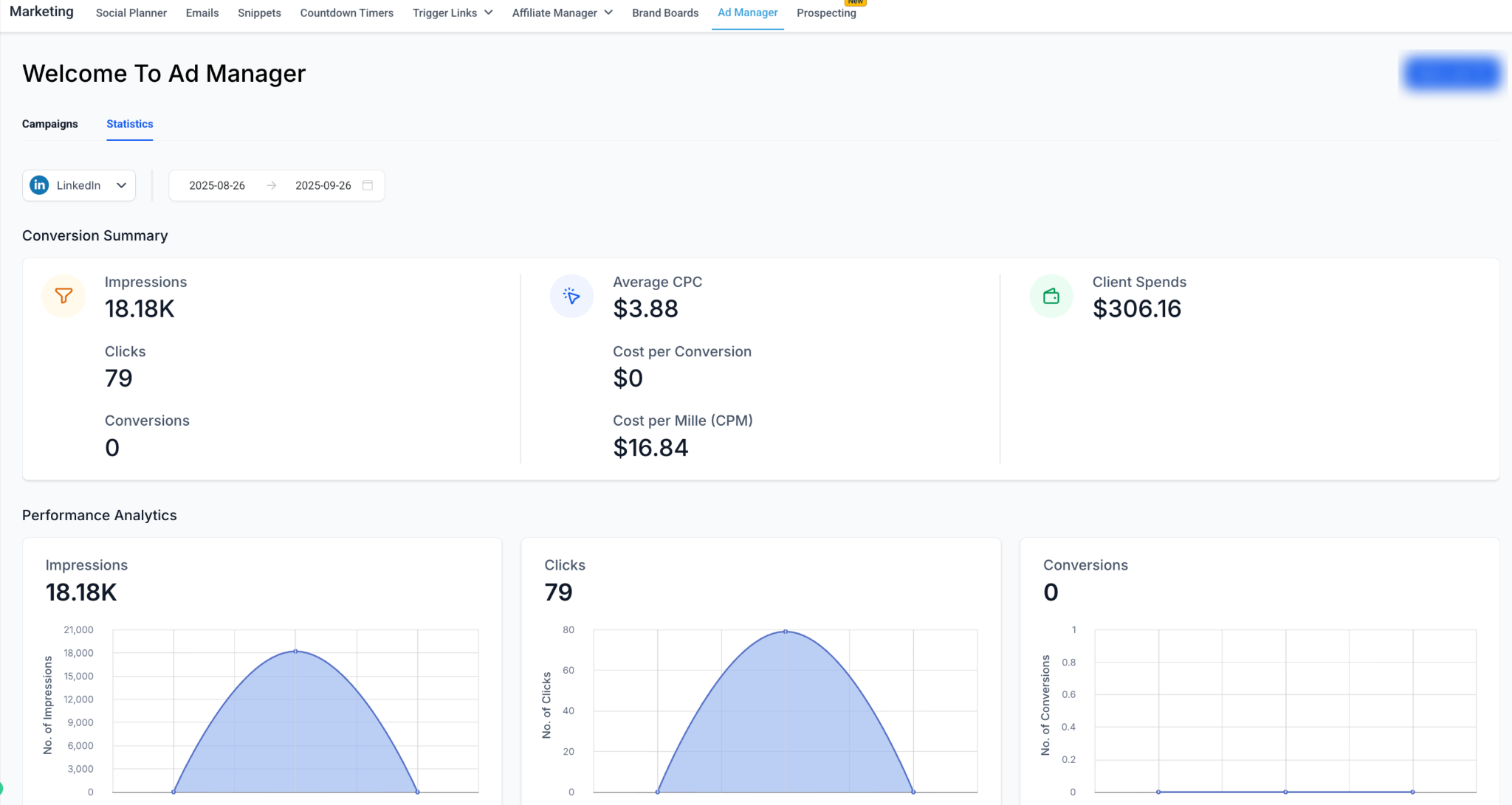
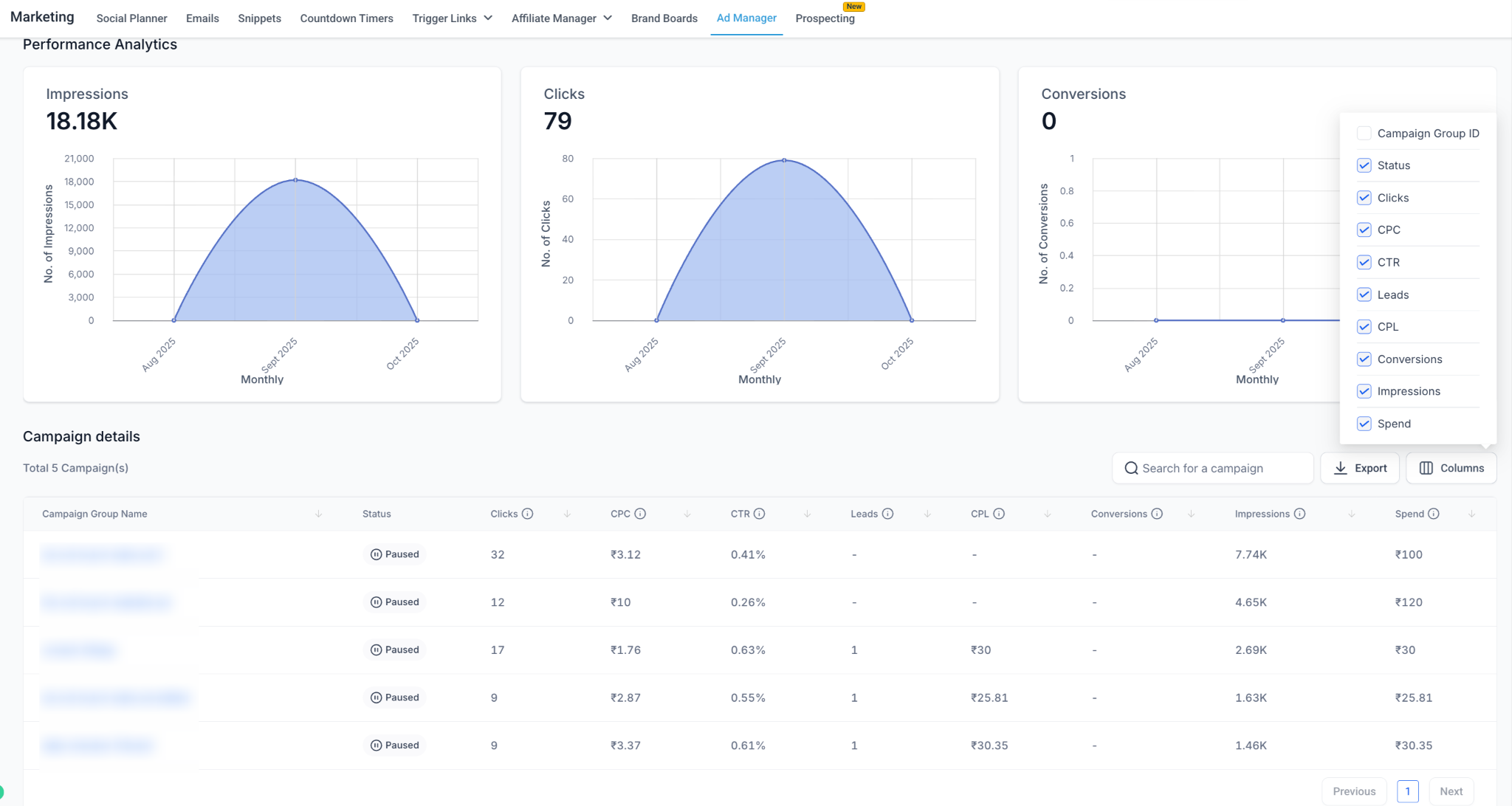
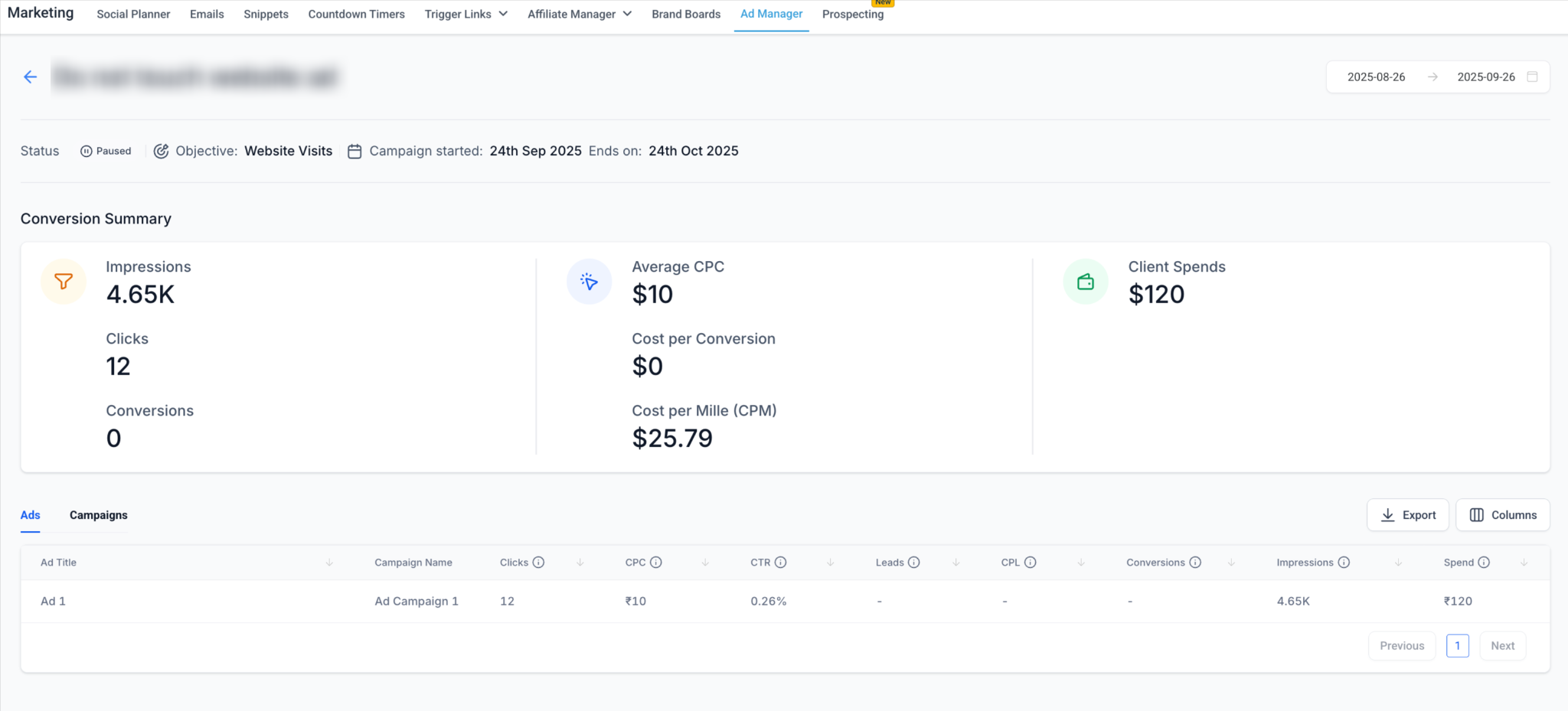
After publishing, performance can be tracked in Statistics > LinkedIn. Learn more about LinkedIn statistics in detail in this help document: LinkedIn ad statistics
Campaign Group Level : Spend, Impressions, Clicks, CTR.
Campaign Level : Conversions, audience effectiveness, CPL.
Ad Level : Creative performance (CTR, CPC, CPL, Conversions).
Best Practices
- Organize by business objective (e.g., Awareness, Lead Gen).
- Keep Campaigns focused (1 audience definition each).
- Run multiple ads per campaign to compare creatives.
- Start broad and then refine with filters.
- Lead Gen : shorter forms convert better.
- Traffic: always enable UTM tagging for analytics.