
Calendars & Appointments / Calendar Integrations
Integrate Calendly with OmniReach Calendars
Modified on: Wed, 4 Feb, 2026 at 11:27 AM
This article will walk you through connecting your Calendly account to OmniReach calendars. You’ll learn how to authorize access, select which calendars to sync, and update your sync preferences at any time.
TABLE OF CONTENTS
- What is the Calendly Integration?
- Key Benefits of Connecting Calendly
- How to Connect Your Calendly Account
- How to Edit or Update Synced Calendars
- Frequently Asked Questions
What is the Calendly Integration?
The Calendly integration enables OmniReach to automatically import events from your selected Calendly calendars. This allows you to trigger automations, create contacts, and schedule workflows based on real-time bookings. Setting up the integration is the first step in syncing your Calendly scheduling activity with your CRM.
Key Benefits of Connecting Calendly
Connecting your Calendly account unlocks powerful automation and contact management features. Once synced, events flow seamlessly into OmniReach for downstream use.
- Automatically import new appointments into your calendar
- Create contacts from Calendly bookings
- Assign appointments to users based on calendar ownership
- Sync shared or personal Calendly calendars
- Enable automation triggers based on new bookings
How to Connect Your Calendly Account
Setting up the integration is fast and only requires a few clicks. Follow these steps to securely connect your Calendly account and select calendars for syncing.
Access Calendar Settings
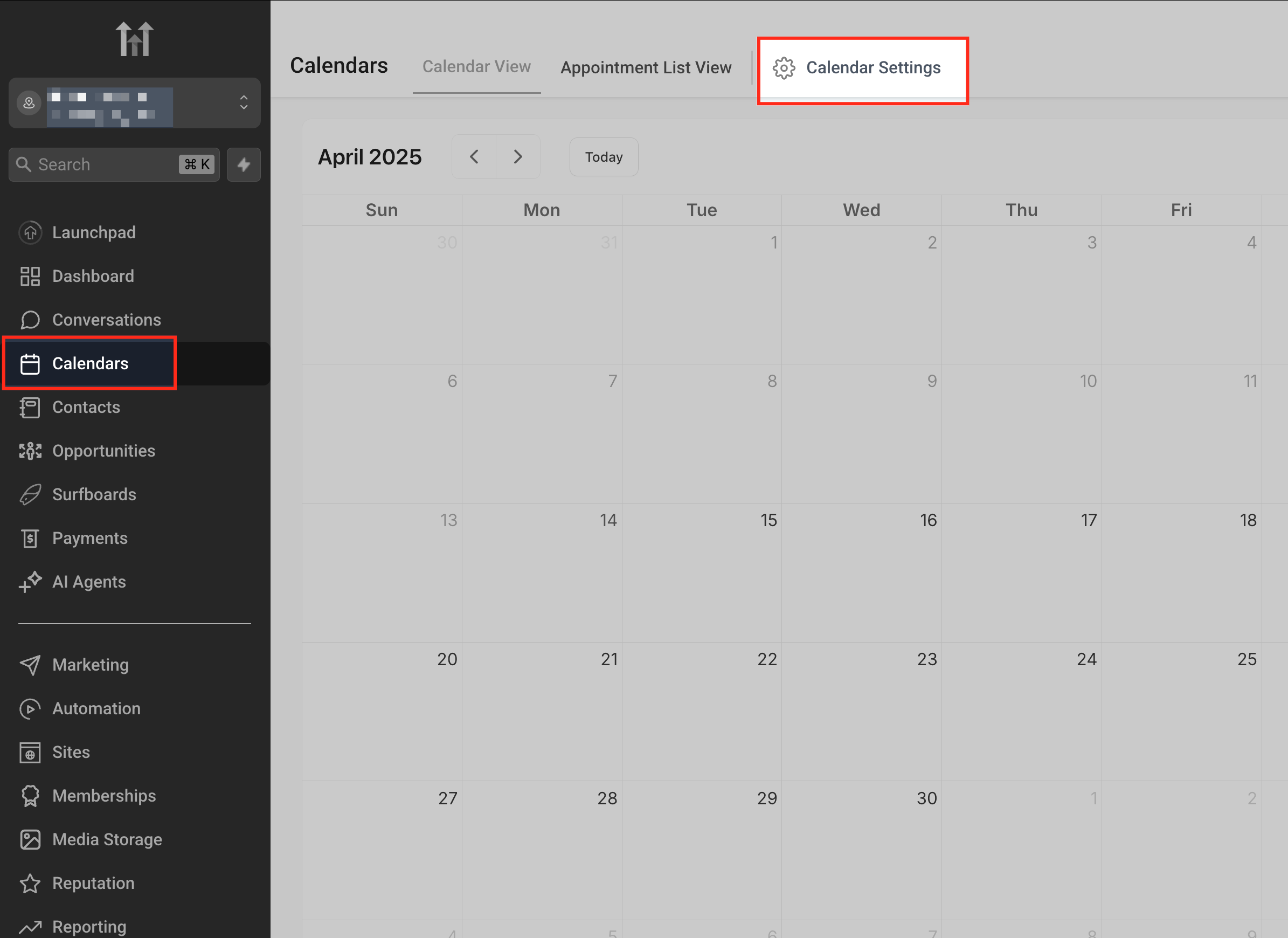
Navigate to the Calendars section in the left-hand menu, then click on Calendar Settings in the top-right corner. This is where you’ll manage all calendar connections, including Calendly.
Go to Calendars > Calendar Settings >
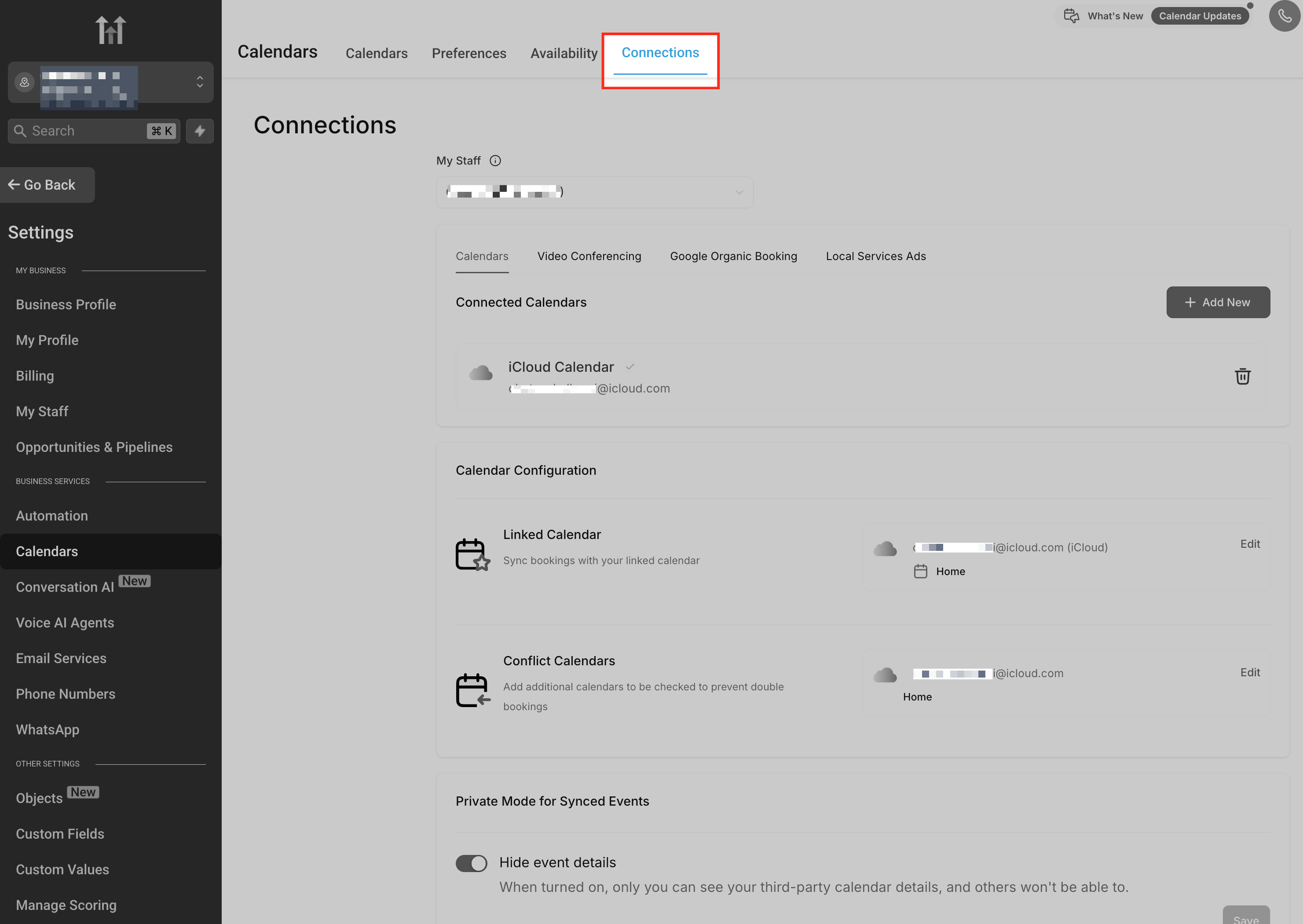
Open Connections Tab
Click on the Connections tab at the top to view and manage all integrated calendar accounts. This is where you’ll add, edit, or remove third-party calendars like Calendly.
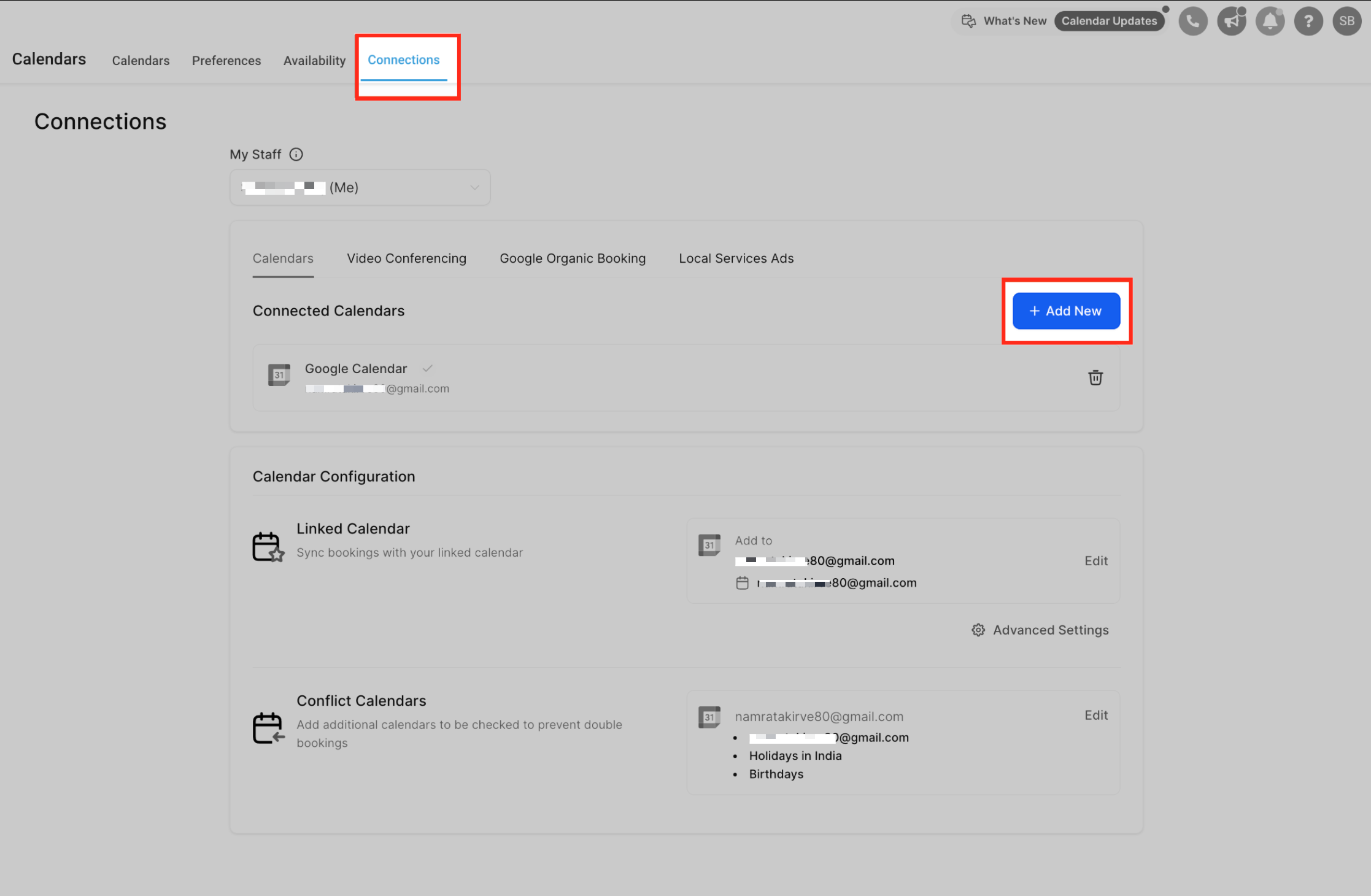
Add New Integration
Click the + Add New button to start a new calendar connection. This is where you’ll initiate the process to connect your Calendly account with OmniReach.
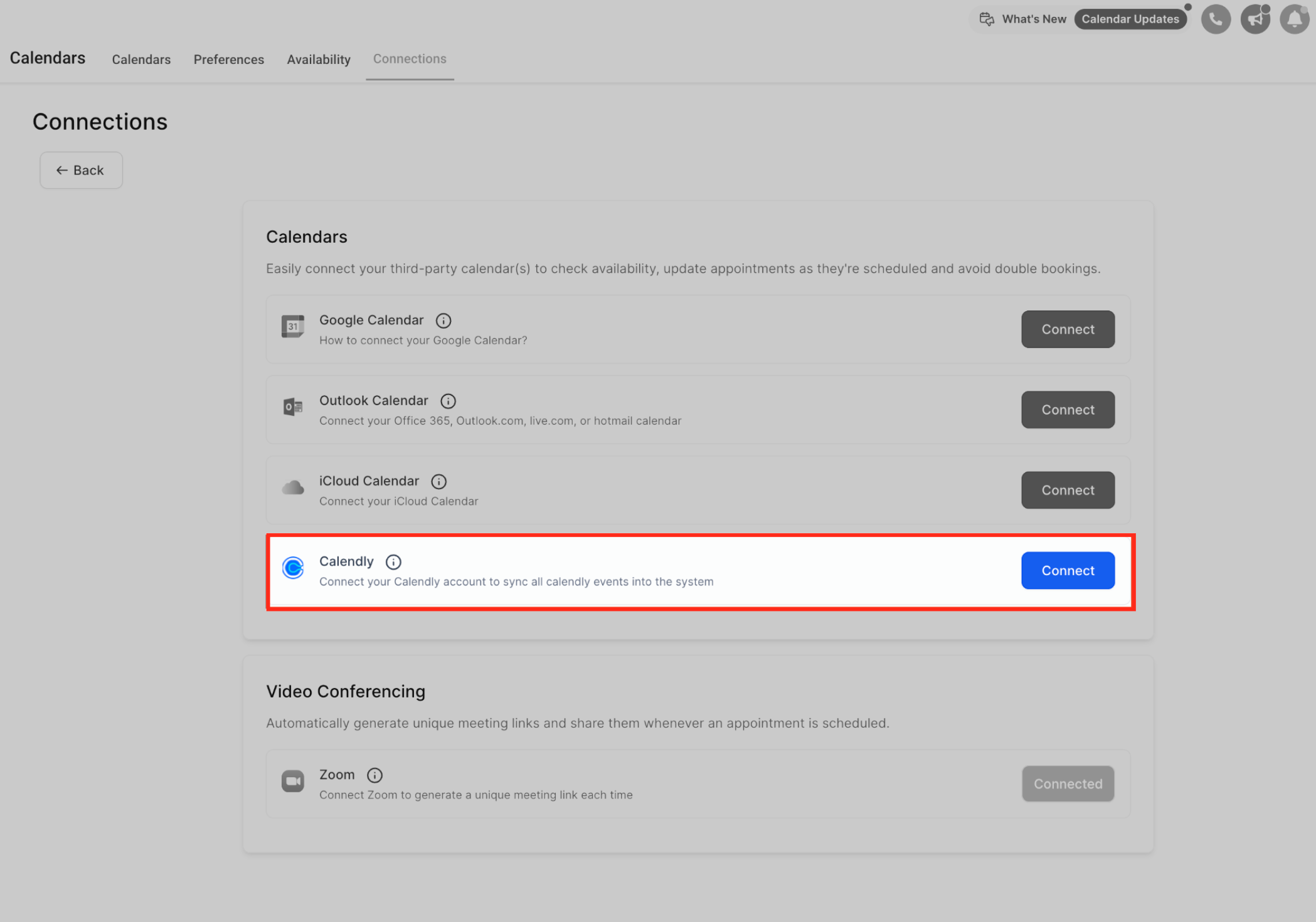
Select Calendly Option
Find Calendly in the list of calendar providers and click Connect. This begins the authorization process to sync your Calendly events with OmniReach.
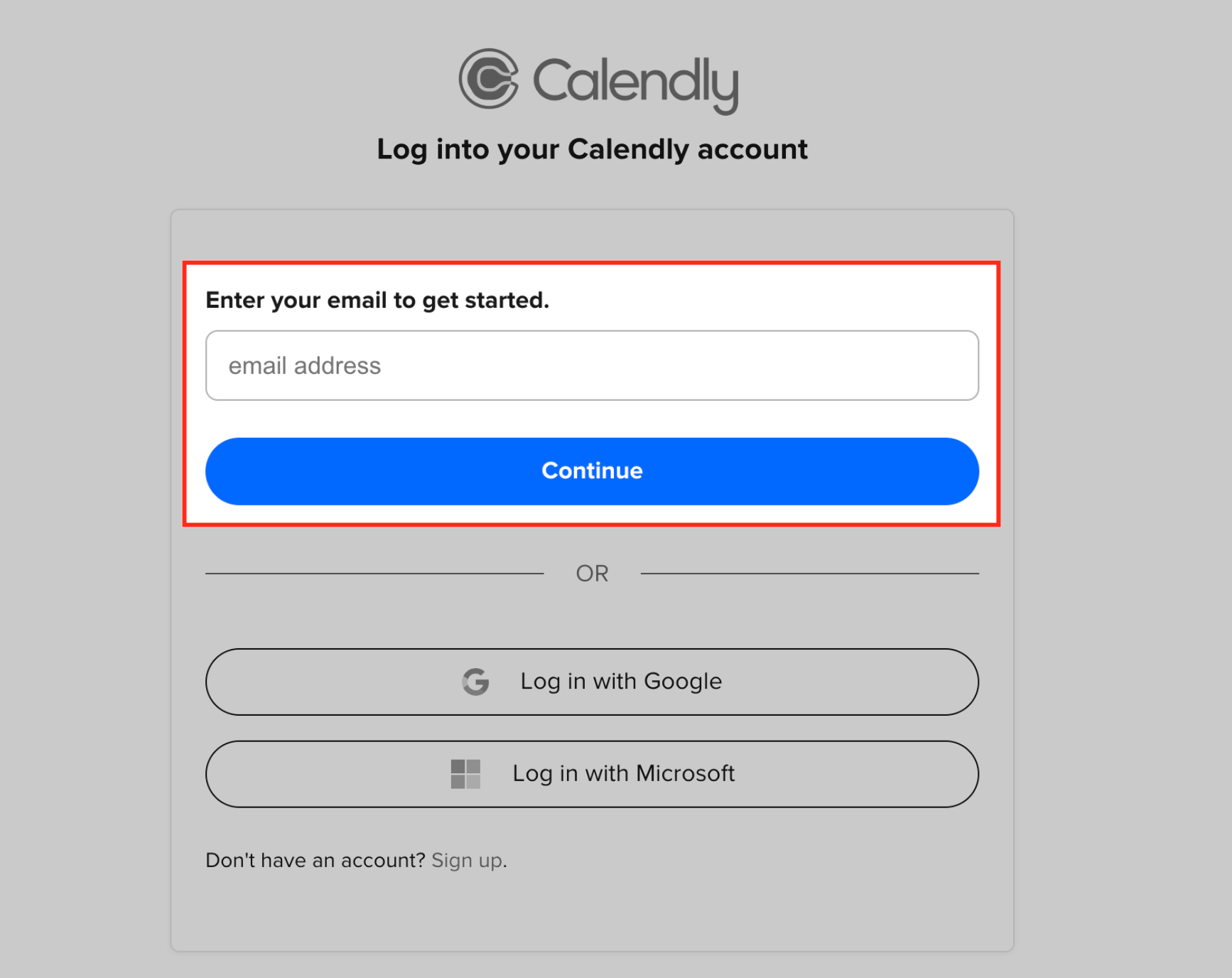
Log Into Calendly
Complete the authentication process by logging into your Calendly account and granting access. Enter the email address associated with your Calendly account and click Continue. You can also log in using your Google or Microsoft credentials if linked.
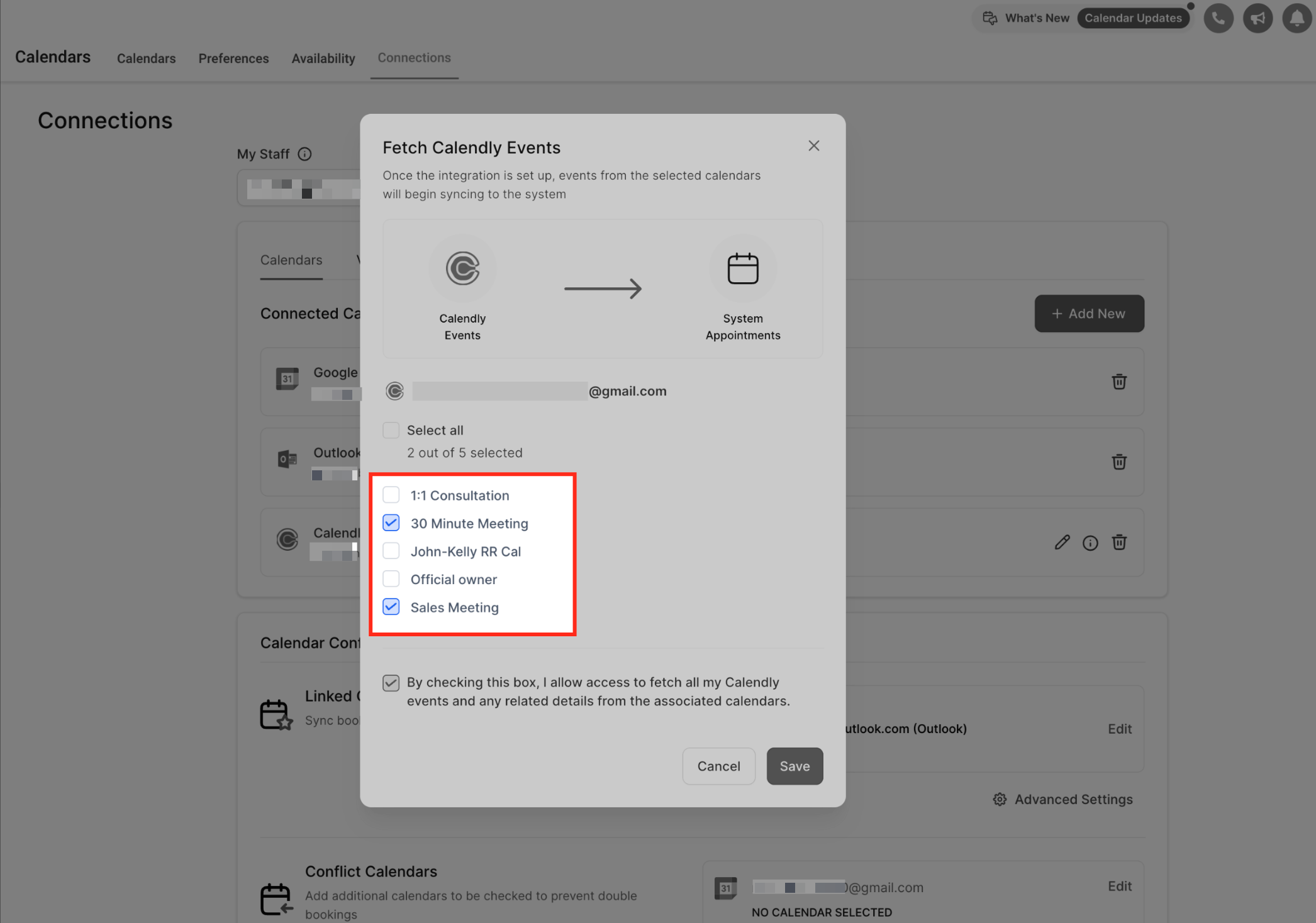
Choose Calendly Calendars
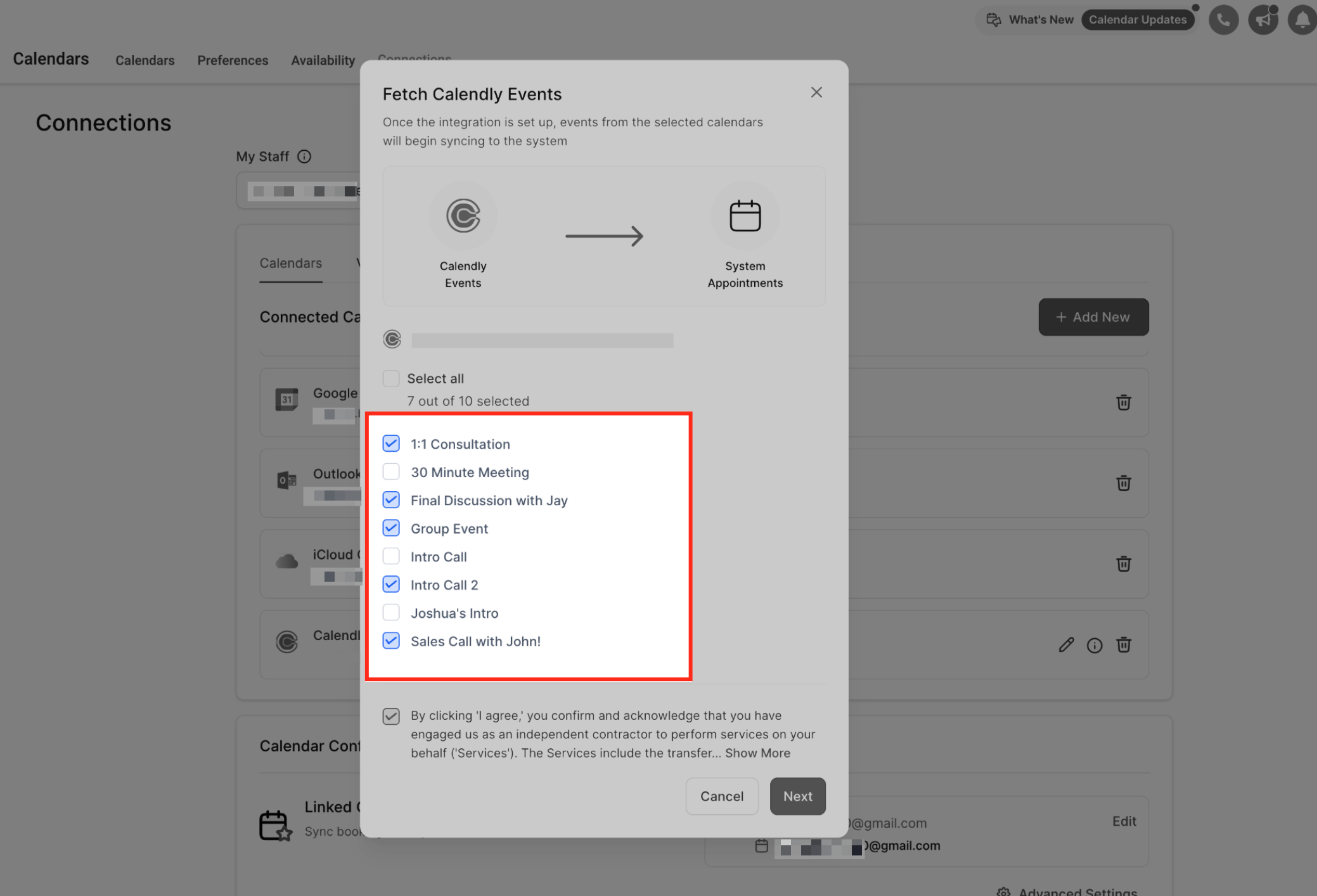
Select the Calendly calendars you want to sync into OmniReach. Only events from these selected calendars will be pulled into your system as appointments.
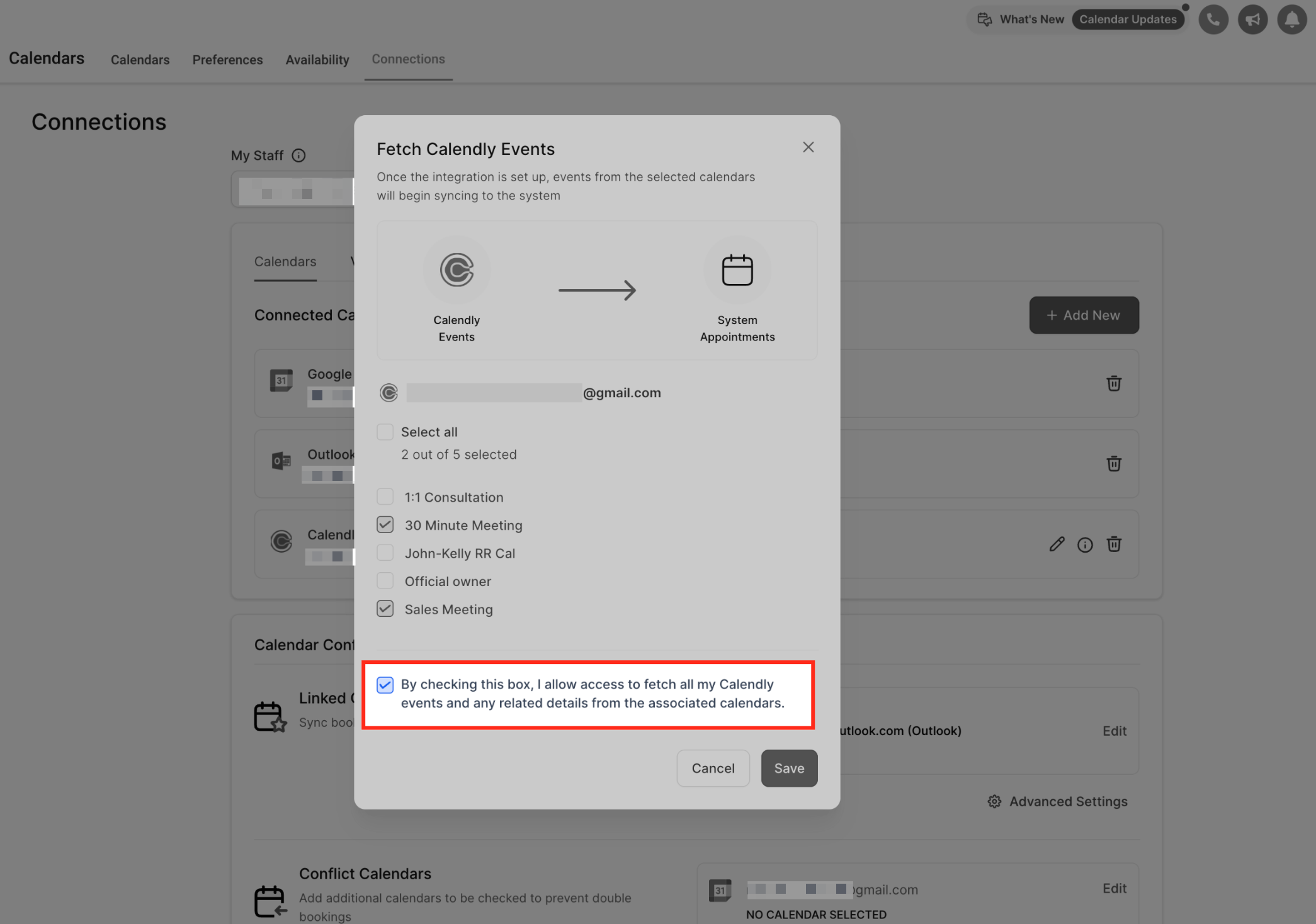
Approve Sync Access
Check the consent box to allow OmniReach to fetch your Calendly events and related details. Then click Save to complete the sync setup.
Phone number sync (Location vs Form fields)
OmniReach can import a guest’s phone number from Calendly in more than one way. When multiple sources are possible, you can choose what OmniReach should sync to the contact profile.
Automatic sync from meeting location phone number
If the guest’s phone number is entered in the Calendly meeting location and there are no phone fields in the Calendly form, OmniReach automatically syncs that number to the contact.
Mapping modal when phone numbers come from Calendly form fields
If a phone number field exists in the Calendly form (Q&A), OmniReach shows a mapping screen so you can choose what to sync:
Select a phone value from a form field
Select the meeting location phone field (if present)
Choose Do not sync (to avoid mapping a phone number)
How to Edit or Update Synced Calendars
Edit Calendar Selection
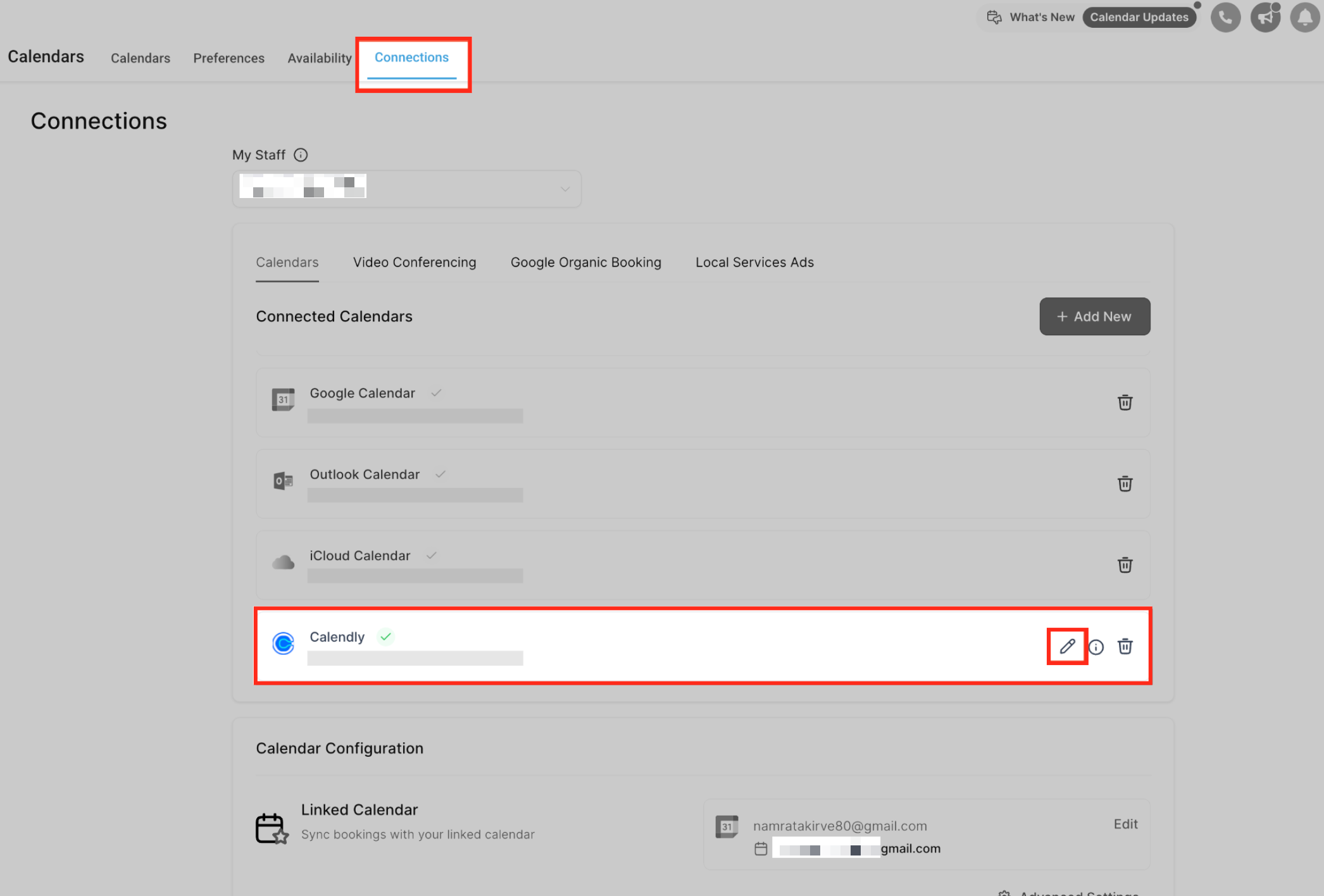
Once connected, your Calendly integration will appear under Connected Calendars. Click the pencil icon to edit which Calendly calendars are synced with OmniReach.
You can easily update your calendar selections if your preferences change or new team calendars are added.
Modify Synced Calendars
Update your calendar selections by checking or unchecking the events you’d like to sync. Only the calendars selected here will continue syncing into OmniReach.
Frequently Asked Questions
Q: Can I connect multiple Calendly accounts to one user?
No. Each user can connect only one Calendly account per subaccount.
Q: Can the same Calendly account be used by multiple users?
Yes. A single Calendly account can be connected to multiple users across different subaccounts.
Q: What plans does this integration support?
Only Standard, Teams, and Enterprise Calendly plans are supported. Free and Essentials plans are not compatible.
Q: What happens if I’m on a trial?
You can connect Calendly during the trial. If you don’t upgrade to a supported plan after the trial ends, the integration will stop working.
Q: Can I edit Calendly events in OmniReach?
No. This is a one-way sync. All event changes must be made inside Calendly.