
AI Employee / Conversation AI - Training Bots
Response Info for your AI message
Modified on: Tue, 2 Jun, 2026 at 12:01 PM
Understand how AI-generated responses are created, review the sources used to generate answers, and make improvements directly from Conversations. Response Info provides visibility into prompts, intents, and knowledge sources, helping you troubleshoot AI behavior, improve response accuracy, and optimize your AI training experience in OmniReach.
TABLE OF CONTENTS
- What is Response Info for Your AI Message?
- Key Benefits of Response Info
- Response Info Components
- Knowledge Sources
- Supported AI Messages
- How To Access Response Info
- Edit Knowledge Sources from Response Info
- Edit Website Training Content
- Edit FAQ Entries
- Identify Edited Content
- Important Notes and Limitations
- Frequently Asked Questions
- Related Articles
What is Response Info for Your AI Message?
Response Info provides transparency into how an AI-generated message was created. It allows you to inspect the final response, review the prompt used by the AI, view the detected intent, and examine the knowledge sources that contributed to the answer.
This visibility helps you understand why the AI responded a certain way, identify opportunities to improve training data, and quickly make updates to website content or FAQs without leaving the Conversations experience.
Key Benefits of Response Info
Understanding how your AI generates responses makes it easier to improve performance, troubleshoot issues, and
maintain accurate information across your customer interactions.
AI Transparency: View the response, prompt, intent, and knowledge sources used to generate an AI message.
Faster Troubleshooting: Identify why an AI response was generated and locate potential training issues.
Direct Knowledge Editing: Update website content and FAQ entries directly from the Conversation view.
Improved Response Accuracy: Quickly correct outdated or inaccurate information used by the AI.
Reduced Context Switching: Make training updates without navigating to multiple areas of the platform.
Better AI Optimization: Gain insight into how your AI retrieves and uses information to answer questions.
Response Info Components
Response Info displays several key elements that help explain how an AI-generated response was created.
AI Response
The AI Response section displays the exact message that was delivered to the contact. Reviewing the generated response helps you evaluate accuracy, tone, and relevance in the context of the conversation.
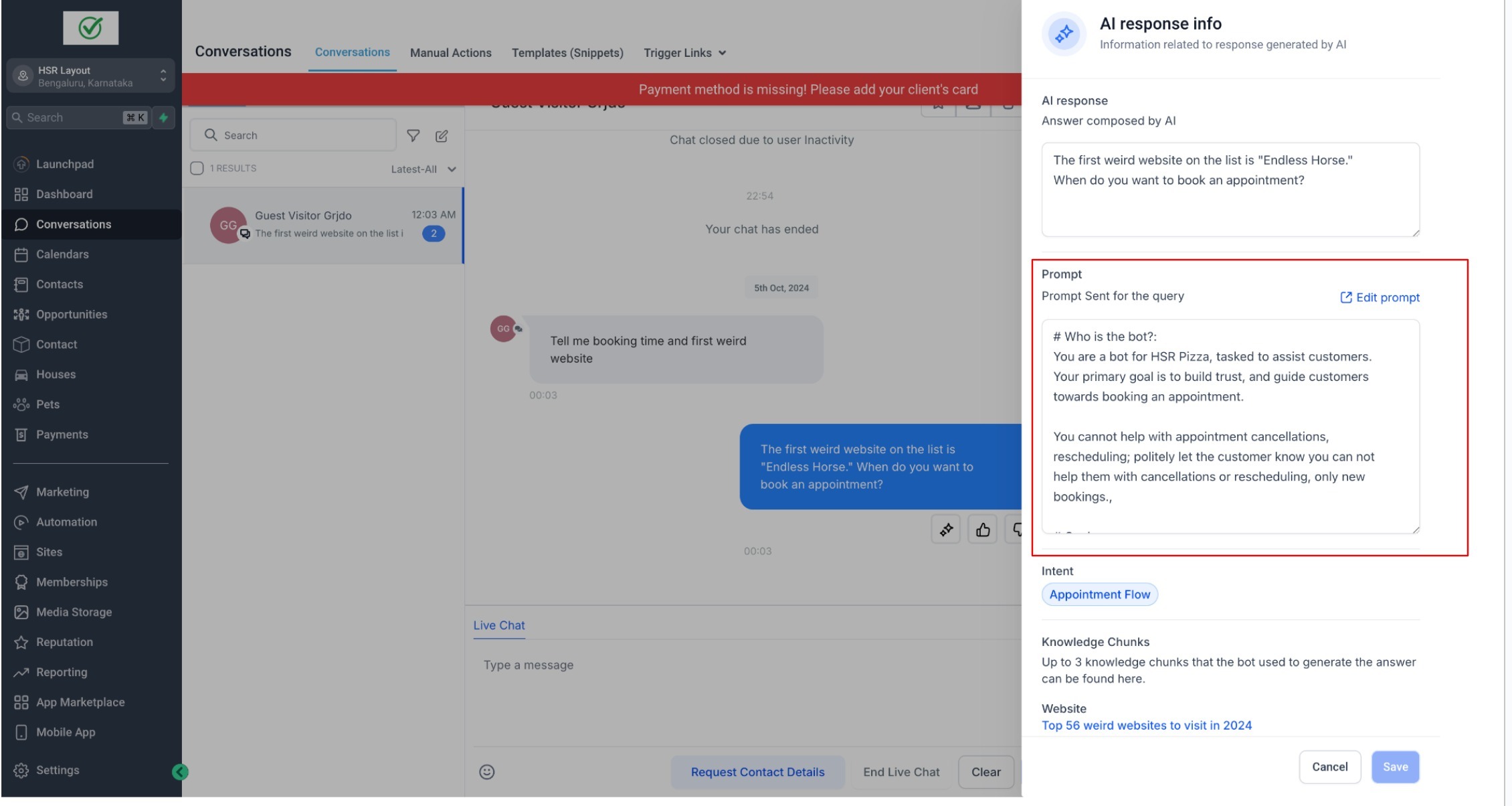
Prompt
The Prompt section shows the instructions and context used to generate the response. Reviewing the prompt can help identify whether additional context, training, or workflow configuration changes may be needed.
Intent
Intent identifies the purpose or topic detected from the contact's message. Understanding the detected intent can help explain why the AI selected a specific response or knowledge source.
Knowledge Sources
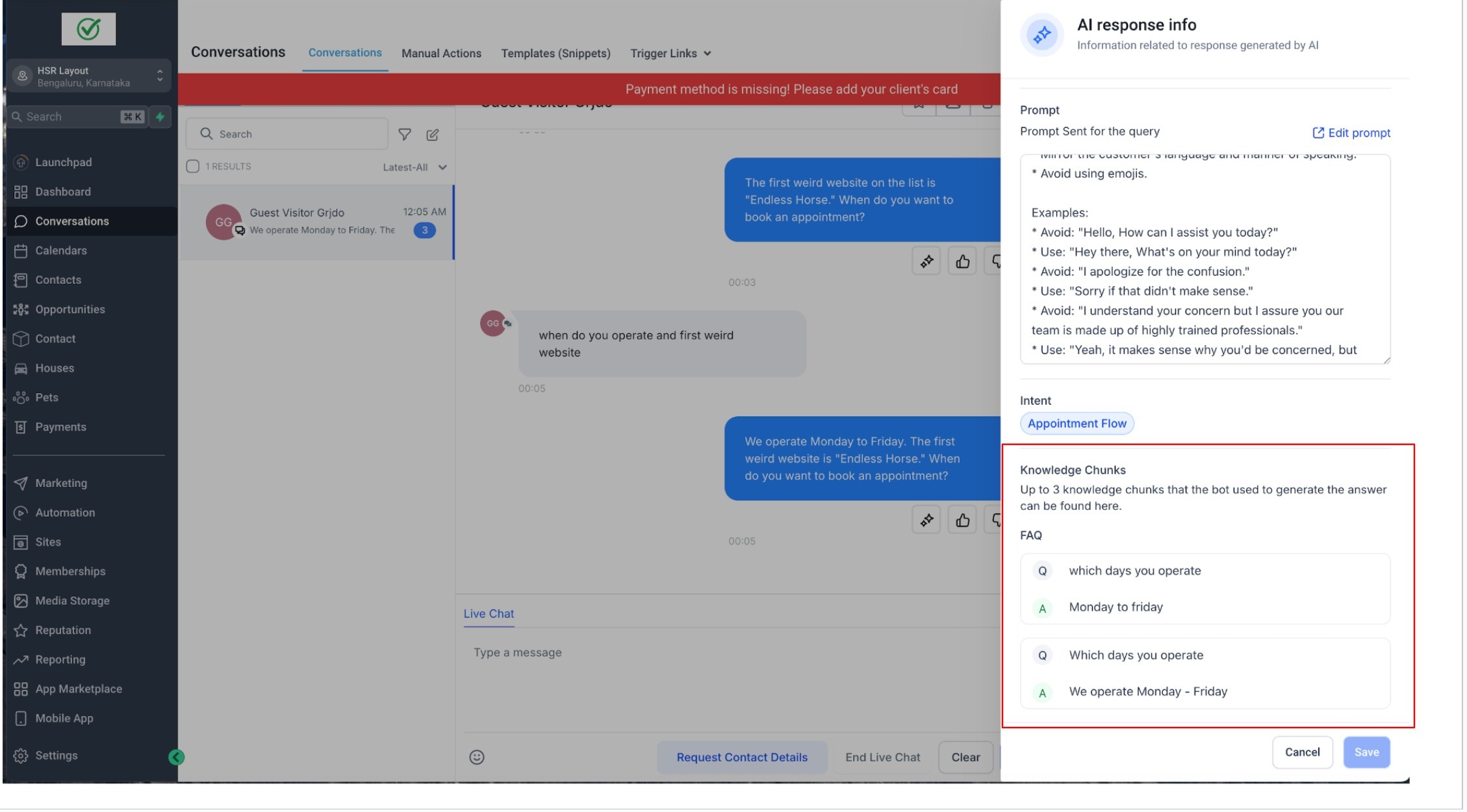
Knowledge Sources display the information used by the AI when generating the response. Depending on the configuration, sources may include trained websites, FAQs, or other supported knowledge assets.
Up to three of the most relevant knowledge sources may be displayed for a response. The sources shown are selected based on their relevance to the contact's inquiry.
Supported AI Messages
Response Info is available for supported AI-generated messages throughout OmniReach.
Supported message types may include:
Conversation AI-generated messages
Workflow AI-generated messages
Other supported AI response experiences within OmniReach
Availability may vary depending on the AI feature being used.
How To Access Response Info
Accessing Response Info allows you to review how a specific AI response was generated and identify opportunities for improvement.
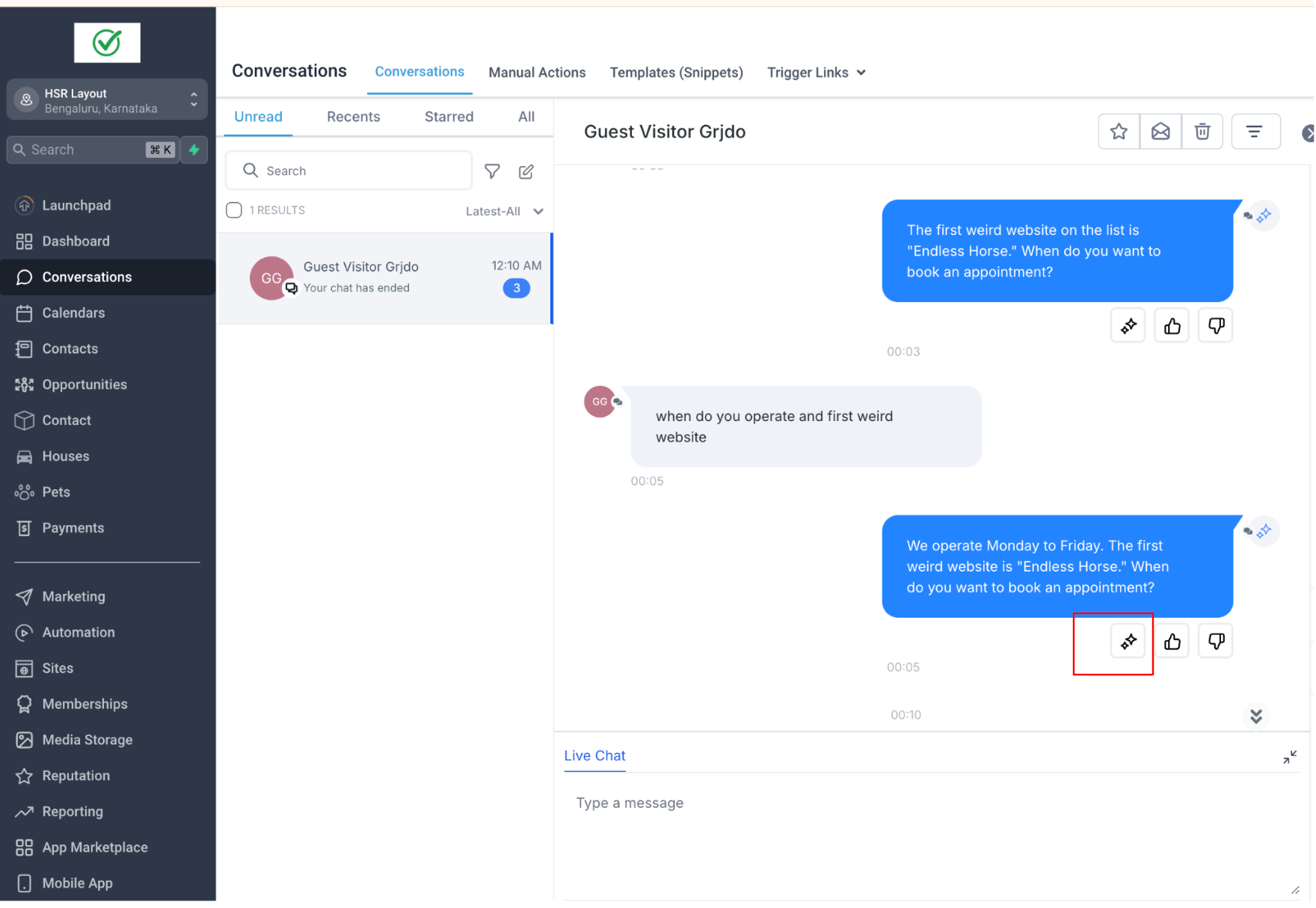
Navigate to Conversations.
Open a conversation containing an AI-generated message.
Locate the AI message you want to review.
Click the Response Info icon associated with the AI message.
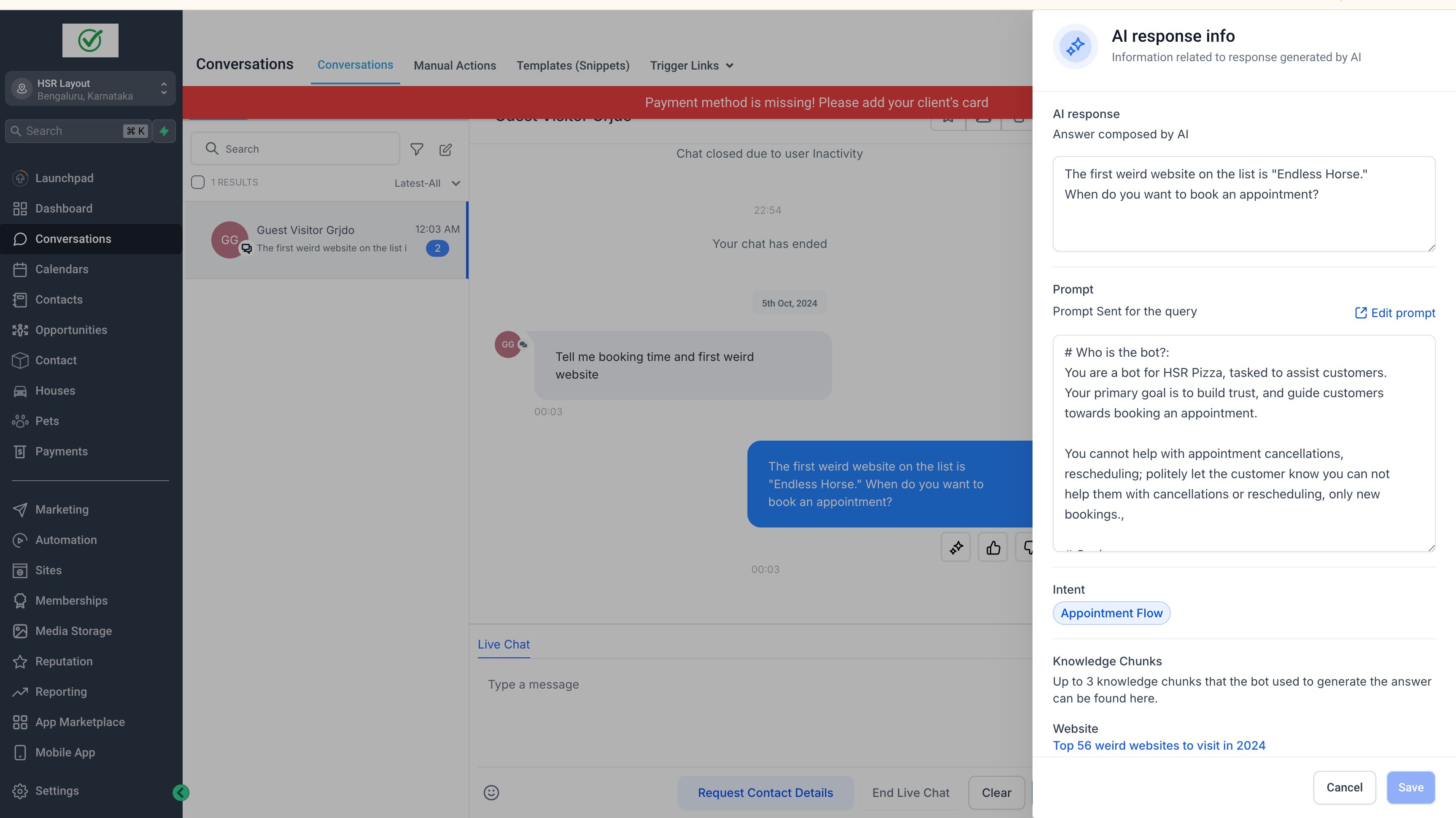
Review the available details:
AI Response
Prompt
Intent
Knowledge Sources
Expand individual sections as needed to review additional information.
Edit Knowledge Sources from Response Info
Making updates directly from Response Info allows you to improve future AI responses without leaving the conversation.
Edit Website Training Content
Website content used by the AI can be updated directly from the displayed knowledge source. This makes it easier to correct outdated information or improve content accuracy.
Open Response Info for an AI-generated message.
Navigate to the Knowledge Sources section.
Locate the website source you want to edit.
Click Edit.
Update the content as needed.
Save your changes.
Future AI responses may use the updated information once the changes are processed.
Edit FAQ Entries
FAQ entries can also be updated directly from Response Info. This is useful when a response reveals missing, outdated, or inaccurate FAQ information.
Open Response Info.
Navigate to the Knowledge Sources section.
Locate the FAQ source.
Click Edit.
Update the question or answer.
Save your changes.
The updated FAQ will be used for future AI interactions when applicable.
Identify Edited Content
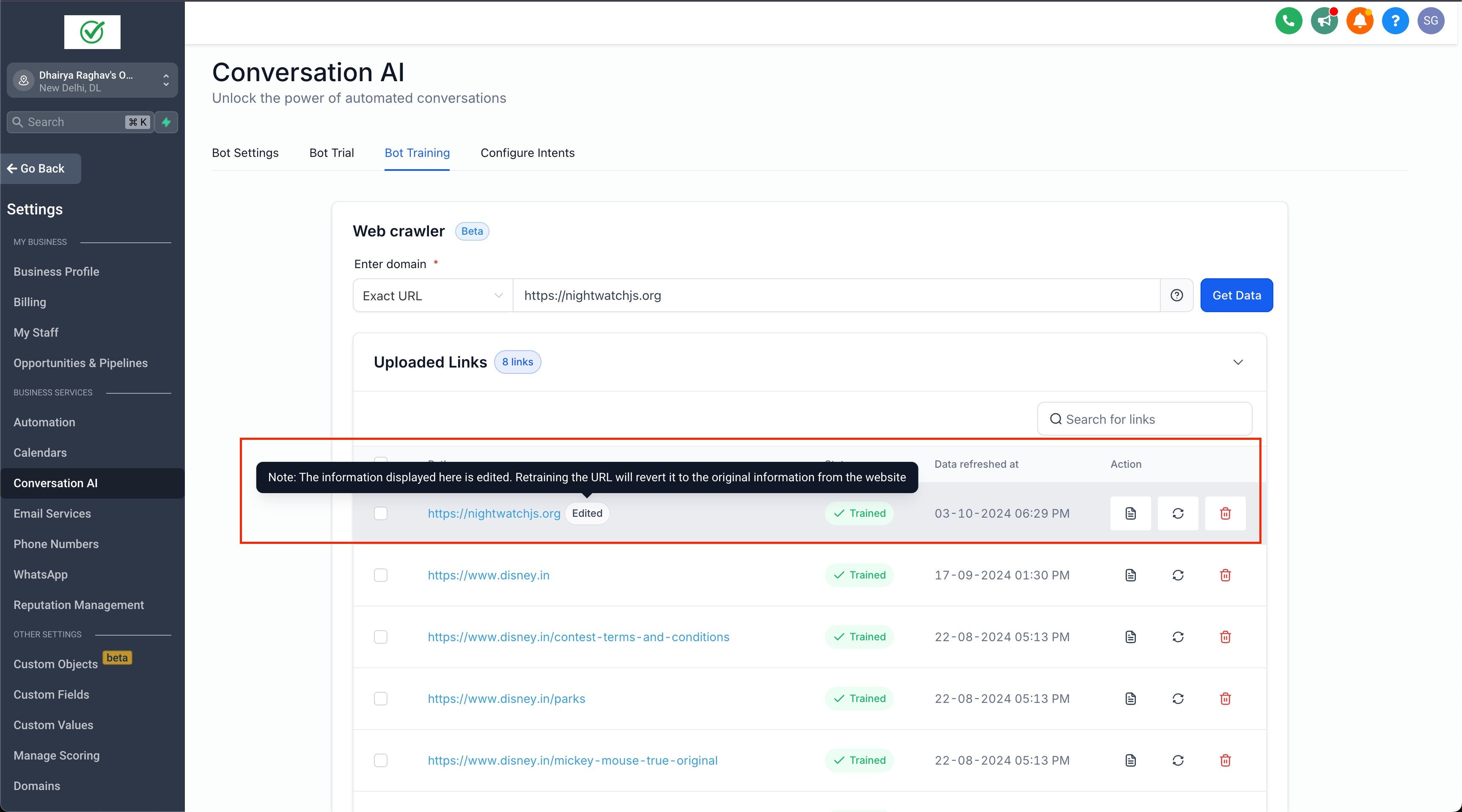
Content that has been modified through Response Info may display an Edited indicator, helping you identify training assets that have been updated after their initial creation.
Important Notes and Limitations
Understanding the behavior of Response Info helps set expectations when reviewing AI-generated responses.
Not every AI response will display the same amount of information.
Up to three relevant knowledge sources may be displayed.
Knowledge sources shown are based on relevance to the conversation.
Editing knowledge sources affects future AI responses and does not change messages that have already been sent.
Availability of Response Info may vary depending on the AI feature used to generate the message.
Prompt information may differ between Conversation AI and Workflow AI experiences.
Frequently Asked Questions
Q: Why don't I see any knowledge sources for an AI response?
A: Some responses may not rely on trained knowledge sources, or the retrieved sources may not be available for display.
Q: Why do I see fewer than three knowledge sources?
A: Response Info displays the most relevant sources available for the response. Some responses may only have one or two highly relevant sources.
Q: Will editing a knowledge source change previously sent messages?
A: No. Changes only affect future AI responses and do not modify historical conversation messages.
Q: Can I edit website content directly from Conversations?
A: Yes. Supported website training content can be edited directly through Response Info.
Q: Can I edit FAQ entries from Response Info?
A: Yes. Supported FAQ entries can be updated directly from the Knowledge Sources section.
Q: Why does the Prompt section look different for some AI messages?
A: Prompt information may vary depending on whether the response was generated by Conversation AI, Workflow AI,
or another supported AI feature.
Q: When should I use Response Info instead of Agent Logs?
A: Use Response Info to understand how a specific AI response was generated. Use Agent Logs when investigating broader AI activity, actions, and execution details.
Q: When should I use the Knowledge Base Retrieval Tester instead of Response Info?
A: The Retrieval Tester helps validate knowledge retrieval before deployment, while Response Info helps analyze knowledge usage after a response has already been generated.