
Phone System / Messaging
How to Onboard an RCS Sender ID in OmniReach (Non-ISV)
Modified on: Wed, 15 Apr, 2026 at 7:22 AM
Overview
This document describes the standard procedure for registering a Rich Communication Services (RCS) Sender ID using the Twilio platform.
Prerequisites
Before proceeding, ensure the following conditions are met:
- You have an active Twilio account that is enrolled in RCS.
- You have access to the sub-account for which the Sender ID is being created.
Note: RCS Sender IDs require approval from carriers and Google. This carrier/Google onboarding and approval process is outside the scope of this article.
Procedure
Step 1 — Log In to the Correct Sub-Account
- Navigate to the Twilio Console.
- Log in to the sub-account for which you want to set up the RCS Sender ID.
Ensure you are operating within the correct sub-account before proceeding, as Sender IDs are account-specific.
Step 2 — Create the RCS Sender ID
- In the left-hand navigation, go to Develop → RCS → Senders.
- Click Create RCS Sender and complete the following required fields:
Field Description Sender Display Name The name that will be visible to message recipients Description A brief description of the sender / use case Logo Image Your brand logo (displayed in the messaging thread) Banner Image A banner image for your sender profile Accent Color Brand color used in the RCS message UI Note-
A) Fill in any additional fields presented by Twilio as part of the registration flow.
B) Please make sure to also share us that information.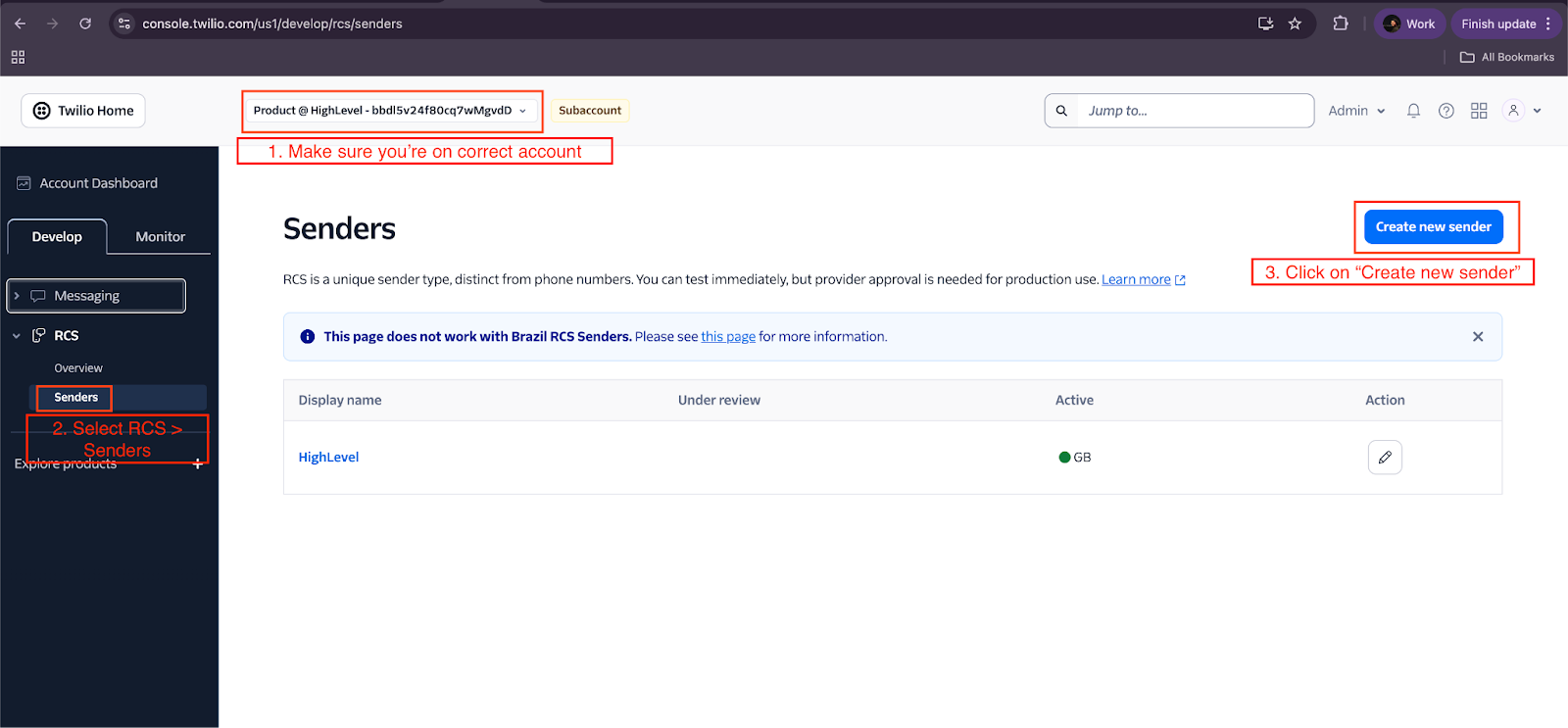
Step 3 — Configure Webhooks
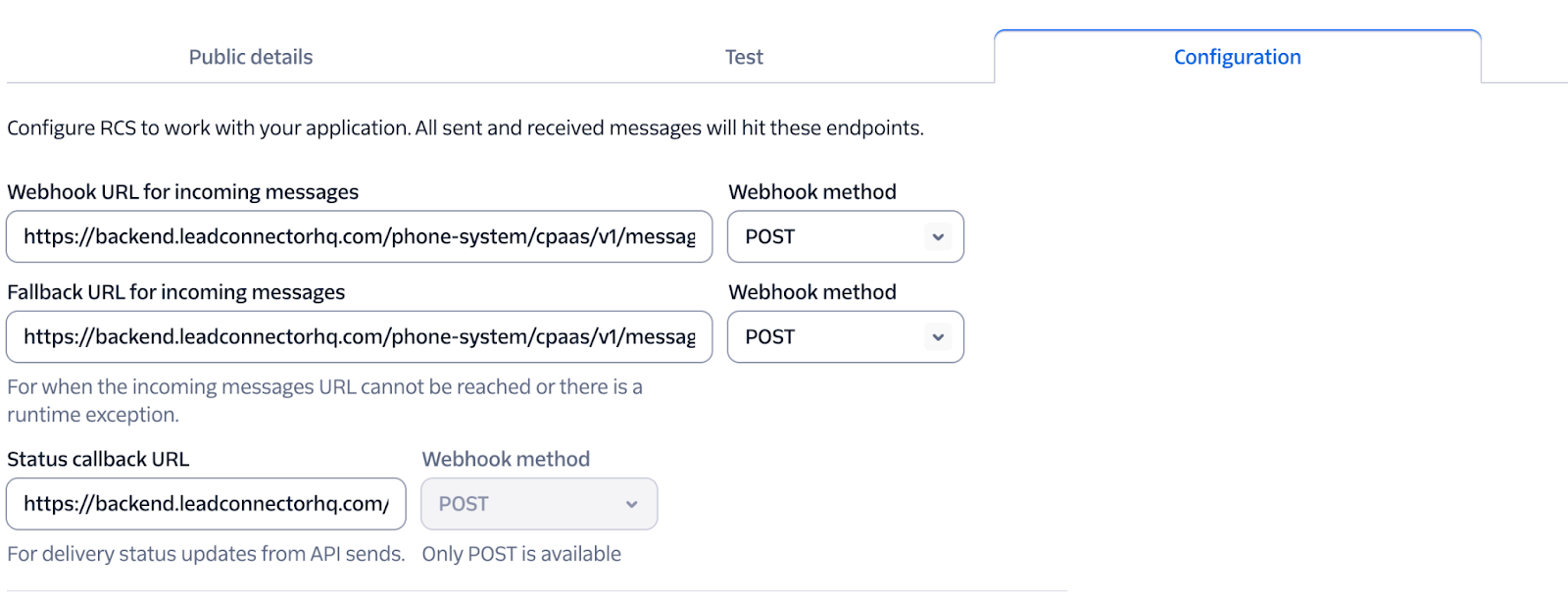
Once the Sender ID is created, navigate to the Configuration tab and set the following URLs:
| Webhook | URL | Method |
|---|---|---|
| Incoming Messages URL | https://backend.leadconnectorhq.com/phone-system/cpaas/v1/messages/incoming | POST |
| Fallback URL | https://backend.leadconnectorhq.com/phone-system/cpaas/v1/messages/incoming | POST |
| Status Callback URL | https://backend.leadconnectorhq.com/phone-system/cpaas/v1/messages/status | POST |
All webhook methods must be set to POST.
Part 2: Creating a Messaging Service
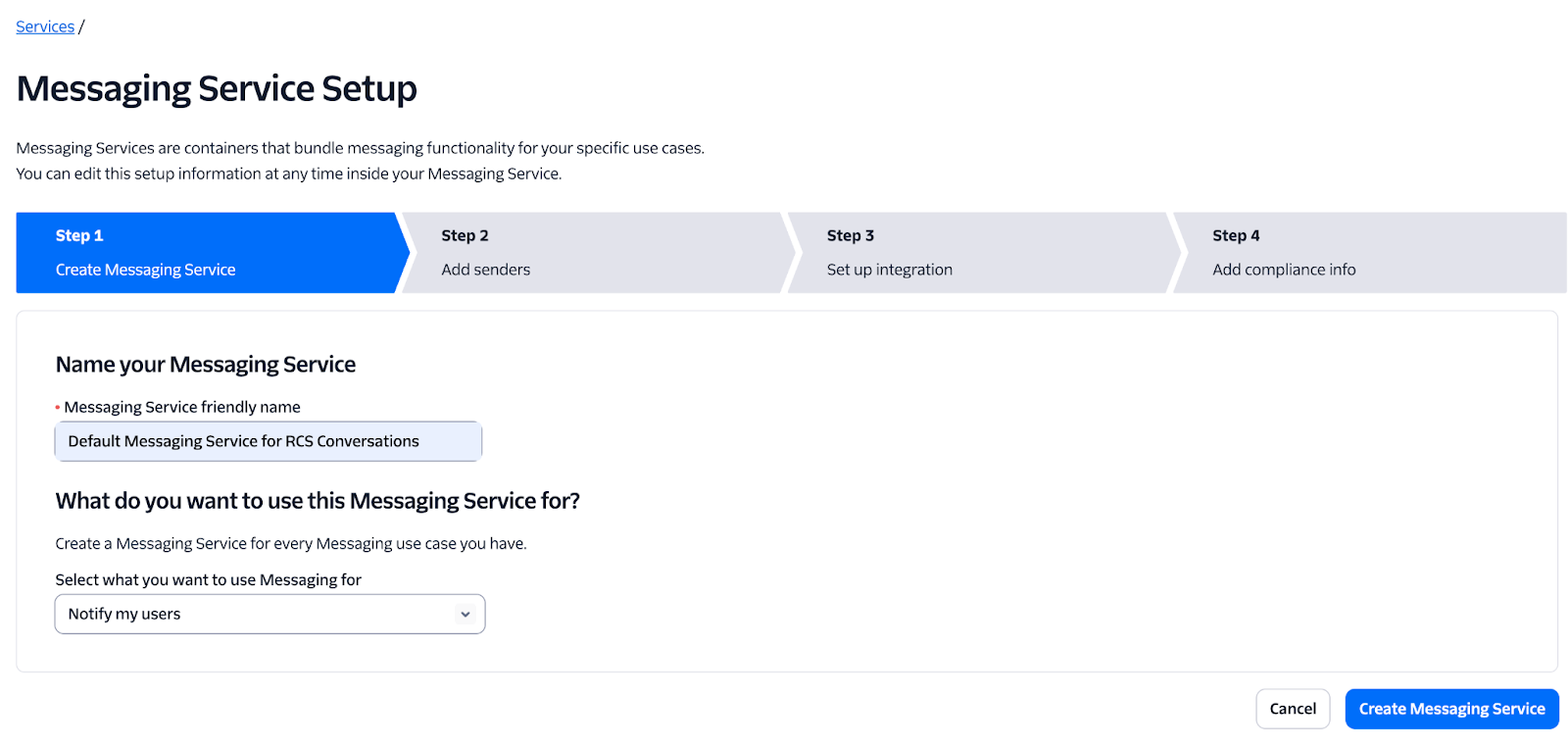
Step 4 — Create a Messaging Service
- Go to Develop → Messaging → Services.
If Messaging is not visible, click Explore Products and add it first.
- Click Create Messaging Service, enter a name, and select the appropriate option for "Select what you want to use Messaging for".
Step 5 — Configure Messaging Service Webhooks (Step 3 Integration)
Under the Integration step of the setup, configure the following:
Incoming Messages
| Field | Value | Method |
|---|---|---|
| Request URL | https://backend.leadconnectorhq.com/phone-system/cpaas/v1/messages/incoming | HTTP POST |
| Fallback URL | https://backend.leadconnectorhq.com/phone-system/cpaas/v1/messages/incoming | HTTP POST |
Delivery Status Callback
| Field | Value |
|---|---|
| Callback URL | https://backend.leadconnectorhq.com/phone-system/cpaas/v1/messages/status |
Click Save once done.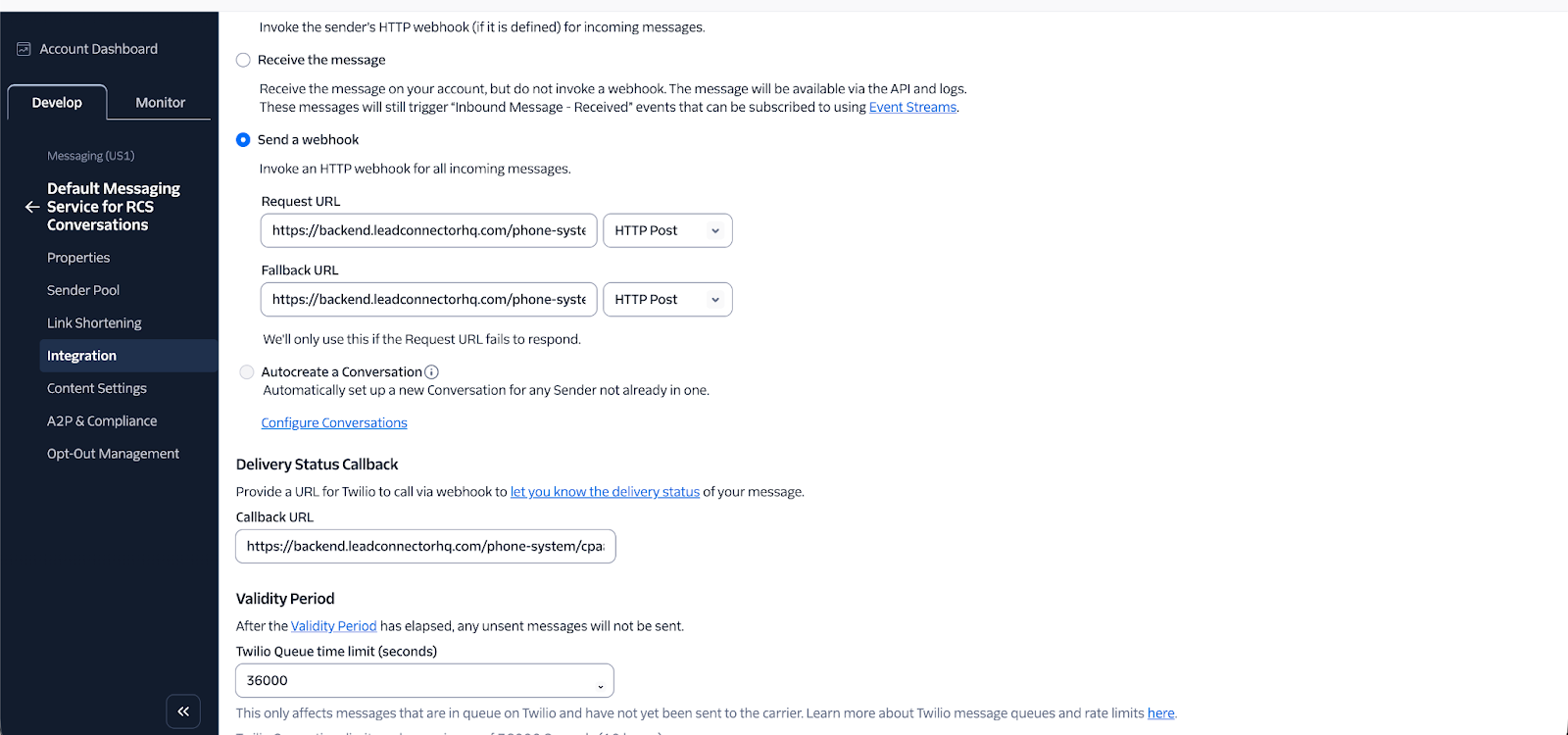
Part 3: Attaching the RCS Sender ID to the Messaging Service
Step 6 — Add RCS Sender to Sender Pool
- Open the Messaging Service you just created.
- Navigate to the Sender Pool tab and click Add Senders.
- Under Sender Type, select RCS Sender and click Continue.
- Select your RCS Sender from the list and click Add RCS Senders.
Part 4: Sharing Details with OmniReach for Onboarding
To complete onboarding, share the following information with OmniReach.
How to Find Each Value
- Messaging Service SID — Go to Messaging → Services, open your service, navigate to Properties. The SID starts with
MG….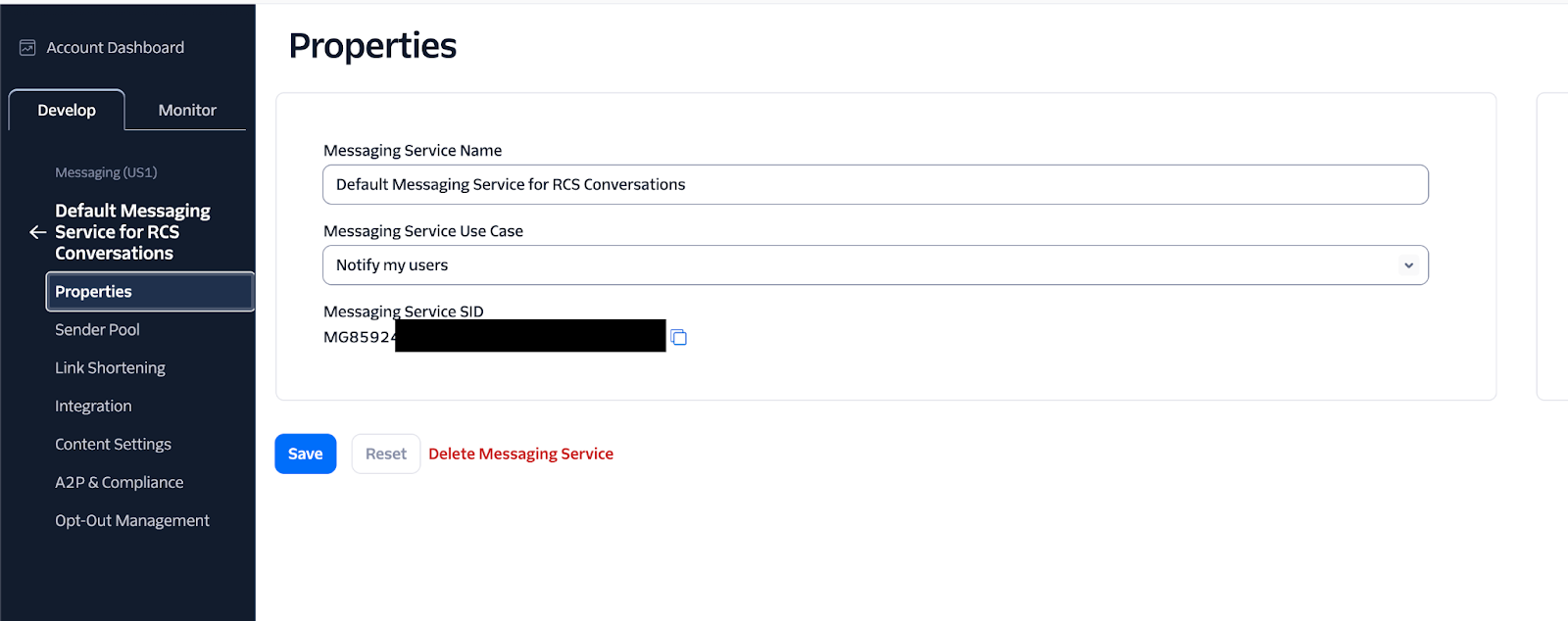
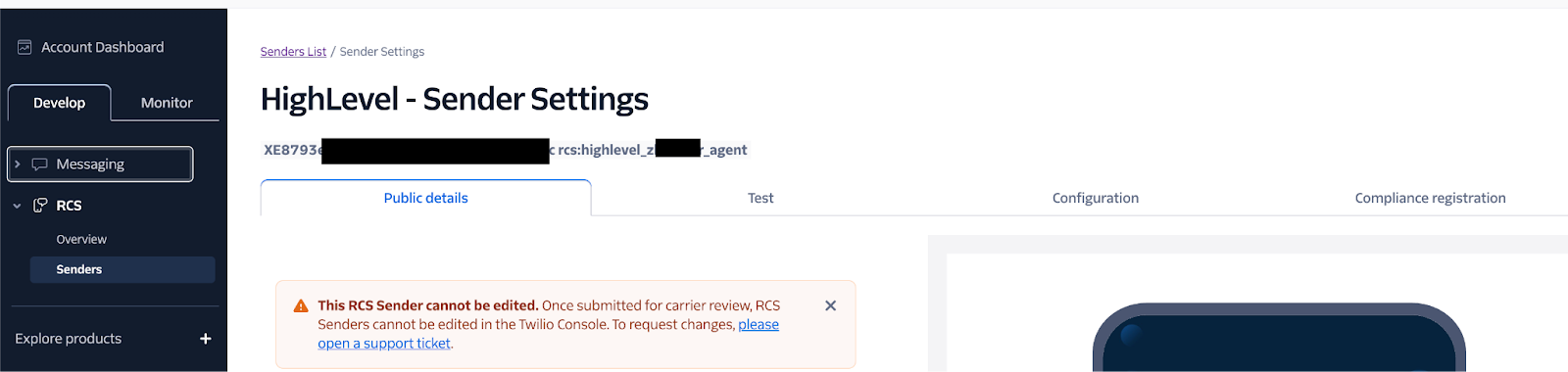
- RCS Sender SID — Go to RCS → Senders, open your Sender. The SID starts with
XE…. - RCS Sender ID — Same page as above. The ID starts with
rcs:…. - Account SID — Found on your Twilio sub-account dashboard.
- Logo / Banner Image URLs — Go to RCS → Senders → [Your Sender] → Public Details.
Required Information Summary
| Required Information | Where to Find It | Example Format |
|---|---|---|
| Account SID | Twilio Sub-account Dashboard | ACxxxxxxxx... |
| Messaging Service SID | Messaging → Services → Properties | MGxxxxxxxx... |
| RCS Sender SID | RCS → Senders | XExxxxxxxx... |
| RCS Sender ID | RCS → Senders | rcs:xxxxxxx... |
| Sender Display Name | RCS → Senders → [Sender ID] → Public Details | "Our RCS Sender" |
| Description | RCS → Senders → [Sender ID] → Public Details | "Description of the RCS Sender ID…" |
| Logo Image URL | RCS → Senders → [Sender ID] → Public Details | https://… |
| Banner Image URL | RCS → Senders → [Sender ID] → Public Details | https://… |
| Friendly Name | User-defined (for display within OmniReach only) | "Our RCS Sender" |